Keep AI Agents Running While You Sleep
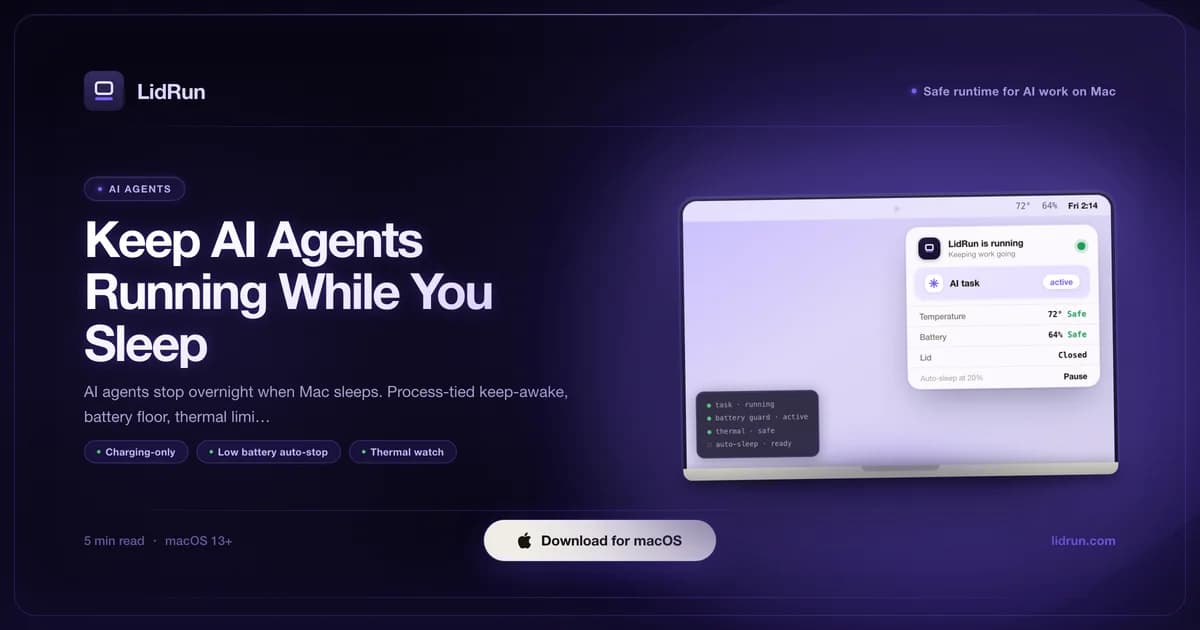
macOS doesn't know the difference between an idle terminal and an AI agent quietly grinding through a long task - no keyboard or mouse input, so the sleep timer runs the same either way. Keeping AI agents running while you sleep means solving four things at once, not one: preventing sleep only while the agent is genuinely working, protecting the battery and the hardware if you're unplugged, releasing the hold the instant the job actually ends, and knowing it happened without checking the terminal at 3am. You queue a Claude Code or Cursor run before bed expecting a finished branch by morning - and too often what's waiting is a stopped process and a screen that went dark hours earlier.
Why the Mac Interrupts Your AI Agent at Night
macOS is built to sleep when it detects no user input - keyboard, mouse, trackpad. An AI agent running in a terminal doesn't generate input events, so the display-sleep timer fires first, then system sleep follows. The moment the machine suspends, the agent loses CPU scheduling and network access - the run stops mid-task with no clean recovery, not even a saved checkpoint unless the tool wrote one itself.

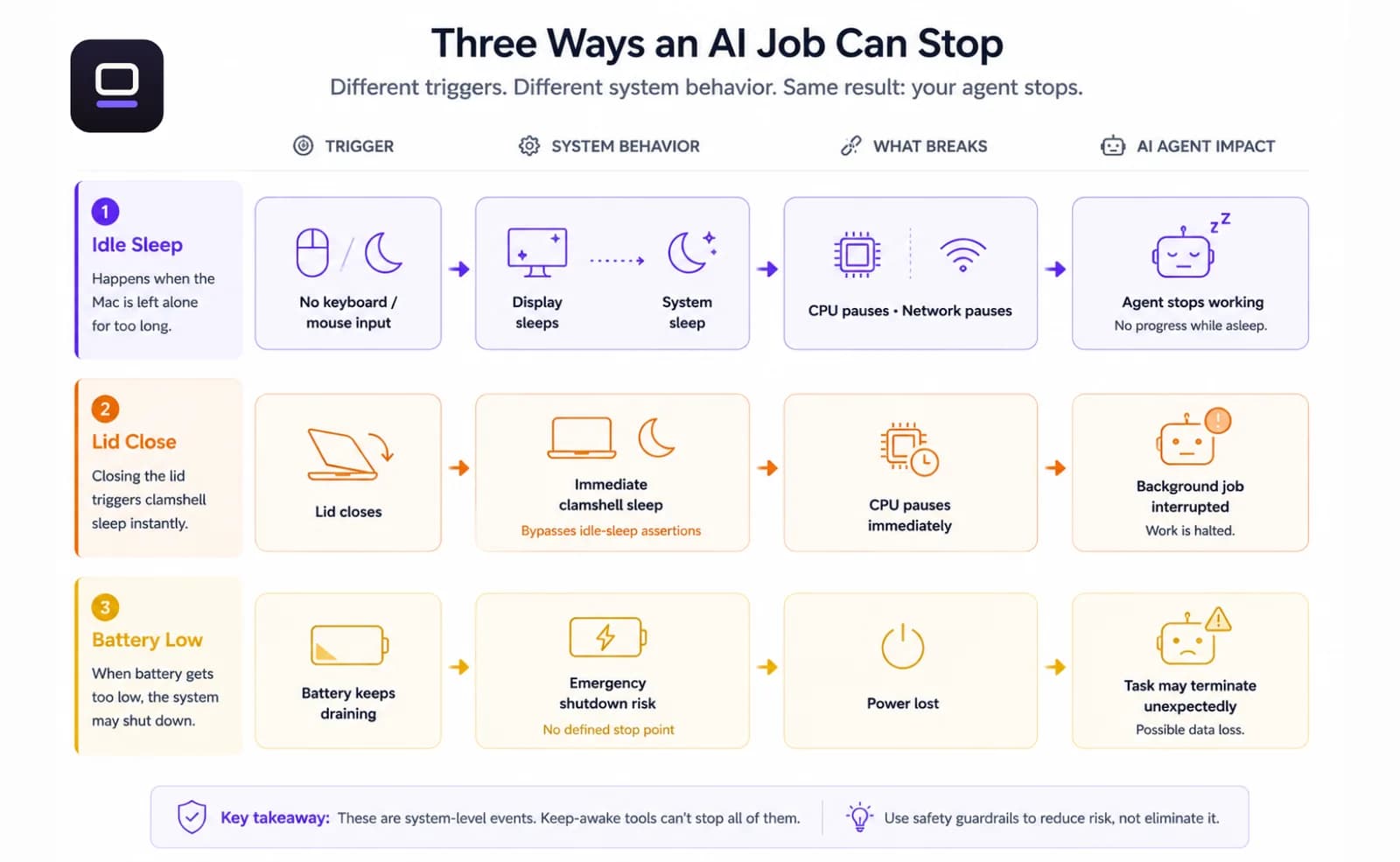
Closing the lid is a separate, faster trigger, and it doesn't care what's running. By default a MacBook suspends within seconds of the lid shutting, regardless of background work. A tool like caffeinate -i blocks idle sleep while the lid is open, but on battery it can't stop the lower-level clamshell sleep macOS triggers the instant the lid closes - no user-level power assertion can. That's a macOS limitation, not a caffeinate one: every tool built on the same IOPMAssertionCreateWithName mechanism, LidRun's own manual Keep Awake included, hits the same wall without a separate closed-lid mechanism.
Battery adds a third failure mode. macOS has its own critical-battery shutdown, and may force sleep before that point if it decides conditions warrant it. An agent doing heavy inference or a long build can pull a 50% battery down in three to four hours. Without a defined stop point, the OS decides when the run ends - and it won't always pick a clean moment.
The Free, Native Options - and Where Each One Breaks
Before reaching for any third-party app, it's worth knowing what macOS already gives you for free, because for a short foreground job it's often enough. caffeinate -i prevents idle sleep for as long as it runs; add -w <pid> and it exits automatically when that process does - the cleanest built-in pattern for a single command you're watching, e.g. caffeinate -i -w $(pgrep -f "python train.py"). caffeinate -d blocks display sleep too, and -s blocks system sleep specifically on AC power. It ships with every Mac, needs no install, and is fully scriptable.
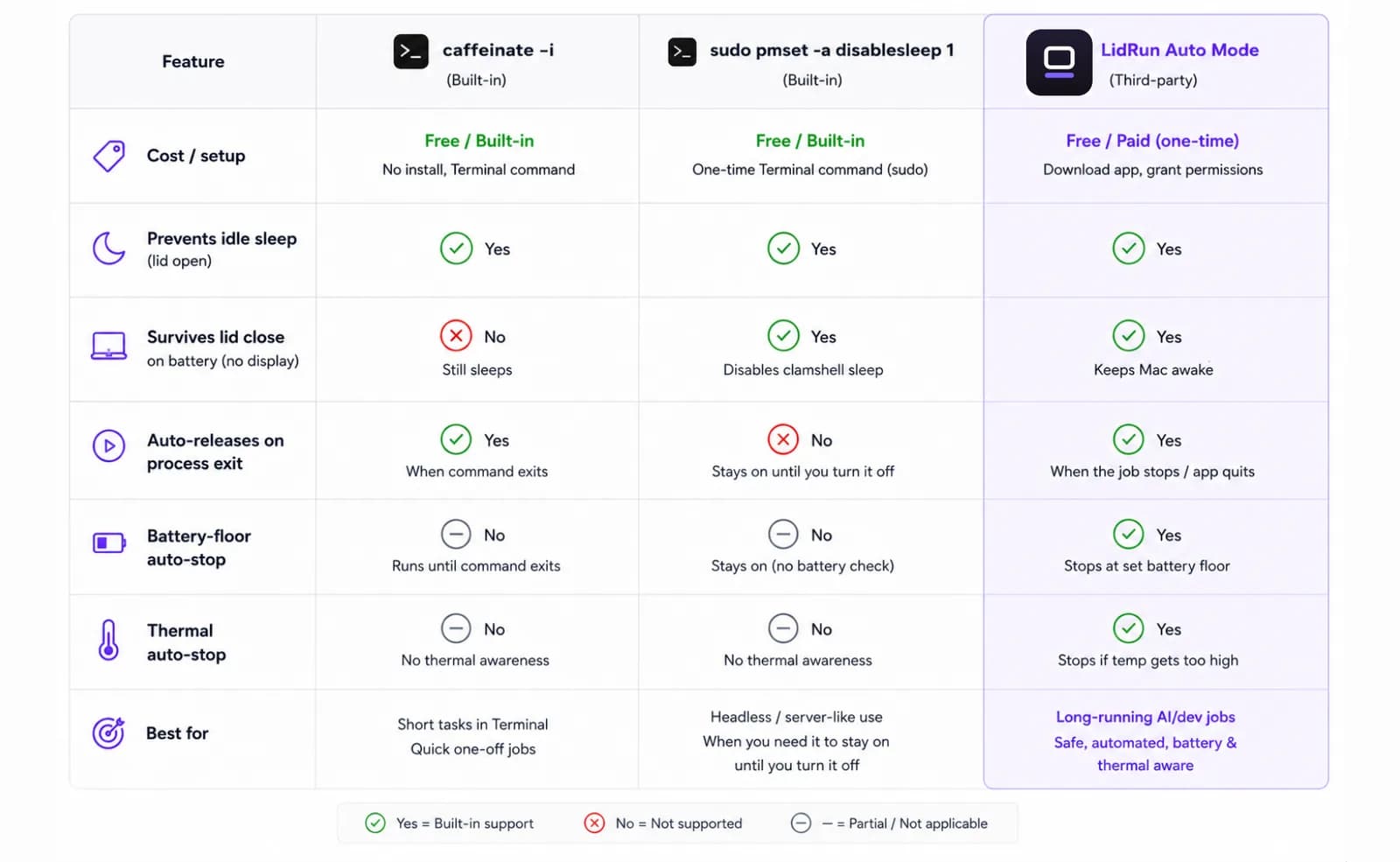
None of that survives a closed lid on battery, though. The only public lever that prevents lid-close sleep without an external display is sudo pmset -a disablesleep 1 - a system-wide setting, not a per-process assertion, and it requires administrator privileges. It's also the same underlying mechanism LidRun's own Closed-Lid mode uses; there's no private API here, just the documented pmset toggle. The other native path is Apple's actual clamshell mode: connect an external display and stay on AC power, and the Mac runs lid-closed exactly as intended, no commands required. That's the officially supported route, but it means owning and carrying a display - not practical for an overnight run in a hotel room or a spare bedroom.
Third-party menu-bar apps fill the gap between those two extremes. Amphetamine, KeepingYouAwake, Caffeine, and Lungo are all solid, focused keep-awake toggles - polished UI, timers, some support scheduled on/off windows. They're a fair choice if what you want is simply "stay awake until I say otherwise." What none of them do is tie the hold to a specific background process, watch battery or thermal state, or release automatically the moment an agent's process exits - that's not the job they were built for.
Related guideWhat Is AI Agent Continuity?The Risk of Doing It By Hand
Both native paths have a sharp edge on an unattended overnight run. caffeinate -i without -w just runs until you kill it - nothing stops it automatically when the job finishes, so it's easy to leave a Mac awake and burning battery for hours after the agent is actually done, and it still gets blindsided by a closed lid on battery.
sudo pmset -a disablesleep 1 is riskier in a different way, because it's global and persistent - not scoped to your terminal session or to the process you cared about. The setting survives after the command that set it exits. If you close the terminal, if the Mac crashes, or if you simply forget to run sudo pmset -a disablesleep 0 in the morning, the Mac won't sleep on its own again - not that night, not the next day - until you reset it manually or reboot. Nothing is watching a battery floor or a thermal ceiling in the meantime, and nothing notices that the agent actually finished twenty minutes ago.
That's the real gap - not that caffeinate or pmset are bad tools, they're exactly right for a foreground job you're watching. The gap is that none of the free options, and none of the third-party always-on toggles, know what "the agent is done" means. They hold the Mac awake or they don't; there's no concept of releasing on process exit, backing off on a battery floor, or backing off on heat.
The Safer Pattern: Tie Keep-Awake to the Agent Process
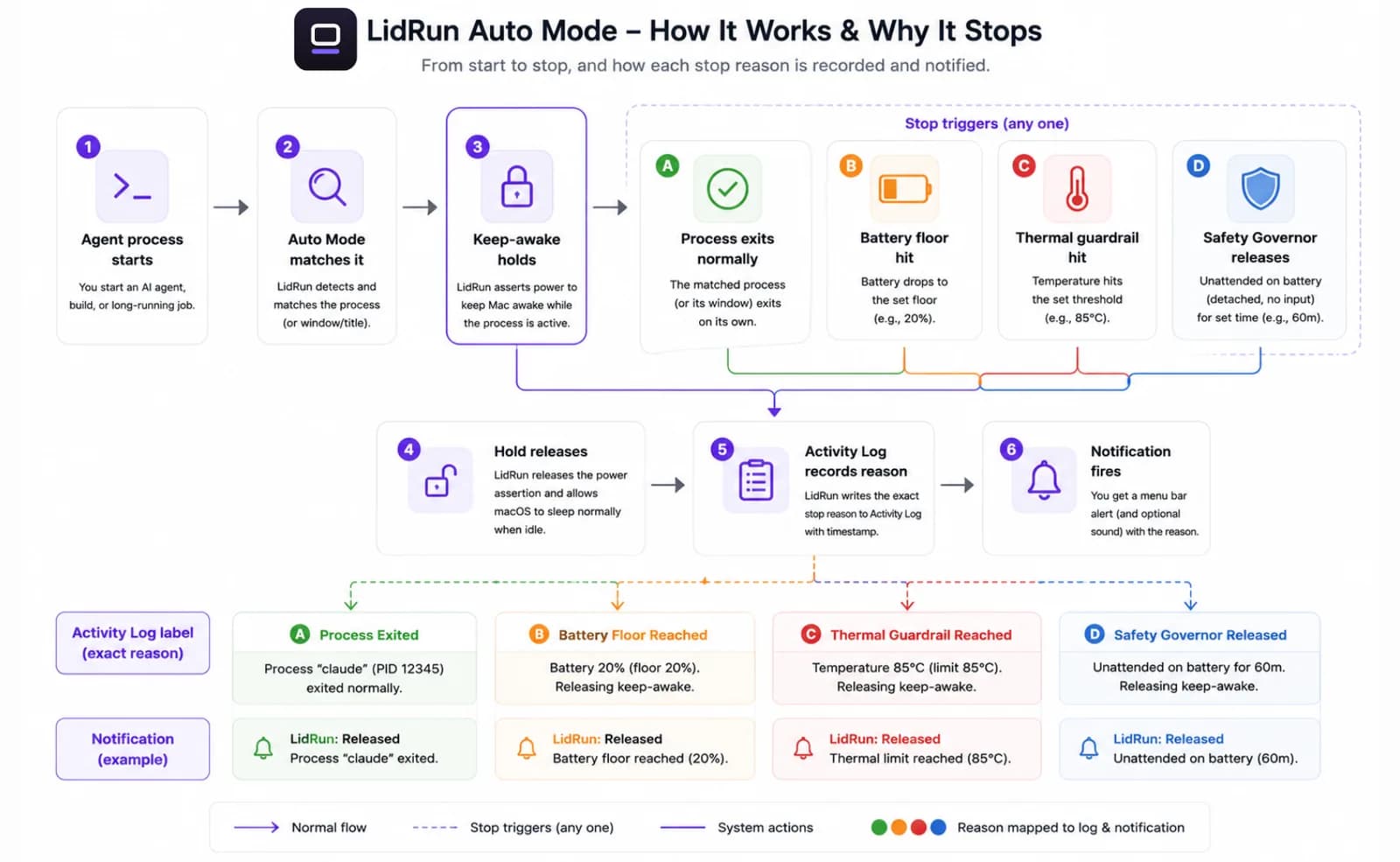
The fix is what LidRun calls Auto Mode: process-tied keep-awake, the core mechanic behind LidRun's safe runtime layer for AI work on Mac. It holds a power assertion only while a matched process is running and releases it the moment that process exits - not a blind wake lock that holds the Mac awake regardless of what's actually happening. Its built-in catalog already recognizes Claude Code, Codex, Cursor, Windsurf, Aider, Cline, Continue, Goose, OpenHands, Zed, Ollama, LM Studio, and vLLM by process name, plus interpreter scripts (python, node, ruby, and others) and anything you add yourself with lidrun watch <pattern>.
It's also more careful than a name match alone. A merely-open Cursor window sitting idle doesn't hold the Mac awake - a GUI app needs to cross a real CPU floor (above roughly 40% of one core) before it counts as work, so leaving an editor open overnight doesn't block sleep for no reason. And a known agent that's gone quiet for a bit - waiting on an API response, thinking between tool calls - isn't dropped immediately either: named agent processes get real patience, up to 30 minutes near-idle, before Auto Mode treats them as finished, so a slow model response doesn't cost you the whole run.
For a one-off job over SSH, or a headless box with no menu bar to look at, the CLI wraps a single command directly: lidrun -- claude-code run-task holds a scoped assertion for exactly the life of that one process, no watch-list setup needed. Auto Mode itself is part of LidRun Pro - the free tier covers unlimited manual Keep Awake, Timer, and Charging-only runs; automatic process detection is what the upgrade adds.
For lid-closed runs, hardware placement still matters - smarter process detection doesn't change the physics of heat. Place the Mac on a hard flat surface with air able to circulate underneath: a desk, a stand, a solid table - not a bed, not inside a bag, not in an enclosure. A closed lid removes the main airflow path, so heat that normally vents through the keyboard deck needs somewhere else to go. Prefer running on AC power: sustained battery discharge under load generates additional heat compared to running plugged in. Tool-specific setup is covered in the keep Claude Code running when MacBook closed and keep Cursor agent running on Mac guides.
None of this is fully set-and-forget, either. A job with a defined stopping point - a task list, a timeout, a specific file to write - is safer than an open-ended prompt that can loop on errors or re-prompt itself. Before you close the lid, confirm the agent has somewhere to stop; a run that can loop indefinitely will keep drawing power and generating heat without making progress, and CPU usage alone can't tell "still working" apart from "stuck in a loop."
Setting Battery and Thermal Guardrails
20% is a reasonable floor for most overnight workloads - it's also LidRun's own shipped default, for both the general keep-awake auto-stop and Auto Mode's battery floor. It leaves real headroom above LidRun's own hard survival floor (a forced-sleep safety net clamped between 4% and 8% regardless of what you set) and leaves enough charge to actually use the Mac in the morning. For lighter API-bound work, where the agent mostly waits on network responses, 15% can work; for local inference or heavy builds, stay at 20% or higher. The point is setting a floor at all - without one, the OS decides when to stop, and it won't always choose a clean moment.
Thermal limits are worth configuring even if you trust the Mac's own protections. macOS throttles the CPU before anything critical happens, but throttling means the agent slows to a crawl for extra hours instead of stopping cleanly - and slow-and-hot for longer generates more cumulative heat than a deliberate stop and restart. LidRun's Safety Governor watches thermal state via Apple's public ProcessInfo.thermalState API, and it's deliberately one-directional: it never keeps the Mac awake, it only ever releases a hold or forces a sleep when conditions look unsafe. On genuinely critical heat it releases immediately, on every mode and every power source - but it only escalates to an actual forced sleep if you're away from the keyboard or the lid is physically closed, so a live session you're watching with the lid open is never yanked out from under you; it releases the hold and lets the Mac's own throttling do its job instead.
On Apple Silicon, user-space software can read thermal state but not directly control fan speed - that's kernel territory, so treat any thermal setting as a guardrail, not a dial. Combine the battery floor with the thermal guardrail and you get two independent auto-stop conditions: whichever one the run hits first pulls the brake, rather than letting the job run until the hardware or the OS intervenes on its own. The safety governor guide covers how battery, thermal, and time-cap limits interact in more depth.
Verifying It's Actually Working
Before you close the lid, a five-second check beats finding out at 7am. The menu-bar icon reflects whether LidRun is currently holding a keep-awake or clamshell hold - glance at it before you walk away. Over SSH, or on a headless box with no menu bar to look at, run lidrun status from the terminal instead; it prints the current mode, whether the power assertion is active, whether Closed-Lid is on, current battery percentage and charging state, thermal level, and - if Auto Mode is on - which watched processes it currently sees.
If a process you expect to be watched isn't showing up, lidrun patterns lists everything currently on the watch-list, including the built-in agent catalog. Add anything missing with lidrun watch <pattern> - useful for a custom wrapper script or a tool that doesn't ship under one of the already-recognized names.
Getting Notified When the Job Finishes
Push notifications close the loop - without them you're either checking manually or guessing. LidRun supports ntfy.sh, a free, open notification relay, to send a push to your phone the moment the keep-awake session ends; Pushover is also supported if you'd rather use a paid, dedicated app. That session ends when the agent process exits, so the notification is a direct proxy for the job finishing or stopping - no server-side webhook integration required.
The notification signals session end, not job success - whether the agent completed, hit an error, or stopped because a battery or thermal guardrail fired, it looks the same on your phone. Open the Activity Log to see which one it actually was; LidRun records the specific stop reason - a normal task finish, an auto-stop on battery or heat, a manual stop, or the Safety Governor releasing the hold - and that log is local and always there even if the push itself never arrives. A dropped notification can happen: ntfy.sh is a third-party relay and Pushover needs a live connection at send-time, so if the Mac's network blipped right as the run ended, check the log directly rather than assuming nothing happened.
For a longer run, an optional Watchdog layer (a paid feature) can alert mid-run if a watched agent goes quiet for a while - possibly stuck rather than finished - rather than leaving you to find out only at the end. Treat it as a heads-up, not a verdict: telling a crashed agent apart from one that simply finished a task quickly needs more signal than LidRun currently has (expected task length, exit codes), so a stuck-agent alert means "go take a look," not "it definitely failed."
"My Agent Still Stopped" - Reading the Stop Reason
If keep-awake was on and the run still stopped, the Activity Log almost always explains why, and it's usually one of three things. If the entry shows a normal task-finished or process-exit event, that's not a failure - the agent's process exited and Auto Mode released the hold exactly as designed.
If it's a battery or thermal stop, that's the guardrail doing its job, not a bug - the whole point of setting a floor is that it sometimes fires. Check the percentage or thermal level in the log against what you set; if it's firing earlier than expected, the floor may be set higher than the workload needs, or the Mac was on battery under heavier load than usual.
If the log shows the Safety Governor released the hold on its own, that only ever happens on battery power, when LidRun has confirmed nothing is actually running and you've been away from the keyboard for a while - a code editor sitting open with no real CPU activity reads as confirmed-idle, not as work. Run lidrun status while the agent is active to check it's actually showing up as a matched task with real CPU. If it isn't, the process name likely doesn't match anything in the watch-list (check lidrun patterns and add it with lidrun watch <pattern>), or the tool is a GUI app sitting under the CPU floor Auto Mode uses to tell "open" from "working."
LidRun keeps your work running with the lid closed, with battery and thermal safety built in.
Already have LidRun? Read the setup guide →
Frequently asked
macOS applies its normal sleep timer to a background AI agent exactly as it would to an idle machine - no keyboard or mouse input means no user activity, so display sleep fires first and system sleep follows, cutting the agent's CPU scheduling and network access. Closing the lid triggers an even faster, separate sleep path that a simple keep-awake assertion can't stop on battery. A process-tied tool like LidRun's Auto Mode holds a keep-awake assertion only while the agent is actually running and releases it the moment the process exits, so the Mac still sleeps normally in between runs.
Tie keep-awake to the Claude process instead of using a blanket always-on mode, so it releases automatically when the agent finishes - Auto Mode does this out of the box for claude. Set a battery floor around 20% and let a thermal guardrail stop the run cleanly if conditions get bad. Run on a hard flat surface with airflow underneath, prefer AC power over battery, and turn on push notifications (ntfy.sh or Pushover) so you know the session ended without checking manually. Run lidrun status before you close the lid to confirm it's actually watching.
20% works for most workloads and is LidRun's own default - it leaves real headroom above LidRun's hard survival floor and stays well above macOS's own emergency-shutdown range, leaving enough charge for the morning. For lighter API-bound tasks you can drop to 15%; for local inference or heavy builds, stay at 20% or higher. The important part is setting a floor at all - without one, macOS decides when to stop and may not choose a clean moment.
Running lid-closed on a hard flat surface with airflow underneath helps reduce the heat risk - restricted airflow, like a bag or an enclosed space, is the real danger, not the lid being closed by itself. Apple Silicon's own thermal management throttles the CPU before anything critical happens, but a thermal auto-stop is a second layer: it releases the keep-awake hold on critical heat and can force a clean sleep if you're away from the keyboard, rather than letting the job run hot for hours.
For a foreground job you're watching, yes - caffeinate -i -w <pid> is free, built in, and exits cleanly with the process. For an unattended overnight run it has two gaps: it doesn't survive a closed lid on battery, and nothing in it knows about battery or thermal limits. sudo pmset -a disablesleep 1 fixes the lid-close case but is a global, persistent setting - if you forget to set it back to 0, the Mac won't sleep on its own again until you reset it manually, with no battery floor or thermal cutoff watching it in the meantime. Both are the right tool for a short job; an unattended overnight run needs something that also knows when to stop.
Glance at the menu-bar icon, or run lidrun status from the terminal - it prints the current mode, whether the power assertion and Closed-Lid are active, battery and thermal state, and which watched processes Auto Mode currently sees. That's especially useful over SSH, where there's no menu bar to check.