Best Mac keep-awake app for AI developers — 2026 guide
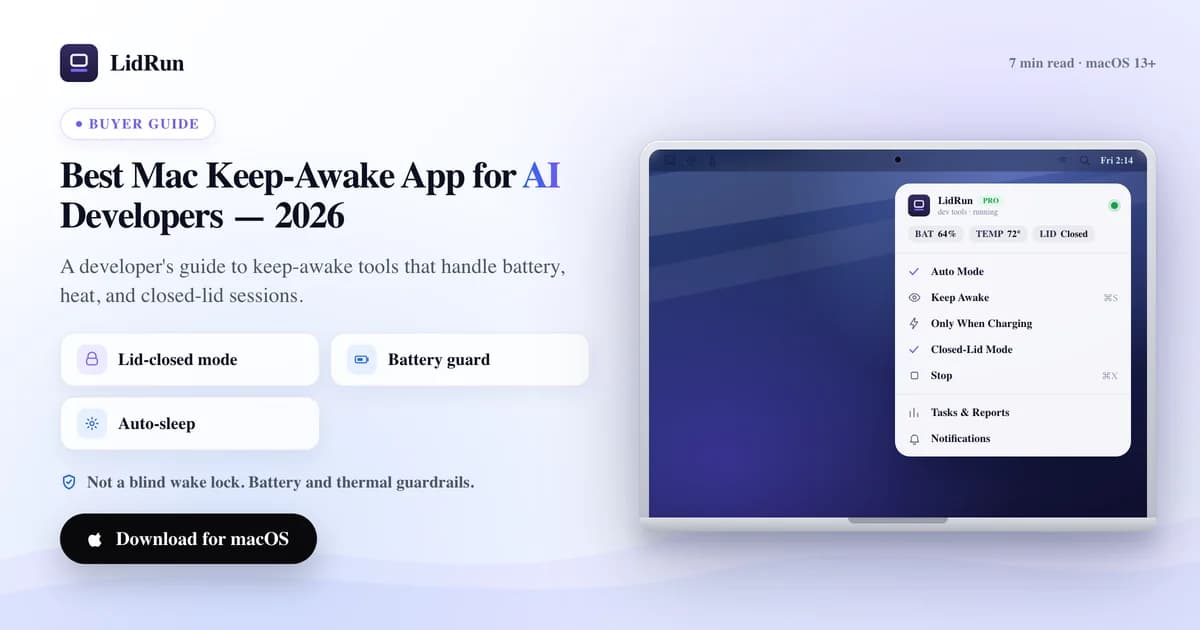
There's no single "best" keep-awake app — the right one depends on whether you need a five-second manual toggle or something that watches battery, heat, and your actual workload while an AI agent runs unattended overnight. This guide compares the free, built-in macOS options (caffeinate, pmset disablesleep) against the popular third-party apps (Amphetamine, KeepingYouAwake, Lungo, Caffeine) and LidRun, using the same criteria across all of them, so it's clear where each one actually holds up for a Claude Code, Cursor, Codex, or Ollama run that outlasts your attention span.
The criteria that actually separate these apps
Holding the display or system awake is table stakes — caffeinate does it in one line, and every app in this guide clears that bar. That is not where developers should be picking a winner.
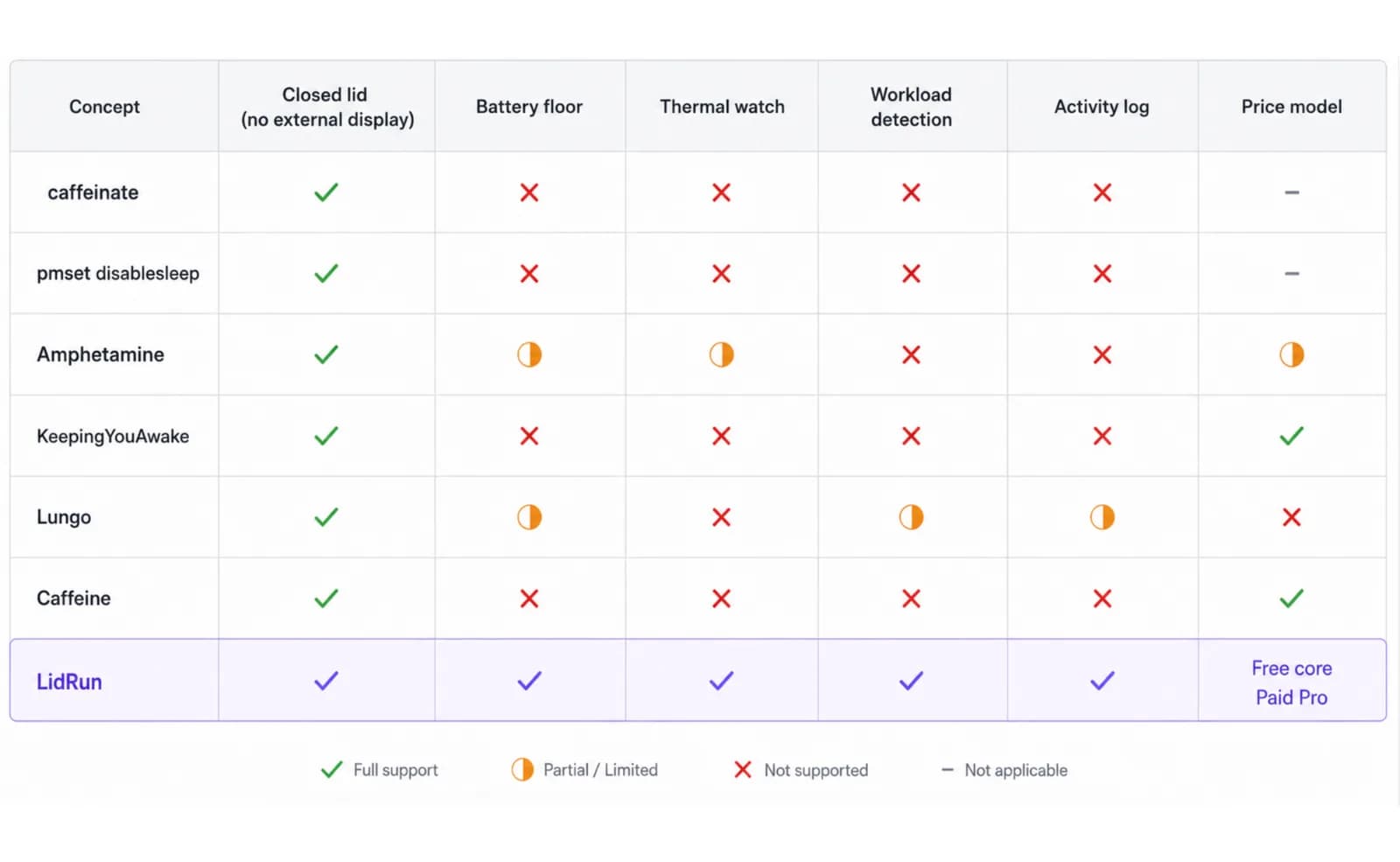
For an AI agent run that might start at 11 p.m. and finish whenever it finishes, five things decide whether an app is actually safe to leave running: does it work with the lid closed without an external display, does it stop before the battery hits zero, does it watch the chip's thermal state and back off, does it arm itself when your dev or AI tools are actually running instead of needing a manual toggle, and does it cost a subscription for something this small.
Below, each option is measured against those five — including the two options every developer already has installed for free.
The free option already on your Mac: caffeinate and pmset
caffeinate ships with macOS and is genuinely useful. caffeinate -i blocks idle sleep, -d blocks display sleep, -s blocks system sleep, and -w <pid> ties the assertion to a process so it releases the moment that process exits — caffeinate -i -w $(pgrep -f claude) will hold the Mac awake for exactly as long as a Claude Code process is alive. One real caveat: per its own man page, -s "is only valid when the system is running on AC power" — it does nothing for you on battery.
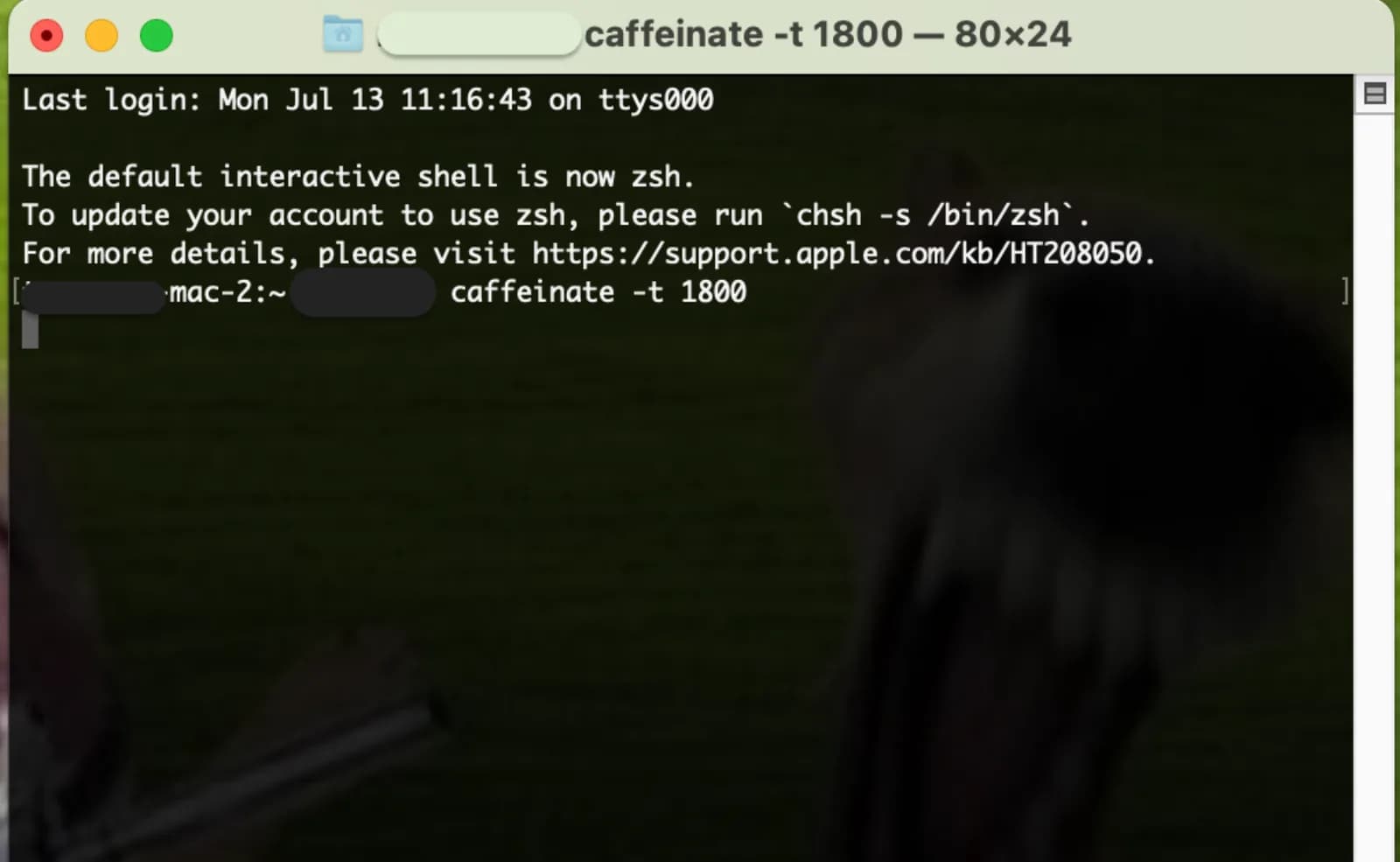
caffeinate does not touch a closed lid on its own; closing the lid still sleeps the Mac regardless of any assertion held. Developers who need the lid down without an external display reach for sudo pmset disablesleep 1, which tells macOS not to sleep automatically at all, lid closed or not. sudo pmset disablesleep 0 puts it back.
Both are free, both are scriptable, and both are close to what several of the paid apps below are wrapping in a menu-bar UI.
Related guideA lid-closed developer workflow for the MacBookWhere caffeinate and pmset run out of road
Neither has any concept of "safe." caffeinate -i will hold a MacBook awake on 2% battery until it hard-shuts-down rather than sleeping gracefully — there is no floor to catch it. pmset disablesleep 1 is riskier in one specific way: it is a global system setting, not tied to a process, so it is easy to leave on by accident. A closed lid with disablesleep active also means the Mac keeps running warm inside a bag or a stand with the vents blocked, with nothing watching the thermal state to back off.
Neither logs anything either. Come back in the morning to a dead battery or a sleeping Mac and there is no record of whether the job finished, the battery gave out, or a fan just couldn't keep up — it's pmset -g log and guessing.
No battery floor, no thermal awareness, no lid-closed safety net, no record of what happened — that combination is the actual gap every app below is trying to close, LidRun included.
Amphetamine, KeepingYouAwake, Lungo, and Caffeine — where each one holds up
Amphetamine (free, Mac App Store) has the richest trigger system here — it can arm on app launch, Wi-Fi network, battery level, or a schedule, and it's actively maintained. It has nothing AI/dev-specific (no built-in "Claude Code is running" trigger without wiring an app-launch rule by hand), and because it's sandboxed for the App Store it can't touch pmset disablesleep, so closed-lid use still needs an external display, same as stock macOS.
KeepingYouAwake (free, open source) is the one worth recommending without hesitation if a menu-bar toggle with a timer is genuinely all you want — simple, MIT-licensed, does exactly what it says. No battery floor, no thermal watch, no workload detection, no lid-closed-without-a-display.
Lungo (free/paid, Mac App Store) is even more minimal than KeepingYouAwake — a toggle and a duration picker, nothing else. Good for "keep this awake for the next hour," not built for an unattended overnight run.
Caffeine, the original menu-bar coffee-cup toggle from Lighthead Software, is the app the whole category is named after. It's the simplest of the four, still works, and has none of the safety or detection features in this guide.
None of these four are bad apps — they're honest about being simple toggles, and if a manual toggle is genuinely all a developer needs, any of them is a fine, free choice over paying for something with more moving parts.
How LidRun compares on the same five criteria
Closed lid without an external display: LidRun's Closed-Lid Mode uses the same pmset disablesleep mechanism as the manual trick above, but it always pairs the 1 with a matching 0 — stop the session, quit the app, or relaunch after a crash, and it reconciles the setting back off automatically. Same lever, minus the "did I remember to turn it back off" risk.
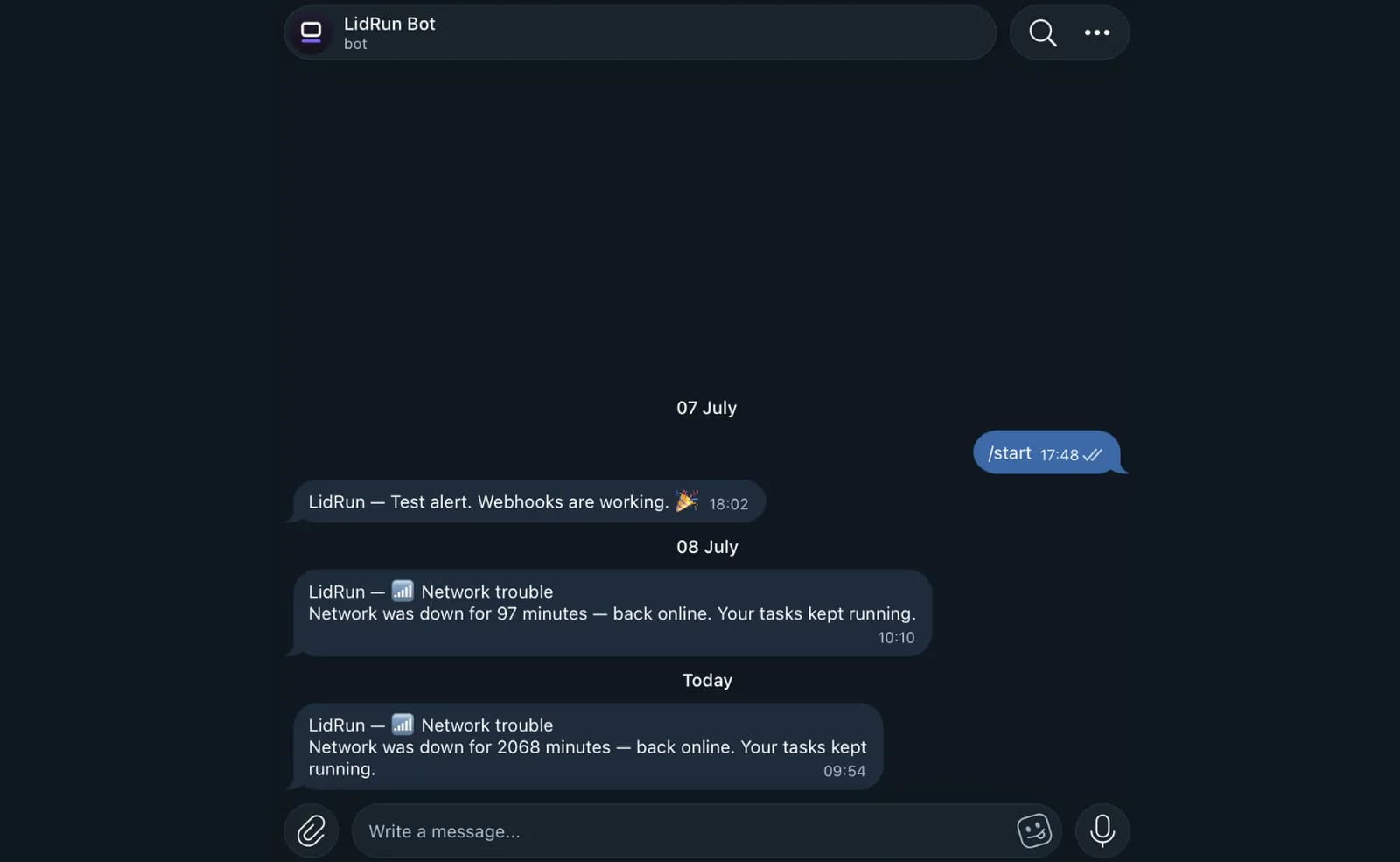
Battery floor: the free tier includes Low Battery Auto-Stop with graduated thresholds — a heads-up warning at 15%, a stronger warning at 5%, and a forced-sleep floor at 4% by default (configurable 4–8%) that releases every keep-awake hold and lets the Mac sleep on its own terms instead of running to a hard shutdown.
Thermal watch: the Safety Governor reads Apple's four-level thermal signal (Normal, Fair, Hot, Very Hot) and releases the keep-awake hold at Very Hot; an optional setting pushes the Mac to actual sleep if it stays there — the case that matters if a closed-lid Mac ends up somewhere its vents are blocked.
Workload detection: Auto Mode watches for a default list that includes claude, codex, cursor, ollama, docker, node, and python, including script processes like a running train.py under python3, and arms or disarms automatically, with a CPU threshold and a 60-second holdoff so it doesn't flap when a process is just waiting on I/O between tokens.
Activity Log and price: every stop, timeout, and threshold trip is written to an Activity Log so an overnight run doesn't end in a guess. Low Battery Auto-Stop, the Safety Governor, and the Activity Log are all in the free tier; Auto Mode, Closed-Lid Mode, and the rest of the Pro feature set are a one-time purchase, no subscription, with a 14-day refund window.
Which one should you actually pick
If a manual toggle covers it — a screen share, a movie, a quick build — KeepingYouAwake, Lungo, or Caffeine are free and good at exactly that; there's no reason to pay for more.
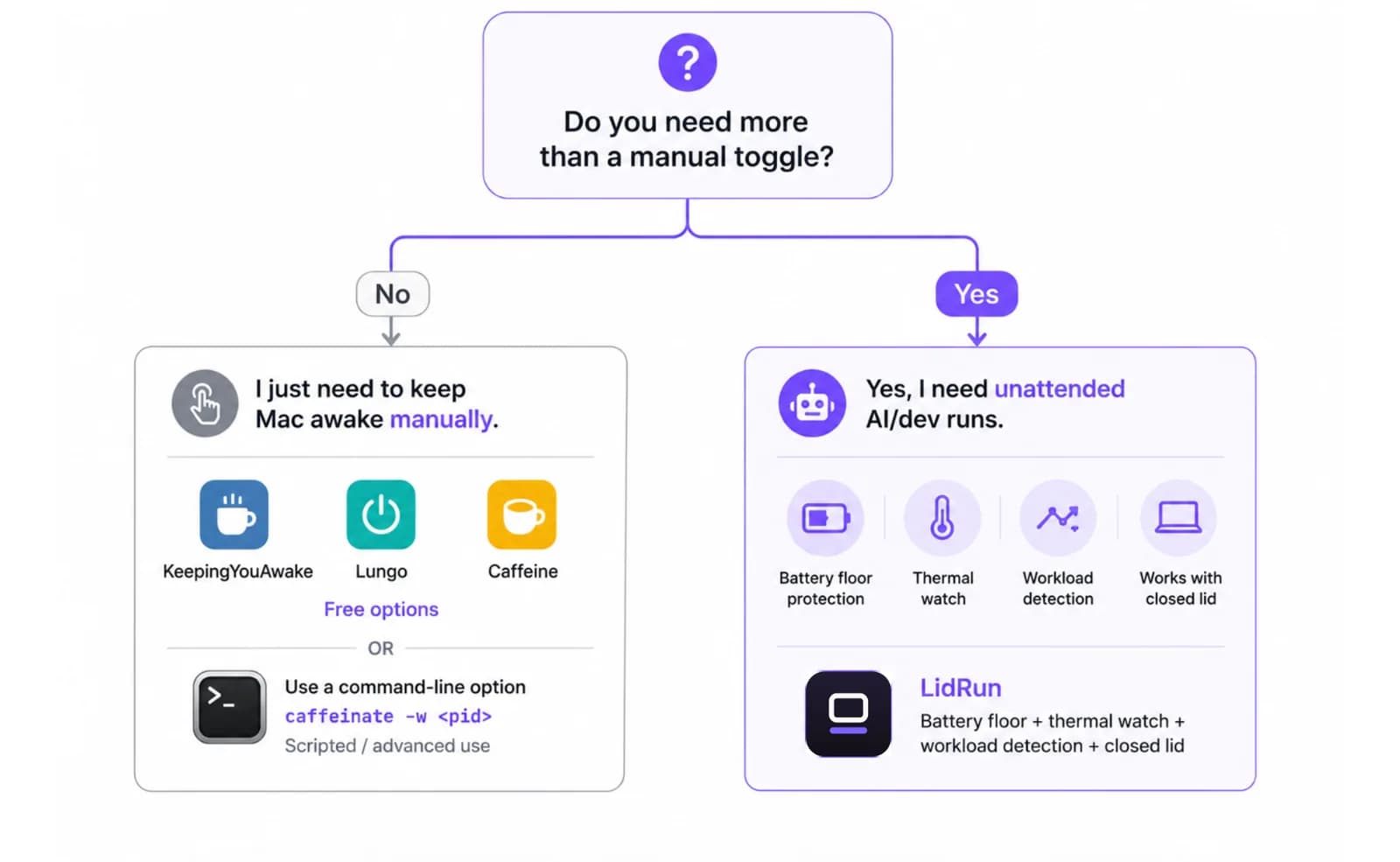
If a job is scripted and tied to one process, caffeinate -w <pid> is still the right tool, and it's already on the Mac.
If the work is Claude Code, Cursor, Codex, or Ollama running unattended overnight, closing the lid, or a Mac sitting in a bag between runs, the free and native options don't watch battery or heat, and Amphetamine, KeepingYouAwake, and Lungo don't know what a coding agent is. That's the actual gap LidRun is built to close — worth trying against a real run to see whether it holds up.
LidRun keeps your work running with the lid closed, with battery and thermal safety built in.
Already have LidRun? Read the setup guide →
Frequently asked
Lid-closed support without an external display, a battery floor that stops before empty, thermal watch that backs off when the Mac runs hot, and automatic arming for tools like Claude Code, Cursor, Codex, and Ollama instead of a manual toggle.
They'll hold the Mac awake, but neither watches battery or heat, and pmset disablesleep is a global setting that's easy to leave on by accident. They're fine for a short, watched task; for an unattended overnight run they're missing the safety net.
Without a floor, yes — a bare wake lock or pmset disablesleep 1 will hold the Mac awake straight to a hard shutdown instead of a graceful sleep. LidRun's free tier includes Low Battery Auto-Stop with a default forced-sleep floor at 4% (configurable 4–8%) so unplugged runs stop themselves before that happens.
For a manual toggle, no — caffeinate, KeepingYouAwake, Lungo, and Caffeine are all free and good at that job. Paying makes sense once workload detection, closed-lid support, and safety thresholds matter for long unattended AI or dev runs; LidRun's free tier already covers Low Battery Auto-Stop and thermal safety, and the paid tier (one-time purchase, no subscription) adds Auto Mode and Closed-Lid Mode.
Auto Mode's default list includes claude, codex, and cursor among AI CLIs, local model runtimes like ollama, and build or container tools including docker, node, python, and cargo — plus anything added by hand.
It can be used as one for developers who've outgrown a manual toggle. KeepingYouAwake and Amphetamine are both good at what they do — simple sessions and rich triggers, respectively. LidRun's focus is specifically AI and dev workload detection, closed-lid runs, and the battery and thermal safety thresholds neither of those apps has.