A lid-closed developer workflow for the MacBook
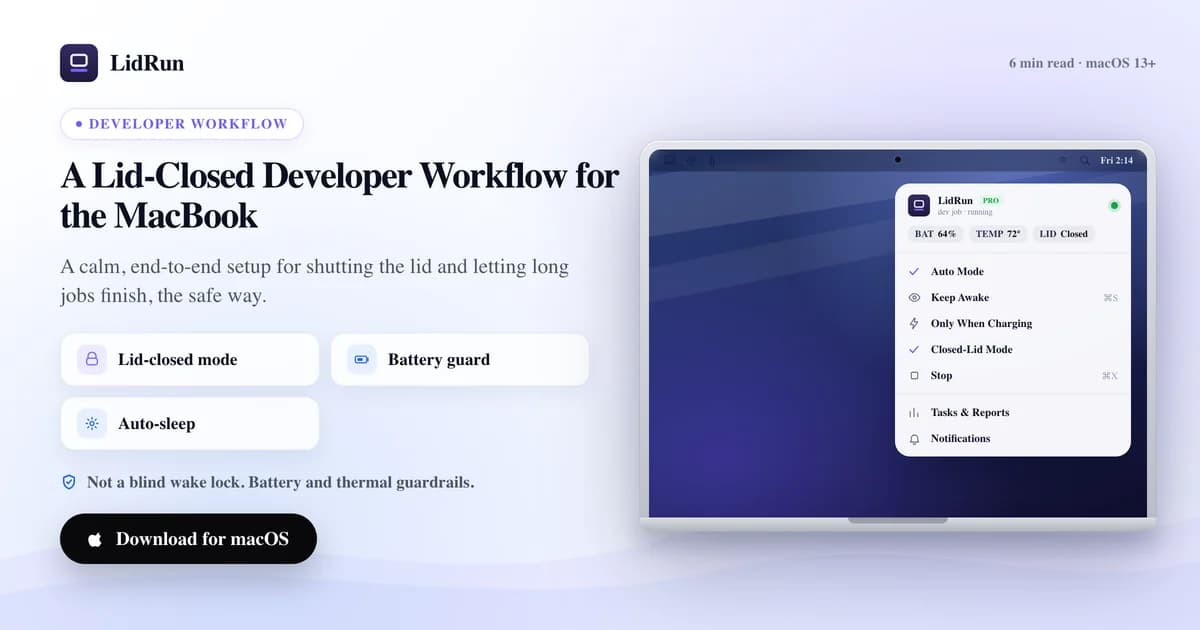
A lid-closed developer workflow is a setup where shutting the MacBook's lid does not kill the job you started — the Mac keeps running instead of suspending the second the display goes dark. AI coding agents are why this comes up now: a Claude Code refactor, a Cursor background re-index, or an unattended Codex CLI task can run for an hour or more, and by default macOS ends all of it the moment you close the lid. There are free, native ways to stop that — caffeinate, pmset -a disablesleep, plugging in an external display — and each has a real limitation worth knowing before you close the lid and walk away. This walks through those options, where they run out of road, and the workflow LidRun builds on top of the same system-level tools: detect the agent, hold the Mac awake, and let go on its own when battery or heat says stop.
Why the lid is in your way
Closing a MacBook's lid on battery triggers clamshell sleep — a different, lower-level sleep than the idle sleep macOS uses when you simply stop touching the keyboard. That distinction is the whole reason this is annoying to fix.
macOS doesn't know an AI agent is mid-task. A Claude Code session refactoring a large file, a Cursor background agent re-indexing a repo, a Codex CLI job running unattended — to the kernel these are just processes. The instant the lid shuts, everything suspends, often seconds after you've walked away and stopped watching.
This is also why the obvious fix doesn't work here. Running caffeinate in a terminal, or flipping a keep-awake toggle in a menu-bar app, holds what macOS calls an idle-sleep assertion — the same primitive caffeinate -i and most keep-awake utilities use. That assertion stops the Mac sleeping because you've been away from the keyboard. It does nothing for clamshell sleep, which fires specifically because the lid physically closed. On battery, with no external display connected, closing the lid still wins over any idle-sleep assertion.
The free, native ways developers already do this
Two things actually solve this, and both ship with macOS — no third-party app required.
External display, on AC power. Connect an external monitor while plugged into the wall and close the lid: macOS's own clamshell-mode support keeps the machine fully running, no configuration needed. It's the standard setup for running a MacBook as a mini desktop, and it's genuinely free. The catch is it ties awake-with-lid-closed to a monitor and an outlet — it doesn't help if you want to close the lid, unplug, and walk off with the machine.
pmset -a disablesleep 1. This is the actual lever that stops lid-close sleep without an external display — a documented, root-level system preference, not a hack. Run it from Terminal with sudo pmset -a disablesleep 1, and the Mac won't sleep on lid close, on battery or AC, until something sets it back to 0. It's also the exact primitive LidRun's Closed-Lid mode calls — the difference is what wraps around the raw call, covered below.
caffeinate -s (or -d, -i) still earns a place in the toolbox — for a bounded script or CI step where the lid stays open and you just want the display or system to stay awake for a known duration. It's the wrong tool once the lid is actually closing.
Where the free workarounds run out of road
disablesleep is blunt in a way that matters once the lid is closed and you've left the room. It's a global, persistent setting — it isn't scoped to your terminal session or to any one process, it's a machine-wide flag that stays on until something explicitly turns it off. Close the terminal, forget about it, or have whatever set it crash, and it does not revert on its own. The Mac will not sleep until you run the 0 command yourself or reboot.
Two failure modes follow from that in practice: a laptop left running hot inside a closed bag, with the internal fans doing nothing useful because there's no airflow to move, and a laptop that drains to 0% because nothing is watching the battery — disablesleep says nothing about power level, so the Mac keeps running until it hard-shuts-down instead of sleeping cleanly.
The external-display route sidesteps both of those — the Mac isn't going anywhere — but it only covers awake-with-the-lid-closed at a desk, plugged in. It doesn't cover what most developers actually want: close the lid, put the Mac in a bag, and have a background job either finish safely or stop itself before it does something risky.
A calmer lid-closed workflow
LidRun's Closed-Lid mode calls the same pmset -a disablesleep setting described above — there's no different, secret API for this on macOS. What changes is what wraps that call: a privileged helper you approve once (after that, turning Closed-Lid on and off no longer prompts for a password — without it, macOS asks every time), automatic reversion when you stop the mode or quit the app, and a crash-recovery check on the next launch. If LidRun crashes while Closed-Lid is on, a small armed state file with a heartbeat lets the next launch detect the leftover disablesleep=1 and reset it — a best-effort fix on reopen, not a live watchdog, so a crash mid-session can leave the setting stuck until you open LidRun again.

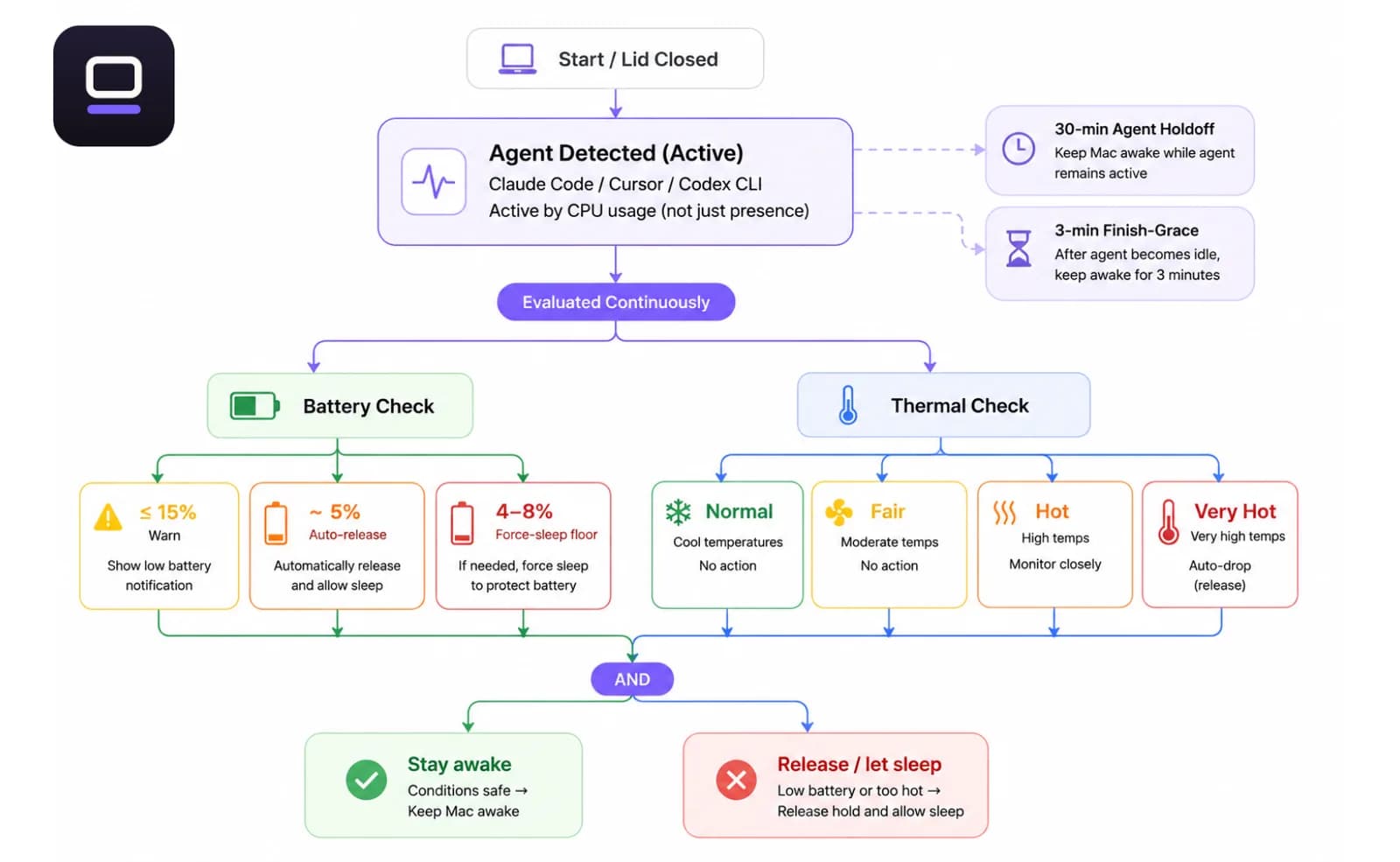
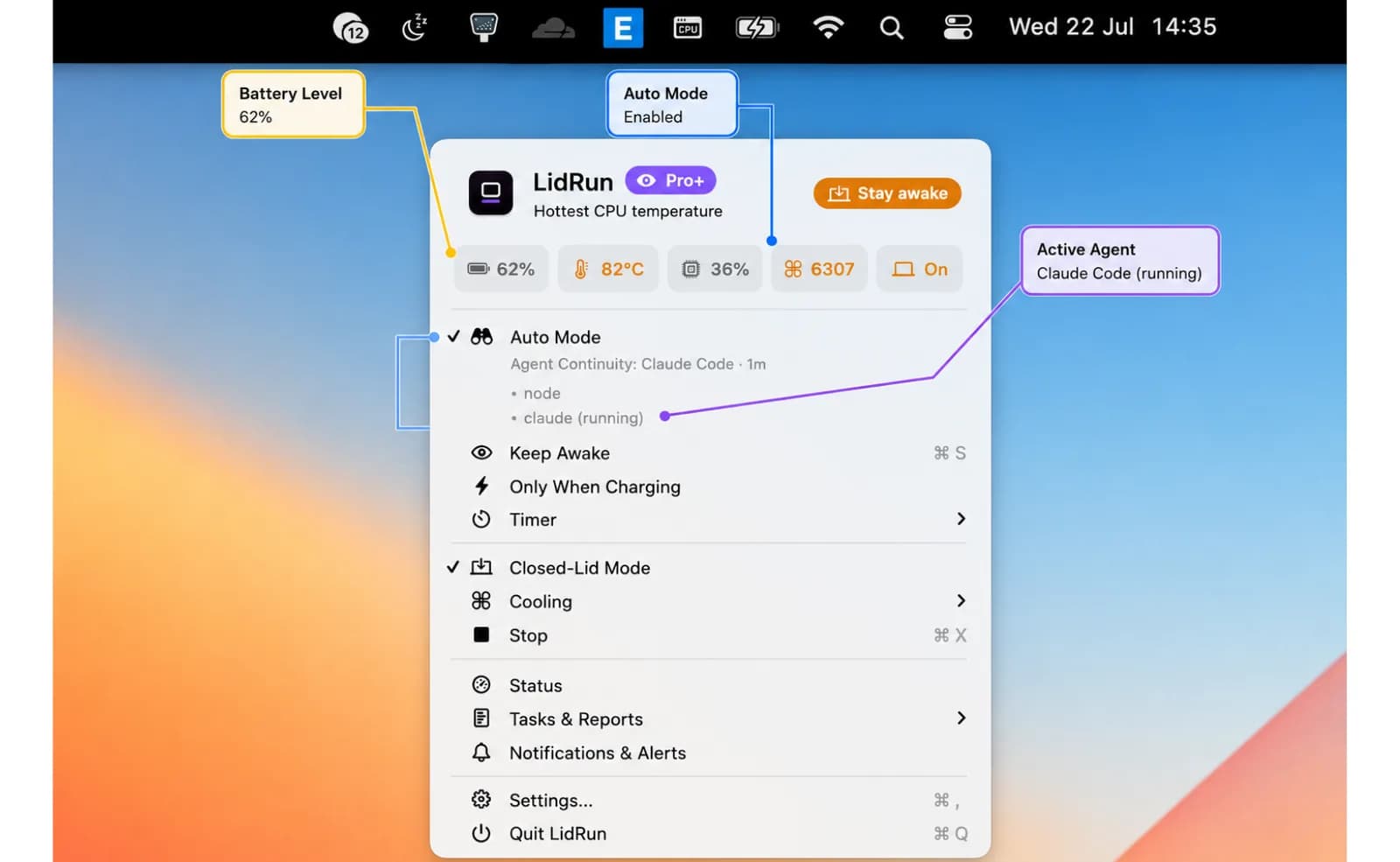
On top of that sits Auto Mode, which detects the actual work instead of asking you to babysit a toggle. By default it watches for Claude Code, Cursor, and Codex CLI, alongside a longer list — aider, Gemini CLI, Goose, opencode, amp, Cline, Copilot, Windsurf, Ollama, and common build tools like Docker, cargo, and node — and holds the Mac awake only while one of those is genuinely doing something; a merely-open Cursor window sitting at 0% CPU doesn't count. Because agents often go quiet for a stretch while waiting on an API call, a known agent gets a 30-minute holdoff before that quiet spell counts as done, and LidRun waits a further 3 minutes with nothing running before it actually declares the task finished — long enough to survive a normal thinking pause, short enough not to idle awake all night for no reason.
Underneath both modes, the same safety floor runs regardless: a low-battery warning by default at 15%, an auto-release around 5%, and a hard force-sleep floor (4–8%, depending on your setting) so the Mac lets itself sleep instead of running to 0% and hard-shutting-down. Thermally, LidRun watches the system thermal-pressure signal — the same Normal / Fair / Hot / Very Hot progression you'd see in the app — plus a numeric temperature-and-throttle check underneath it; at the Very Hot tier, Closed-Lid mode drops on its own so the hardware can throttle and, if it needs to, sleep. None of this changes the physics — a closed lid removes the main cooling path, and a hot Mac stuffed in an enclosed bag is still a bad idea — but it means the Mac backs off on its own instead of just running until something breaks.
Setting it up
Approve the privileged helper once, the first time LidRun asks. It's a single admin-password prompt; after that, Closed-Lid stops asking every time you use it.
Turn on Auto Mode and check which tools it's watching. Claude Code, Cursor, and Codex CLI are on by default alongside build tools and local LLM runtimes — add or remove patterns if your stack looks different.
Start the task — kick off the Claude Code run, the Cursor re-index, the Codex job.
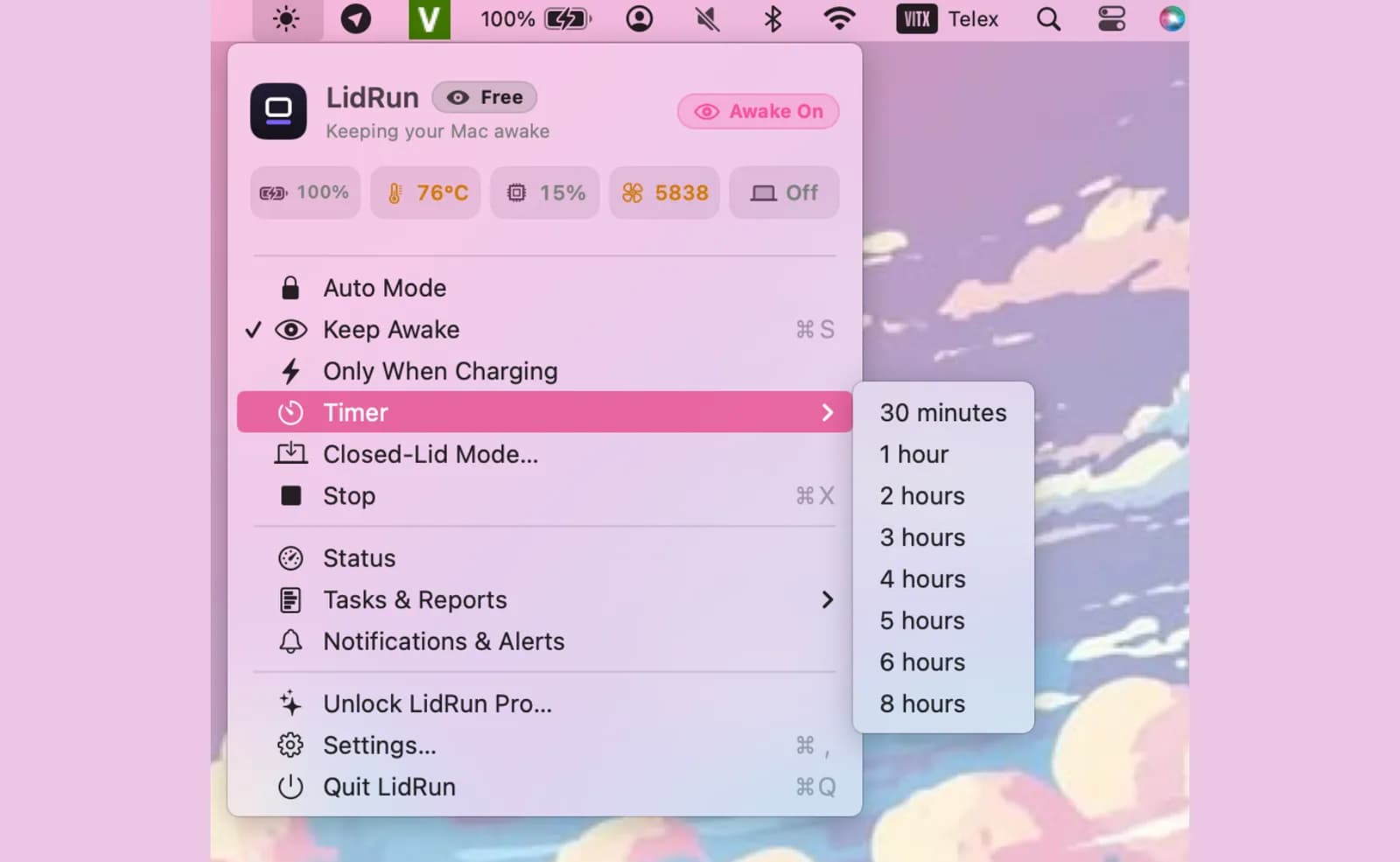
Turn on Closed-Lid mode. The confirm dialog asks two things: how long to hold it — until you turn it off manually, or a fixed window from 30 minutes up to 8 hours — and Smart vs. Keep-awake. Smart, the default, lets the Mac sleep once nothing tracked has run for 10 minutes; Keep-awake holds the Mac awake until you stop it yourself.
Close the lid.
Two habits matter more than any setting: a hard, flat, ventilated surface, and mains power for anything that will run for hours. They give the software guardrails a backstop instead of being the only thing standing between a closed lid and a problem.
Keep Awake, Timer, and Charging-only are free on every tier, with no trial and no session cap. Auto Mode's agent detection and Closed-Lid mode are part of Pro; Closed-Lid gives an unlicensed install a limited number of free runs to try before deciding. The battery force-sleep floor and thermal auto-drop apply either way — LidRun doesn't hold the basic low-battery stop back for a paid tier.
Who this is for
This is worth setting up if you regularly kick off long jobs and want to move around while they run — desk to couch, home to a cafe, a job you start in the evening and check on in the morning.
It's most useful for AI agent work specifically: a Claude Code run before bed, a Cursor re-index while you cook dinner, a Codex task that takes an hour. Before a lid-closed workflow, closing the lid on one of those meant betting on whether it survived.
If you mostly do short, interactive work at one desk, skip it — an external display covers you for less setup, and there's no reason to approve a privileged helper for a five-minute task. If the lid is the only reason you're still sitting there for a job that could run itself, a lid-closed developer workflow is worth trying once.
How this compares
None of the tools below are bad — they're built for a different job than keeping an unattended coding agent alive behind a closed lid while staying honest about battery and heat.
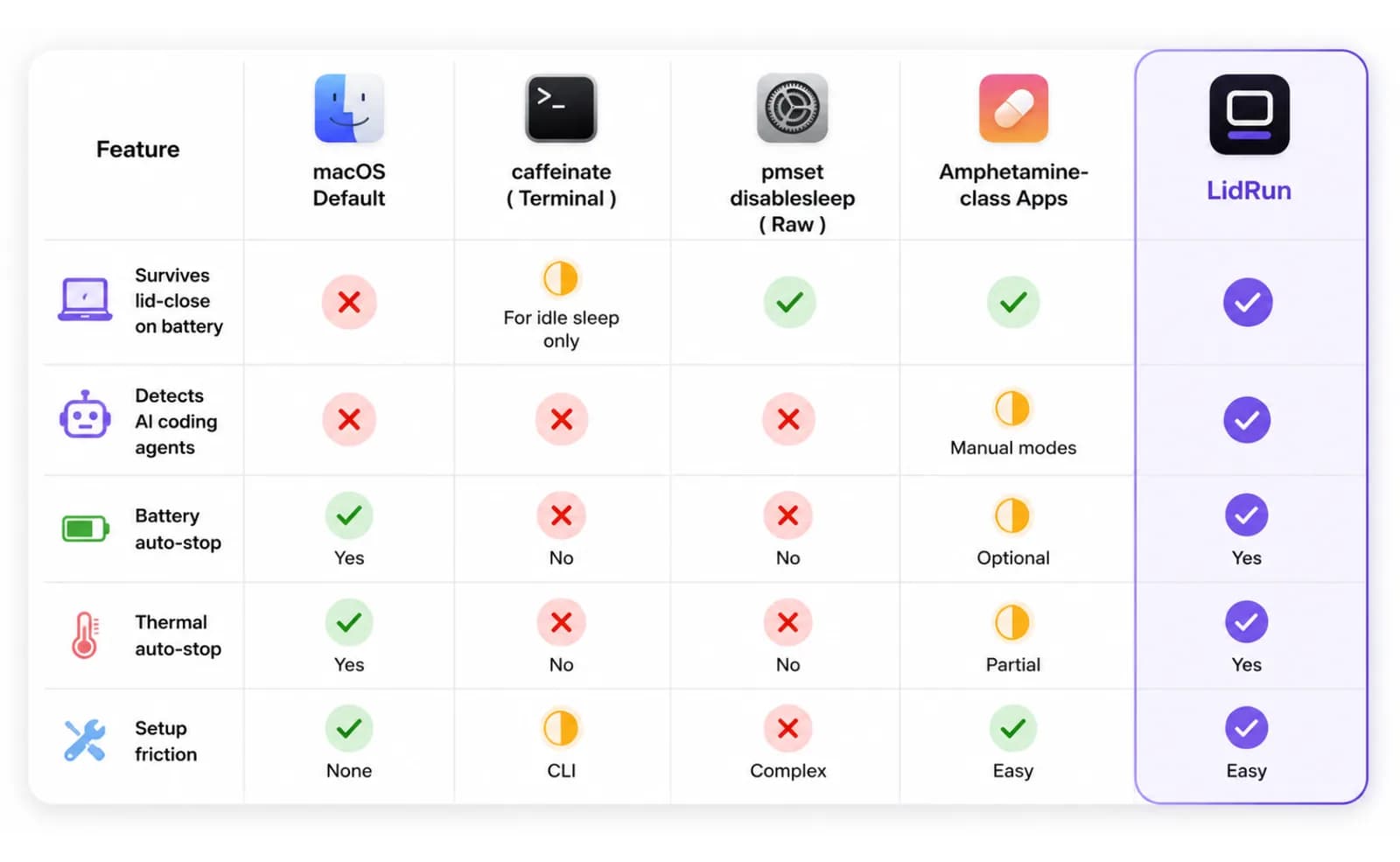
caffeinate is the right call for scripts and CI: a bounded command, lid open, no GUI needed. It doesn't survive a lid close on battery, and it has no concept of an AI agent.
pmset -a disablesleep is the real mechanism behind every lid-closed workaround, LidRun included — see above for what raw command-line use costs you if something goes wrong.
Amphetamine, KeepingYouAwake, Lungo, and Caffeine are well-built, popular keep-awake utilities with flexible triggers and clean menu-bar UI. For not letting a Mac sleep while you're actively using it, they're solid, often free choices. What they're not built around is a closed lid specifically or an AI coding agent — they hold the same idle-sleep assertion described earlier, so the clamshell-sleep gap still applies, and none of them detect Claude Code, Cursor, or Codex, or auto-release when battery or temperature says stop. (For a closer look at one of them, see the Amphetamine comparison.)
LidRun's niche is narrower on purpose: agent-aware, closed-lid-capable, and built to let go automatically instead of assuming awake is always the right answer. Agent running, stay awake. Agent done or unsafe, release and let the Mac sleep.
Arm it without leaving the keyboard: Caps Lock or ⌥L
Mid-build, the last thing you want is to reach for the menu bar. LidRun 1.2 lets you arm closed-lid mode from the keyboard: ⌥L (Option-L) or Caps Lock, then close the lid and let the build, test run or agent finish.
Caps Lock is free to use because a shut-lid Mac isn't being typed on, and it needs no extra permission. ⌥L is there if you'd rather keep Caps Lock for typing.
The shortcut arms the same guarded session — timer, charging-only, low-battery auto-stop, thermal guardrails and a pre-sleep warning. Tap the key again to release when you're back at the desk.
LidRun keeps your work running with the lid closed, with battery and thermal safety built in.
Already have LidRun? Read the setup guide →
Frequently asked
By default, Auto Mode watches Claude Code, Cursor, and Codex CLI, plus a longer built-in list — aider, Gemini CLI, Goose, opencode, amp, Cline, Copilot, Windsurf, and Ollama, alongside build tools like Docker, cargo, and node. You can add or remove patterns to match your own stack. A watched tool only holds the Mac awake while it's genuinely active — an idle window doesn't count.
Keep Awake (and Timer, and Charging-only) hold an idle-sleep assertion — the kind caffeinate -i uses — which is enough as long as the lid stays open. Closed-Lid mode is a different mechanism: it sets pmset -a disablesleep, the only public lever that stops sleep triggered by the lid physically closing on battery. You need Closed-Lid specifically for a lid-closed run — Keep Awake alone won't survive it.
LidRun warns at 15% by default, auto-releases the keep-awake hold around 5%, and lets the Mac sleep at a hard floor between 4–8% rather than draining to 0% and hard-shutting-down. Those thresholds are configurable on Pro; the floor itself isn't removed on the free tier.
LidRun tracks thermal state continuously through Normal, Fair, Hot, and Very Hot tiers, combining the system thermal-pressure signal with a numeric temperature-and-throttle check. At the top tier, Closed-Lid mode drops on its own so the hardware can throttle and sleep if it needs to. That's a backstop, not a substitute for airflow — keep the Mac on a hard, flat, ventilated surface for long runs.
No. You approve the privileged helper and choose your thresholds once. After that, the repeated step is starting your task, turning Closed-Lid on, and closing the lid.
It can be, with the battery and thermal thresholds acting as guardrails and the Mac plugged in on a ventilated surface — but a closed lid always removes the main cooling path, so treat the thresholds as a backstop, not a reason to stop paying attention to where the Mac is running.
In LidRun 1.2+, press ⌥L (Option-L) or tap Caps Lock to arm closed-lid mode, then close the lid and let the build finish. The same key releases it.