Closed-lid mode safety guide for MacBook workloads
Running a MacBook with the lid closed is safe when you pair the right hardware placement - a hard flat surface, real airflow, power connected - with software guardrails that actually watch battery and heat, and risky when you just override sleep and walk away. This closed-lid mode safety guide covers why closing the lid triggers sleep in the first place, the two free ways around it, why an unmanaged override - not the closed lid itself - is the real danger, five concrete safety rules, and exactly what LidRun watches once the lid is shut, including the parts no software can fix.
The heat problem unique to closed-lid Mac
Open a MacBook and the keyboard deck, the hinge, and the underside all contribute to moving heat away from the internals. Close the lid and you lose that. The chassis seals two of its larger radiating surfaces against each other, and the airflow that normally passes across the keyboard plate stops.

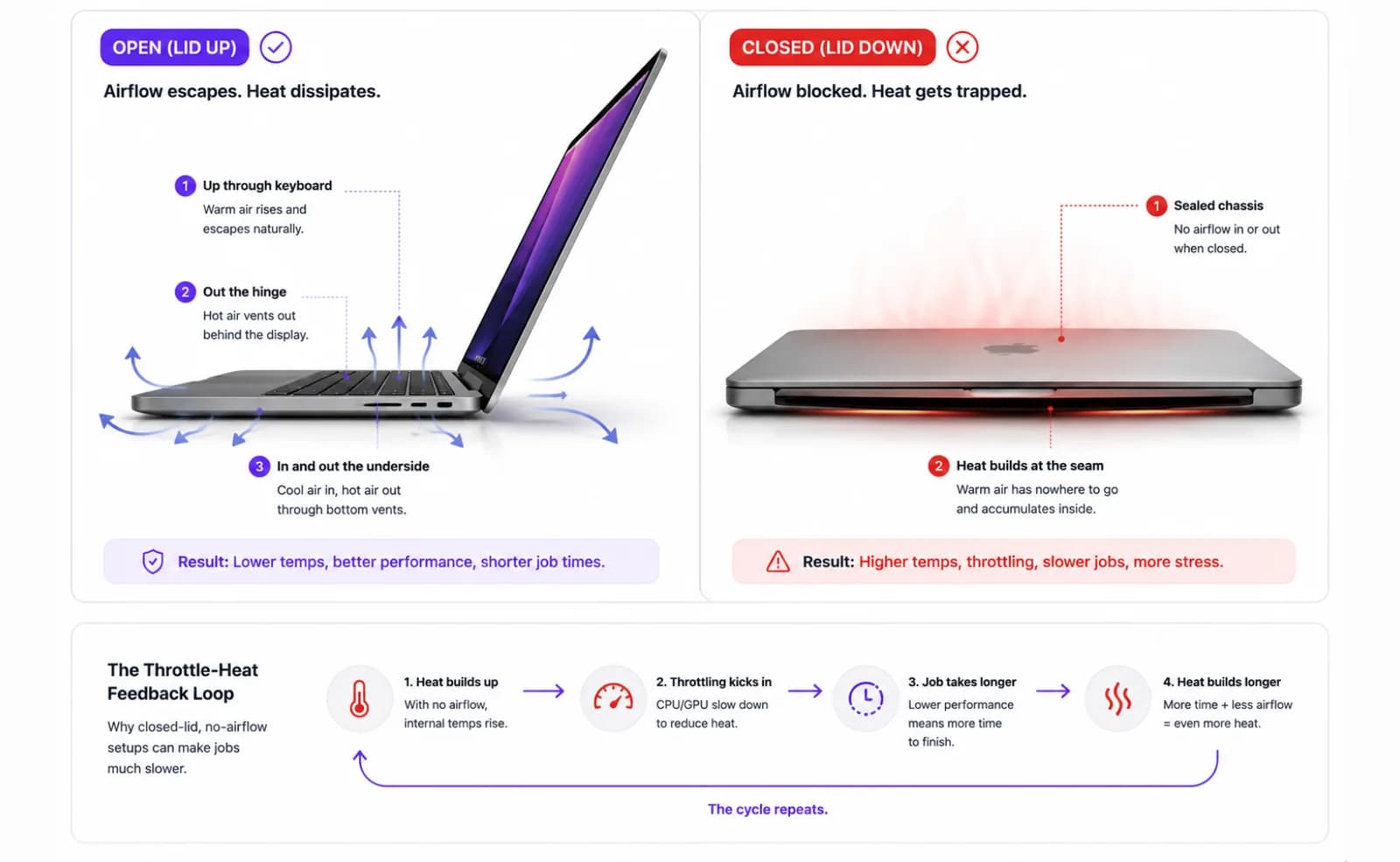
On a light task that barely matters. On a heavy build, a model inference run, or an overnight agent session, it matters a lot. The cooling system starts with a smaller thermal budget, and if the surface under the Mac traps heat too - a pillow, a blanket, a closed bag - the machine is fighting itself.
Apple Silicon throttles aggressively to protect the chip, which is the right response. But throttling assumes the heat eventually escapes. A sealed environment does not give it anywhere to go, so the chip slows down, the job takes longer, the heat builds longer. The cycle reinforces itself. Placement is not a minor detail - it is the primary safety variable, and it is entirely in your hands.
Heat has a second cost that's easy to forget in the moment: it's also one of the biggest factors in long-term battery capacity loss - Apple's own guidance is explicit that operating hot, not just charging hot, accelerates wear. A closed-lid session that runs hot once is a thermal risk. A habit of running closed-lid sessions hot is a slow tax on how much charge the battery holds a year from now.
Why lid-closed sleep happens - and the two free ways around it
Closing the lid doesn't trigger the same sleep as walking away from an idle Mac. macOS treats it as a distinct, lower-level trigger: clamshell sleep. That distinction matters because the tool most people reach for first - caffeinate, or a menu-bar app like Amphetamine, KeepingYouAwake, Lungo, or Caffeine - works by holding a power assertion, the same public IOKit mechanism LidRun's own Keep Awake mode uses. Power assertions are genuinely effective at stopping idle sleep. None of them stop clamshell sleep. Close the lid on battery with caffeinate -i running in a Terminal tab, and in most configurations the Mac sleeps anyway.
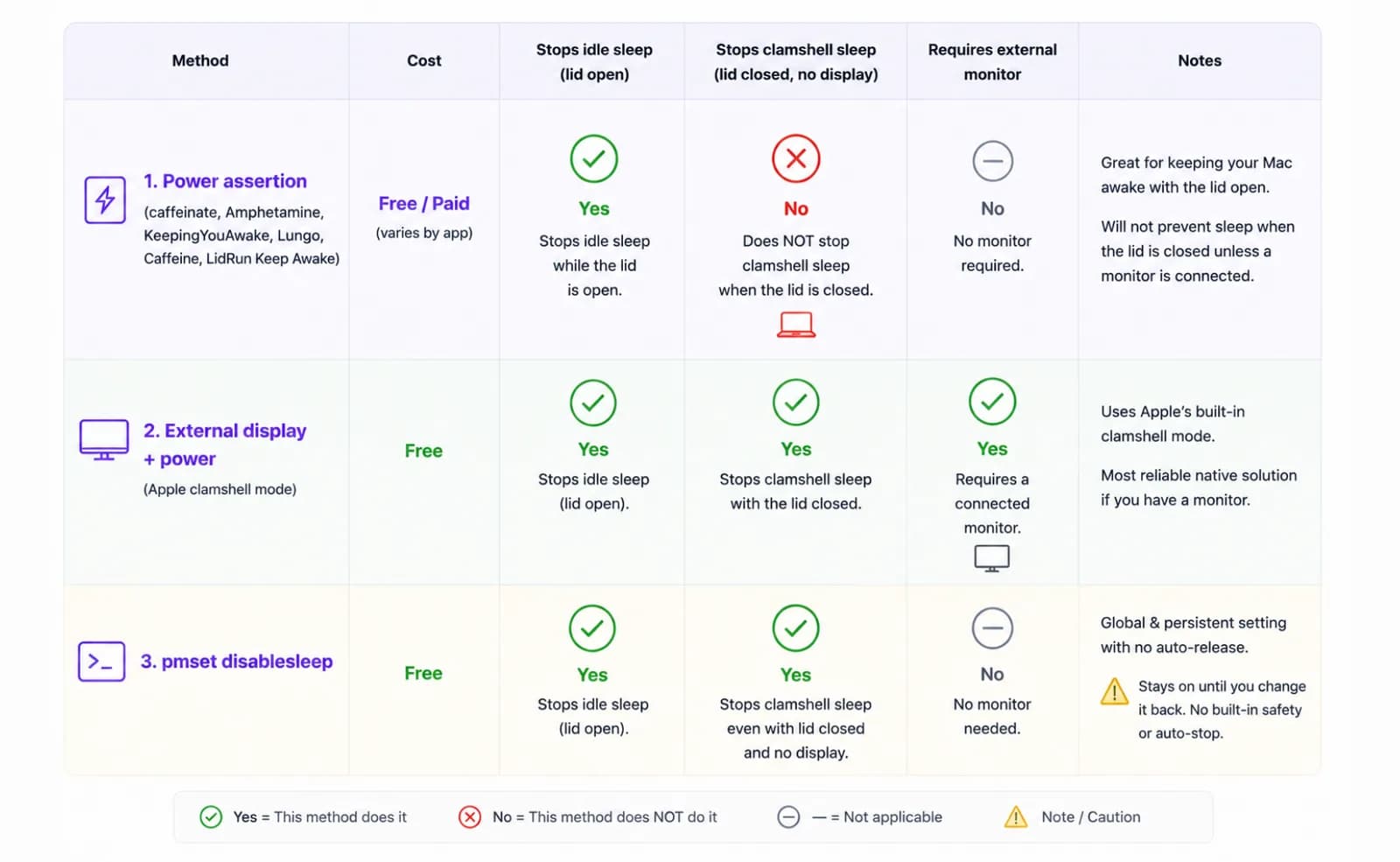
There are exactly two free, native ways to keep a MacBook running with the lid shut. First: Apple's own clamshell mode - plug into power, connect an external display, and (on most configurations) have a keyboard, mouse, or trackpad attached. macOS then treats the closed lid as a docked state instead of a sleep trigger. It costs nothing, leaves no lingering system state, and is the right call if you already work at a desk with a monitor.
Second: sudo pmset -a disablesleep 1, a root-level system setting that overrides clamshell sleep directly - no external display required. Set it back with sudo pmset -a disablesleep 0 when you're done, and you can check the current state anytime with pmset -g | grep SleepDisabled. This is the same lever LidRun's Closed-Lid Mode uses internally - there's no secret mechanism here, just a managed way to flip it.
The risk of a bare pmset override
disablesleep is global and persistent. It doesn't know whether your build finished, whether the battery is at 3%, or whether the chassis is at 100°C - it just holds sleep off until something sets it back to 0. Set it manually and forget about it, and the failure mode is exactly the one this guide opened with: a Mac that runs hot and unattended for hours longer than you meant to, or drains its battery to empty running a job that finished an hour ago.
It also doesn't survive a crash gracefully. If the script or Terminal session that set disablesleep 1 dies before it resets the flag, the setting stays stuck at 1 - the Mac will refuse to sleep even with the lid closed and nothing running, until you catch it. The fix is one command, sudo pmset -a disablesleep 0 (or a reboot, which resets it too), but you have to know to look. pmset -g won't warn you; it just reports whatever the current value is.
And there's no log. pmset won't tell you that the Mac ran three hours hot before you woke it, or that the battery hit 2% at 4am. You get the current state, not the history. That gap - a lever with no guardrail and no memory - is the actual problem this guide is about. It's not that closing the lid is dangerous by itself; it's that overriding sleep with nothing watching the battery, the heat, or the clock is.
Five safety rules for any closed-lid session
First: hard flat surface with airflow. A desk, a table, a laptop stand. Not a bed, not a couch, not a closed backpack. The vents on the bottom and sides need somewhere to exhale into. Soft furniture and fabric insulate; they hold heat against the chassis rather than letting it dissipate.
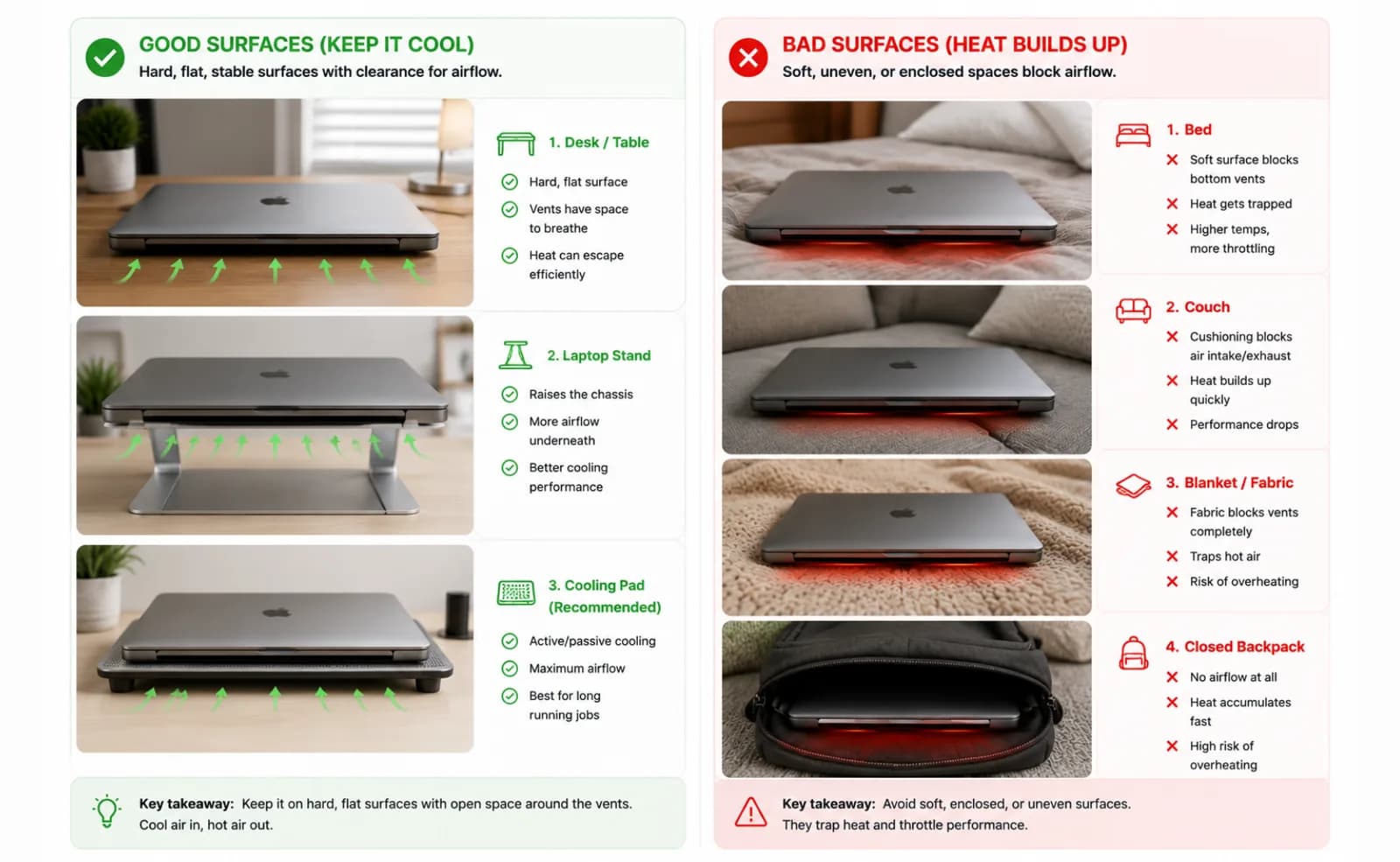
Second: never in a bag while running. A bag is an insulated enclosure. A running workload inside one will build heat with nowhere to go, and no thermal guardrail catches that fast enough to matter once it starts. If you have to move, stop the job first and let the Mac sleep, then resume when it's back on a surface. More on why a running Mac inside a bag is uniquely risky in the FAQ below.
Third: prefer charging. Mains power removes the battery-drain question entirely, which means your only active guardrail is thermal. For jobs that run longer than an hour, plug in. On battery, run a low charge floor so the Mac sleeps on its own terms before the cell empties.
Fourth: set a low-battery floor. Even on power, a sudden outage or an unplugged cord shouldn't drain the battery to zero. LidRun's auto-stop threshold defaults to 20% and can be set anywhere from 15% up to 50% - pick a number that matches how much you're willing to risk. Underneath that, a separate emergency floor (4-8%, 4% by default) force-sleeps the Mac no matter what mode is active, so even a misconfigured threshold has a backstop.
Fifth: set a session timer. Long jobs get caps. LidRun's timer presets run from one to eight hours - a stalled task can't hold the Mac awake through the night by accident. It costs nothing and prevents the single most common overnight mistake: a job that finished, or hung, at 1am, still holding the Mac awake at 7am.
What LidRun monitors - and what it honestly cannot do
The idea behind LidRun is simple: agent running, stay awake; agent done - or the Mac becomes unsafe to keep running - release and let it sleep. That promise plays out through two separate mechanisms, and it matters which one you're using here. Keep Awake mode holds an IOKit power assertion - it stops idle sleep, the same category as caffeinate, and like caffeinate it cannot stop clamshell sleep once the lid shuts. Closed-Lid Mode is the other one: it flips the same pmset disablesleep switch described above, through a privileged helper so it doesn't prompt for a password every time, and - critically - it's paired to conditions that release it automatically instead of sitting at 1 until you remember.
Throughout a closed-lid session, LidRun watches battery charge and thermal state. Cross your battery floor and it flips disablesleep back to 0 and lets the Mac sleep rather than draining the cell flat. Cross the thermal line - LidRun backs off at "Hot" (SMC temperature at or above roughly 98°C, or the CPU throttled to 50% or below) and force-releases at "Very hot" (roughly 100°C or 30% throttle, whichever comes first) - and it does the same. Every one of those releases also pairs disablesleep 1 with a matching 0, including on quit and on the next launch if the previous session ended in a crash - the stuck-flag failure mode from the manual approach doesn't happen here.
The activity log records the decision, not just the state: "Closed-lid mode on," "Battery low - 18%," "Mac got very hot - backed off," "Slept the Mac at 4% battery," "Timer finished." When you come back to a Mac that stopped early, you can see exactly why instead of guessing - the gap a bare pmset command leaves you with.
What none of that changes: airflow. No software moves air. LidRun reads the sensors the hardware exposes and acts on the numbers; it cannot sense that a vent is half-blocked by a cable, that the room is 35°C, or that the Mac is sitting on a foam pad. The guardrails are a careful second pair of eyes on the numbers, not permission to skip the physical setup covered above.
Fan control is a separate, honest limit. LidRun always reads fan speed and temperature as guardrail signals. On Intel Macs it can also drive fan RPM directly. On Apple Silicon, LidRun probes whether the fan keys are actually writable before ever claiming control - and on most M-series Macs today that probe fails, because the firmware holds the fans in its own automatic mode. That's a platform restriction, not a missing feature; the practical answer on Apple Silicon is the same as everywhere else - set a thermal threshold and trust the guardrail to back off, since the fans are going to do their own thing regardless.
Closed-Lid Mode is one of LidRun's Pro features - you get a handful of free runs to try it before it asks for a license - because the one-time privileged-helper approval is what lets it flip pmset disablesleep without a password prompt every single time. Keep Awake, the low-battery auto-stop, and the emergency floor described above are free, with no time limit.
When closed-lid mode is the wrong choice
If you need to put the Mac in a bag while a job is running: stop the job first. There's no safe version of a running MacBook in a closed backpack, warm car, or tight sleeve - a blocked vent, an insulated enclosure, and an active workload is the combination that causes real damage. There's a second, easy-to-miss risk in the same scenario: a cold Mac brought in from outside and immediately sealed into a warm, humid bag can develop condensation on internal components as it warms up, workload or not. Give it a few minutes at room temperature before it goes in a bag, running or idle.
If the job is short: you probably don't need closed-lid mode at all. Tasks that finish in under ten minutes will likely complete before idle sleep triggers anyway. Closed-lid mode earns its place for the longer, unattended runs - a release build, a model download, an overnight agent task - where the alternative is leaving the lid wedged open or babysitting the Mac.
If the Mac is already running hot before you close the lid: wait. Let the chassis cool, check what's consuming resources, and start the closed-lid session from a calm thermal state. Starting a long run with thermal pressure already elevated means the guardrail will likely step in early, and you won't have gotten far anyway.
If the Mac ever does shut itself down from heat - LidRun's guardrails are meant to stop it well before that point, but if they were off or the physical setup got past them anyway - don't power it back on immediately. Let it sit at room temperature for a few minutes first; powering on a Mac that's still hot from a thermal shutdown just restarts the same cycle. Check the activity log once it's back to see which threshold it actually crossed.
One-tap arming: Caps Lock or ⌥L (and why it's still safe)
Speed shouldn't cost safety. LidRun 1.2 lets you arm closed-lid mode with a single key - ⌥L (Option-L) or Caps Lock - but it arms the exact same guarded session you'd get from the menu.
That means the timer, charging-only option, low-battery auto-stop and thermal guardrails are all still in force, and LidRun warns you before it sleeps the Mac to protect unsaved work. The shortcut changes how you start, not what protects you.
Caps Lock is used because a closed-lid Mac isn't being typed on; it needs no extra permission. If you'd rather keep Caps Lock for typing, the ⌥L global hotkey does the same thing. Press again to release.
LidRun keeps your work running with the lid closed, with battery and thermal safety built in.
Already have LidRun? Read the setup guide →
Frequently asked
It can be, with the right setup - and the real risk is never the closed lid by itself, it's an unmanaged override with nothing watching battery or heat. Use a hard flat surface with clear airflow, stay plugged in for longer jobs, set a low-battery floor, and keep a session timer active. LidRun watches battery and thermal state and auto-stops when limits are reached, but placement and ventilation are your responsibility. Never run a MacBook with the lid closed in a bag or on soft furniture.
A hard flat surface with airflow underneath or around it - a desk, a table, or a laptop stand. The vents on the bottom and sides need somewhere to exhale into. Avoid beds, couches, carpet, or anything that insulates the chassis. Soft surfaces hold heat against the Mac instead of letting it dissipate.
No. A bag is an insulated enclosure with no airflow, and a running workload will build heat inside it with nowhere to go. If you need to move, stop the job first and let the Mac sleep, then resume once it's back on a surface. LidRun's thermal guardrails help reduce risk on a desk; they can't make running inside a bag safe.
LidRun uses macOS's own thermal state levels as the primary guardrail rather than a single number, because thermal state reflects how the whole system - not just one sensor - is responding to heat. Under the hood it also reads SMC temperature directly: it backs off at "Hot" when SMC temperature reaches roughly 98°C or the CPU throttles to 50% or below, and force-releases at "Very hot" at roughly 100°C or 30% throttle. There's no separate numeric slider to set in Settings for this - it's on by default and can be toggled on or off, not tuned to a custom degree value.
No, not on their own. caffeinate, Amphetamine, KeepingYouAwake, Lungo, and Caffeine all work through the same public power-assertion mechanism that stops idle sleep - the Mac going to sleep because nothing touched it. Closing the lid triggers a different, lower-level sleep (clamshell sleep) that a power assertion doesn't block. To keep a MacBook running lid-closed you need either an external display with power connected (Apple's own clamshell mode) or the pmset disablesleep system setting - the same lever LidRun's Closed-Lid Mode manages for you.
Run sudo pmset -a disablesleep 0 in Terminal, or reboot - a restart resets the flag too. You can check the current value anytime with pmset -g | grep SleepDisabled (it shows either SleepDisabled 1 or SleepDisabled 0). This is exactly the failure mode a bare pmset override risks: the setting is global and persistent, so if the process that set it crashes, or you simply forget to flip it back, the Mac stays awake - on battery, unattended - until you catch it.
No. Arming closed-lid mode with ⌥L or Caps Lock runs the same guarded session as the menu toggle - timer, charging-only, low-battery auto-stop, thermal guardrails and the pre-sleep warning all still apply.