MacBook auto sleep on low battery
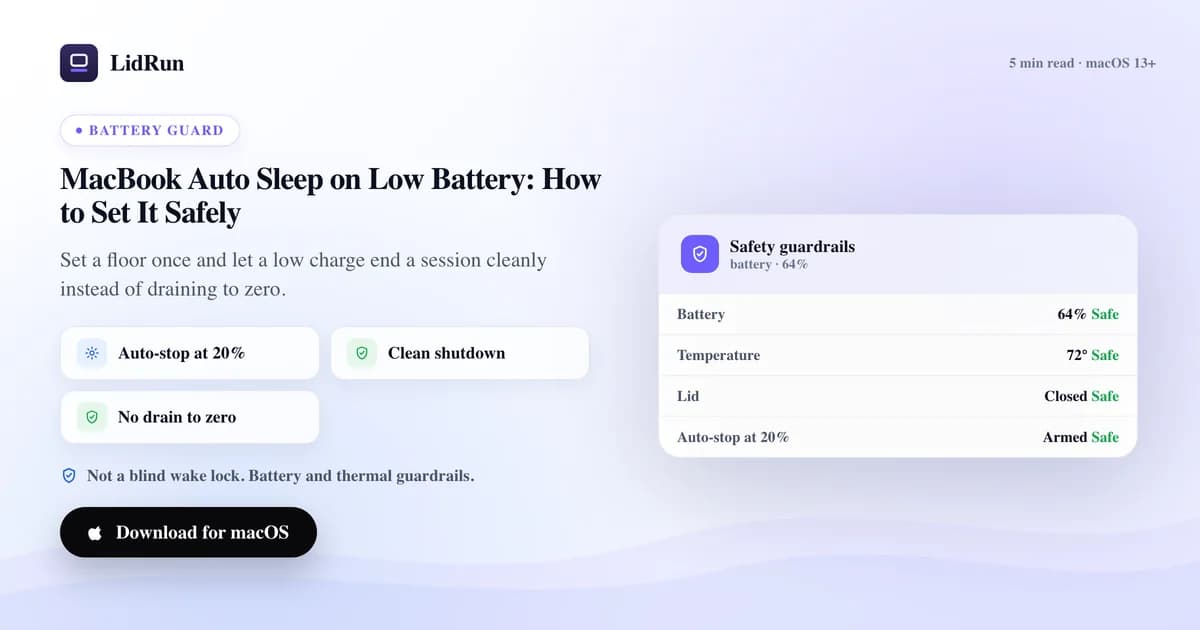
Yes — macOS puts a MacBook to sleep on its own when the battery gets critically low, but that built-in safeguard only kicks in in the last few percent, gives no advance warning, and isn't a setting you can move. There's no toggle in System Settings → Battery for "sleep at 20%" or "warn me at 30%" — that layer simply doesn't exist natively. What macOS does offer is Low Power Mode (Never / Only on Battery / Always), which throttles performance and dims the display, but it doesn't stop a running job or protect unsaved work at a percentage you choose. If you want an actual auto-sleep floor above empty — so an AI agent run, a Docker build, or an Ollama pull ends cleanly instead of dying with the battery — you either script it yourself around pmset, or use something that watches the charge for you. LidRun does the latter: set a threshold once, free, and it releases its keep-awake hold and lets the Mac sleep before it hits empty.
What macOS actually does at low battery (and what it doesn't)
Every modern MacBook has an emergency low-battery behavior built into the firmware and macOS: once the charge drops into the last few percent, the system sleeps itself to avoid an uncontrolled shutdown. That protection is real, but it's a last resort, not a workflow feature — there's no advance notice you can configure, and no number you can dial in. It fires where Apple decided it fires.
The one battery-related setting Apple gives you is Low Power Mode, under System Settings → Battery, with three options: Never, Only on Battery, or Always. It reduces CPU/GPU performance and background activity to stretch the remaining charge, and it dims the display slightly. Useful for making a charge last longer — not useful for ending a session before the battery runs out, since it doesn't watch a percentage and doesn't stop anything.
Terminal gives you visibility, if not control: pmset -g batt prints the current charge and estimated time remaining, and pmset -g shows every active power assertion — including ones held by other apps, not just yours. That's the honest way to check what's actually keeping a Mac from sleeping, and it's the same idea behind LidRun's own "Why is my Mac awake?" view, which surfaces every assertion, not just its own.
So the gap is real: macOS protects itself from a hard crash, but it doesn't give you a configurable "stop here, before it gets that bad" threshold. That's the layer a keep-awake tool has to add.
Why running a laptop flat is a problem
A keep-awake session that ignores battery level will happily run a laptop to empty. When macOS's own emergency sleep finally kicks in, anything unsaved is gone, and a job in progress — a build, a long-running agent, a model download — stops at whatever percent it reached, with no resume.
There's a hardware angle too: repeatedly draining a lithium battery down to nothing is generally understood to be harder on the cell over time than stopping with some charge in reserve. It's not a dramatic effect from one bad night, but a habit of running flat, session after session, is one of the things that chips away at battery health over months.
The fix isn't to babysit the percentage in the menu bar. It's a floor the Mac respects automatically — which means picking between scripting it yourself or using a tool built for it.
Related guideDeveloper Runtime Safety for AI AgentsThe free workaround: caffeinate, pmset, and third-party keep-awake apps
caffeinate is macOS's built-in command-line keep-awake tool — free, no install. caffeinate -d blocks display sleep for as long as it runs; caffeinate -i -w <pid> ties a wake lock to a specific process and releases it when that process exits. It's a solid, minimal tool for exactly what it does: hold a power assertion for the life of a command.
pmset disablesleep 1 goes further — it's the same system-level toggle LidRun's own closed-lid mode uses under the hood, and it's what lets a Mac keep running with the lid shut. It's a real, supported macOS mechanism, but it's manual: you have to remember to set it back to 0 yourself, and nothing in it knows or cares what the battery is doing.
Among the third-party menu-bar apps, Amphetamine is the most fully featured — its rule-based session triggers can include a battery-level condition, so it's the closest a free/paid native-feeling app gets to what this article is about. KeepingYouAwake, Lungo, and Caffeine are simpler by design: a session timer or an app-triggered toggle, aimed at holding the Mac awake reliably and staying out of the way — genuinely good at that job, just not built around a battery percentage.
All of these are legitimate tools people rely on daily. The gap isn't that they're bad at keeping a Mac awake — it's that most of them, caffeinate and pmset included, have no concept of battery percentage at all.
The risk: most of these don't watch your battery for you
That gap matters most for the jobs people start and walk away from: an AI agent mid-task, a Docker build grinding through layers, an Ollama pull that takes real time. A caffeinate session or a pmset disablesleep 1 left running on battery holds the Mac awake right up until macOS's own emergency sleep — with no warning banner in between, because nothing in the chain is watching the percentage.
If the Mac is on mains power the whole time, the risk is smaller — but a knocked-loose cable or a dead outlet removes that safety margin instantly, and a script with no battery awareness won't notice.
This is the case a battery-aware auto-stop threshold is for: not replacing caffeinate or pmset as a way to hold the Mac awake, but adding the one thing they don't do — releasing that hold on its own before the battery runs out from under a job nobody's watching.
How LidRun's auto-stop actually works
LidRun runs three layers on battery, and the mechanism is worth being precise about because the layers do different things. First, auto-stop: a toggle plus a threshold (default 20%, adjustable from 15% to 50% in 5-point steps) that releases LidRun's keep-awake hold once the charge drops below it, so the Mac can sleep the normal way. This is the main lever, it's on by default, and it's free — never gated behind Pro.
Second, a low-battery warning: a heads-up on-device and by push notification, at a default of 15%, fired once per discharge cycle so it doesn't spam as the percentage ticks down. The toggle for this is also free; dialing in the exact percentage (anywhere from just above the survival floor up to 50%) is a Pro feature, so the free tier gets the safe default rather than a custom number.
Third, a survival auto-sleep floor: 4% by default, adjustable up to 8% on Pro, and this one is different from the other two — it doesn't just release a hold, it actively requests that the Mac sleep, overriding whatever's holding it awake (LidRun's own assertion or closed-lid mode). It's the always-on backstop: it fires regardless of whether auto-stop or the warning are turned on, because the point of it is that a long run should never end in a sudden shutdown.
This runs alongside a separate thermal safety net that can sleep the Mac if it stays critically hot while unattended — it deliberately won't force sleep while you're actively using the Mac with the lid open, since that's a case where LidRun shouldn't override you. Both nets exist for the same reason: LidRun's promise is agent running → stay awake, agent done or unsafe → release or sleep — not a blind wake lock that ignores what's actually happening on the machine.
Picking thresholds that fit your battery
A sensible pairing, given the real ranges: leave the survival floor at its default 4%, keep auto-stop at the default 20% (or tighten it if you're rarely far from an outlet), and — if you're on Pro — set the warning around 25-30% so you get an earlier heads-up before the Mac actually stops holding awake.
If the battery is older and its real capacity has measurably dropped, nudge auto-stop and the warning up a little. The last stretch of charge tends to go faster on a worn cell, so the same percentage buys less real time than it used to.
Set it once to match the battery and the kind of work that typically runs unattended, then leave it as a standing safety net. It's also worth checking "Why is my Mac awake?" occasionally — it's the same honest check pmset -g gives you, showing everything currently holding the Mac awake, not just LidRun.
LidRun keeps your work running with the lid closed, with battery and thermal safety built in.
Already have LidRun? Read the setup guide →
Frequently asked
Not a configurable one. macOS sleeps itself as an emergency measure in the last few percent of charge, but there's no setting to choose that percentage or get a warning ahead of it. Low Power Mode (System Settings → Battery) throttles performance to stretch the charge, but it doesn't stop a job or set a sleep floor either.
No. caffeinate holds a wake lock for as long as a command runs, and pmset disablesleep 1 disables sleep at the system level — neither one checks battery percentage. They'll hold the Mac awake right up to macOS's own emergency sleep with no warning in between.
A common pairing is the default 20% auto-stop, the default 4% survival floor, and — if you can move the number — a warning around 25-30% for an earlier heads-up. Adjust upward if your battery is older.
Yes. LidRun posts a warning notification on-device and by push before the auto-stop threshold releases the keep-awake hold, and again if the survival floor has to force a sleep.
Stopping with some charge in reserve is generally easier on a lithium cell than draining to zero every time, so an auto-stop floor helps avoid one habit that wears a battery down over time — it's a contributing factor, not the whole story of battery health.
No — auto-stop and the low-battery warning only run while the Mac is actually on battery power; being plugged in resets the whole ladder. If the charger gets knocked loose or an outlet drops, LidRun detects it's on battery again immediately and the same thresholds re-arm from a clean slate.
Yes. The auto-stop toggle and its threshold (15-50%) are part of LidRun's free tier and are never gated behind Pro. Fine-tuning the exact warning percentage and moving the survival floor within its 4-8% range is a Pro feature — the safe defaults stay active for everyone either way.