Keep a build alive on battery, away from an outlet
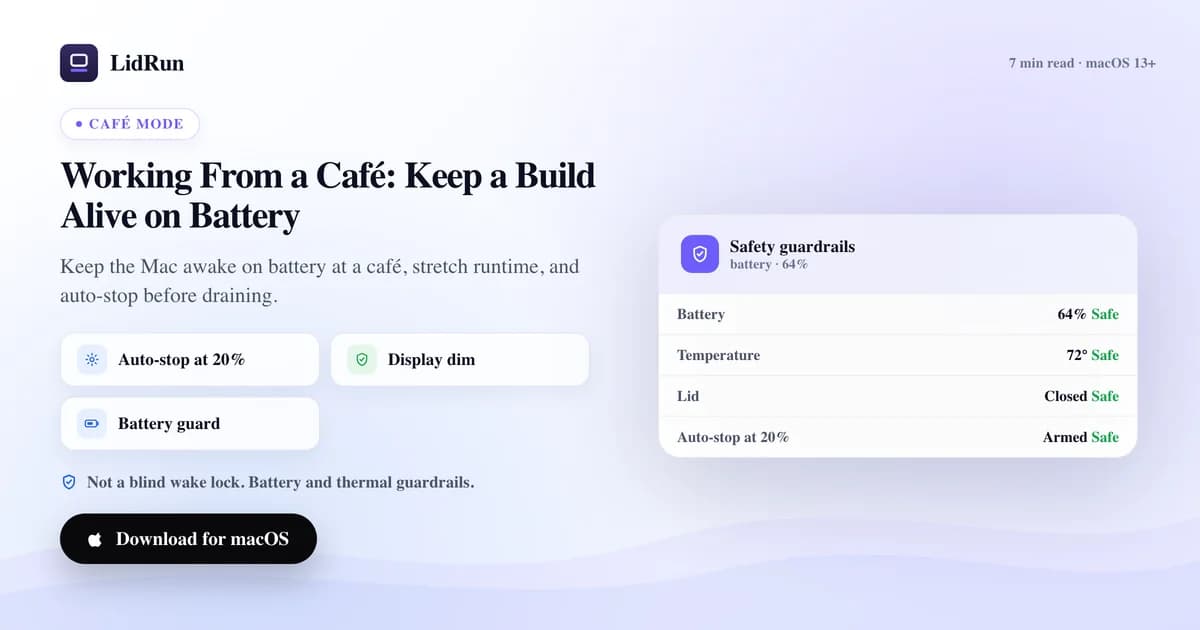
Yes, you can keep a MacBook build running on battery, away from an outlet - the fastest way is native: caffeinate -i holds off idle sleep for as long as a command runs, and pmset -g batt tells you the charge you're actually working with. What macOS doesn't do on its own is spend less power while the job runs, or stop it before the battery hits zero. That's the gap LidRun's Silent Battery Saver and battery floor are built to close: dim the screen to stretch the runtime, then let the Mac sleep on its own terms instead of shutting off hard mid-job.
The no-outlet problem
On power, keeping a Mac awake for a long job is mostly a thermal question - heat, not charge, is the limit. On battery it's also a race: the work needs time, and the charge is a fixed budget ticking down the whole time you're away from a socket.
The blunt fix is to disable sleep and let it run until the battery dies. That's the worst of both worlds - the display stays lit burning charge it didn't need to spend, and if the job outlasts the battery, the Mac shuts off hard with the work unfinished anyway.
What actually works is two things together: spend less power while the job runs, and have a clean stopping point before the battery hits zero. Native macOS tools get you partway there. LidRun tries to do both automatically.
Why the battery clock moves faster than the job
The CPU - and GPU, on a model pull or a render - is the real draw during a build, far more than anything the screen or the OS does at idle. A job that pins every core keeps pulling that load for as long as it runs, which is why a heavy compile or a long agent session can visibly eat a charge in a way that browsing or writing never does.
macOS also protects itself as that happens: the system's thermal state climbs through nominal, fair, serious, and critical as the chip heats up, and near the top of that scale the OS throttles the CPU to cool down. Throttling doesn't add extra power draw on its own - it slows the chip down - but it does mean a throttled build takes longer to finish, and every extra minute is a minute the battery has to cover.
The display is the other real, controllable cost - one of the larger discretionary draws on a laptop, running at full brightness the whole time even though nobody's watching an unattended build. That's the piece a keep-awake tool can actually do something about; the CPU load underneath is out of its hands.
Related guideMacBook auto sleep on low batteryThe free way: caffeinate, pmset, and Low Power Mode
macOS ships everything you need to hold a Mac awake for free. caffeinate -i (or caffeinate -i make, caffeinate -i npm run build) creates an assertion that blocks idle sleep for as long as the command runs, and drops it the moment the command exits - no separate stop step. pmset -g batt checks the charge and power source from Terminal, and pmset -g on its own lists every assertion currently holding the Mac awake and which process owns it - genuinely useful when you're not sure why a Mac won't sleep.
There's also a native answer for the closed-lid version of this problem: sudo pmset disablesleep 1 keeps a MacBook running with the lid shut, paired with an external display or as a background box, and disablesleep 0 turns it back off. It's the same primitive LidRun's own clamshell mode uses under the hood, just without a safety net wrapped around it.
For the café case specifically, macOS's own Low Power Mode (System Settings → Battery) trims background activity and clock speed to stretch a charge, and it's worth turning on regardless of what's holding the Mac awake - it doesn't compete with this problem, it complements it.
Where the free workaround runs out
The gaps are specific, not vague. caffeinate -s - the flag people reach for first - only works on AC power; the man page says so directly, and on battery it's a silent no-op, so a script that assumes -s covers an unplugged session doesn't. -i is what actually holds a Mac awake on battery, but it says nothing about the display, so a naive caffeinate -d -i, or any GUI keep-awake toggle set the same way, leaves the screen at full brightness for the whole run - burning exactly the charge that isn't doing anything useful.
The bigger gap is the stop condition. caffeinate and third-party keep-awake apps - Amphetamine, KeepingYouAwake, Lungo, Caffeine - are all genuinely good at the one job they do: a clean menu-bar toggle or a schedule that holds sleep off. None of them watch the battery level while they hold it. You either babysit the percentage yourself and quit in time, or the Mac runs to zero and shuts off hard mid-job - same outcome as the blunt "just disable sleep" approach from the top of this piece.
That's not a knock on those tools. A schedule-based keep-awake is exactly what most sessions need, and they're lighter than running a whole safety layer for a five-minute task. It's specifically the unattended, battery-limited, "I won't be looking at this Mac" case where a blind wake lock is the wrong shape for the job.
Buying time with a quieter screen
LidRun's Silent Battery Saver leans on that same display cost: while it's keeping the Mac awake on battery, it quietly dims the screen - and the keyboard backlight, on models that have one - to stretch the runtime, then restores both when the session ends.
It sets the levels once rather than fighting you for the whole run: you can still turn the brightness back up mid-session and LidRun won't fight you for it. And it only touches brightness while it's actually the one holding the Mac awake on battery - on power, or when nothing is running, it stays out of the way entirely.
It's a small lever, not a miracle. Dimming the screen doesn't touch what the CPU draws during a heavy compile, so on a job pinning every core the saver is buying minutes, not hours. But on a run where the screen would otherwise sit at full brightness for an hour doing nothing useful, that's real runtime you wouldn't have had, and it costs nothing to leave on.
If LidRun quits unexpectedly mid-dim - a crash, a force-quit - it notices the stale state on the next launch and restores your brightness automatically, so a bad exit doesn't leave you stuck staring at a dark screen.
Ending the run cleanly, not catastrophically
The other half is knowing when to stop, and LidRun runs two layers rather than one single cutoff. The first is the one you can tune: keep-awake auto-stops when the battery drops below a threshold - 20% by default, adjustable between 15% and 50% - so the Mac is free to sleep normally with headroom left to save your work, find a socket, or just pack up.
The second is a backstop under that: a survival auto-sleep fires at 4% by default (adjustable 4-8%), regardless of where the first threshold is set, or even if the auto-stop toggle is off entirely. It's there so a long run is meant to end with the Mac asleep on its own terms, not a hard shutdown, even if the first layer is misconfigured or switched off.
Neither stop is silent. The Activity Log records the exact moment and percentage - "Auto-stopped at 20% battery," "Slept the Mac at 4% battery," "Battery saver on - dimmed the screen" - so afterward you can see which threshold ended the run rather than wondering what happened.
The default protection runs for everyone free; dialing the exact percentages to your own workflow - a 35% stop for a laptop you charge often, say - is part of LidRun's paid graduated-safety controls. The floor itself is never behind a paywall.
Where LidRun fits - and where it doesn't
caffeinate is the right tool when you're at the keyboard and just want a command to keep the Mac up while you grab a coffee. Amphetamine, KeepingYouAwake, Lungo, and Caffeine are the right tool when you want a one-click menu-bar toggle or a schedule, no CLI required. All of them hold sleep off well. None of them are built to notice that the job actually finished, that the battery is heading toward a hard stop, or that the Mac has ended up somewhere unsafe to keep running.
LidRun's shape is different on purpose: agent running, stay awake; agent done, or the situation turns unsafe, release the hold and let the Mac sleep. Auto Mode watches for an actually busy process, not just an app being open - the in-app copy is explicit about it: "an app just being open doesn't count" - so it isn't holding the Mac awake on a guess. That, plus the battery floor and the display dim, is what a café session actually needs: less babysitting, not a stronger wake lock.
None of this changes what a battery physically is. A long, heavy run - a big model pull, a full release build - still finishes faster and safer on a charger, and on battery it drains faster than dimming or a well-placed threshold can offset. Treat café mode as a way to finish a moderate job, or make real progress on a longer one before you find an outlet, not a way to run anything indefinitely unplugged.
Being honest about battery work
The usual physics apply no matter which tool is holding the Mac awake: a warm café table, a couch cushion, or a bag blocks the vents a MacBook needs, and heat builds up faster than most people expect. The system's thermal state climbs from nominal to fair to serious to critical as that happens, and LidRun's safety governor watches for the same climb so it can back off before the chip is forced to throttle hard or the Mac is left running somewhere it shouldn't.
None of that is a reason to avoid working from a café. It's a reason to keep the Mac on a hard, ventilated surface even at a corner table, glance at the charge occasionally instead of trusting any single tool blindly, and let the floor handle the part you'd otherwise have to remember yourself.
If that's the shape of session you run often - unattended builds, agent jobs, anything you start and walk away from - the battery saver and the battery floor are on by default the moment keep-awake runs on battery. There's nothing extra to configure for the basic protection to apply.
LidRun keeps your work running with the lid closed, with battery and thermal safety built in.
Already have LidRun? Read the setup guide →
Frequently asked
It dims the screen and, on models that have one, the keyboard backlight, while LidRun is holding the Mac awake on battery - which stretches runtime on long unattended jobs where the screen would otherwise sit at full brightness for nothing. It doesn't reduce what the CPU draws during a heavy compile, so on a job pinning every core it buys minutes, not hours. Think of it as free runtime on the display's cost, not a fix for the CPU's.
No. It restores your brightness and keyboard backlight automatically when the session ends, and it only dims while it's actually the one holding the Mac awake on battery - on power it stays out of the way. If LidRun quits unexpectedly mid-dim, it detects that stale state on the next launch and restores your brightness then too.
Two thresholds. Keep-awake auto-stops at 20% battery by default (adjustable 15-50%), freeing the Mac to sleep normally with headroom to save your work. Underneath that, a survival auto-sleep fires at 4% by default (adjustable 4-8%) no matter what the first threshold is set to, so a run is designed to end asleep rather than in a sudden hard shutdown.
You can make real progress, but a long, heavy run - a big model pull, a full release build - is still faster and safer on a charger; on battery it drains faster than dimming or a threshold can offset. Use café mode to finish a moderate job or chip away at a longer one before you find an outlet, not to run something indefinitely unplugged.
caffeinate is free, built into macOS, and the right call when you're at the keyboard and just want a command to keep running. But caffeinate -s only works on AC power - it's a silent no-op on battery - and -i, which does work unplugged, doesn't dim the display or watch the charge level. For a job you're walking away from on battery, that's the gap: nothing native tells the Mac when to stop.
No - they work at different layers. Low Power Mode (System Settings → Battery) trims background activity and clock speed system-wide; LidRun decides when to hold the Mac awake and dims the display while it does. They're fine to run together, and for a café session it's the combination that stretches a charge the furthest.