Run a long command, then let your Mac sleep when it's done
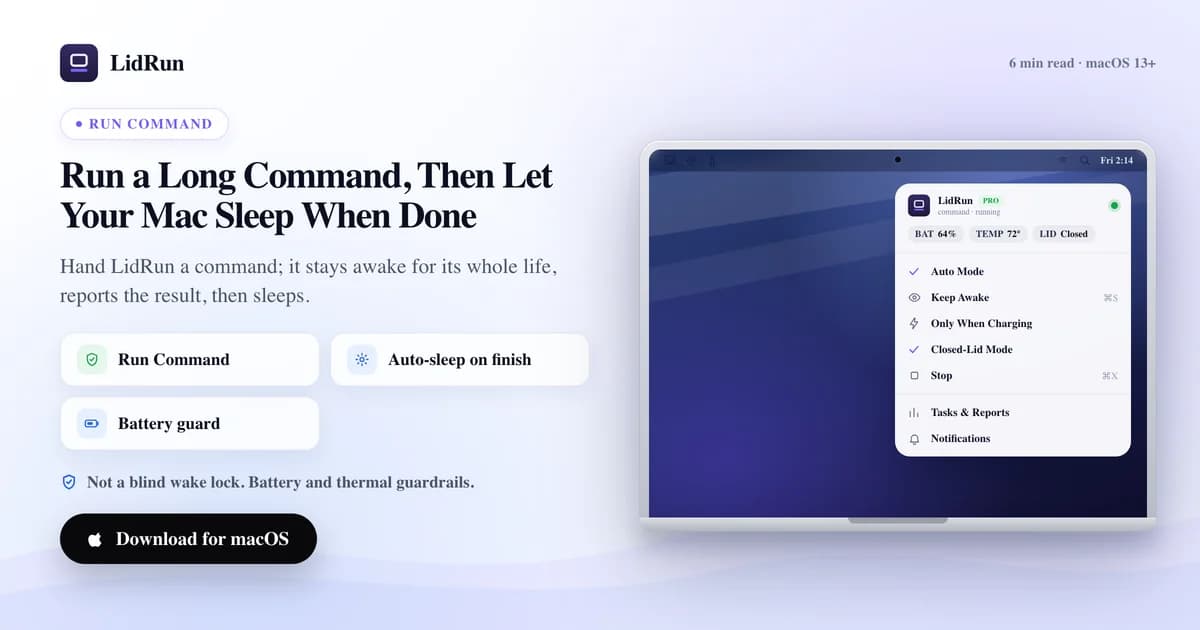
To run a command and then let your Mac sleep the moment it finishes, the built-in tool is caffeinate: give it your command as an argument (caffeinate -i your-command) and macOS holds the Mac awake for exactly that process's lifetime, then lets go automatically - no separate on/off step. That's genuinely useful and costs nothing. Where it runs out is everything after the command exits: caffeinate won't tell you if the job succeeded, won't watch your battery while it runs, and won't notify you when it's done. LidRun's Run & Watch a Command (and its CLI twin, lidrun --) do the same lifecycle tying, then add the exit code, the duration, a notification, and a safety governor that actually stops the job if the Mac shouldn't keep running it.
The problem with manual keep-awake
The usual ritual is two steps you have to remember in the right order: turn keep-awake on, start the job, and later, hopefully, turn keep-awake off once it's done. The second step is the one that slips.

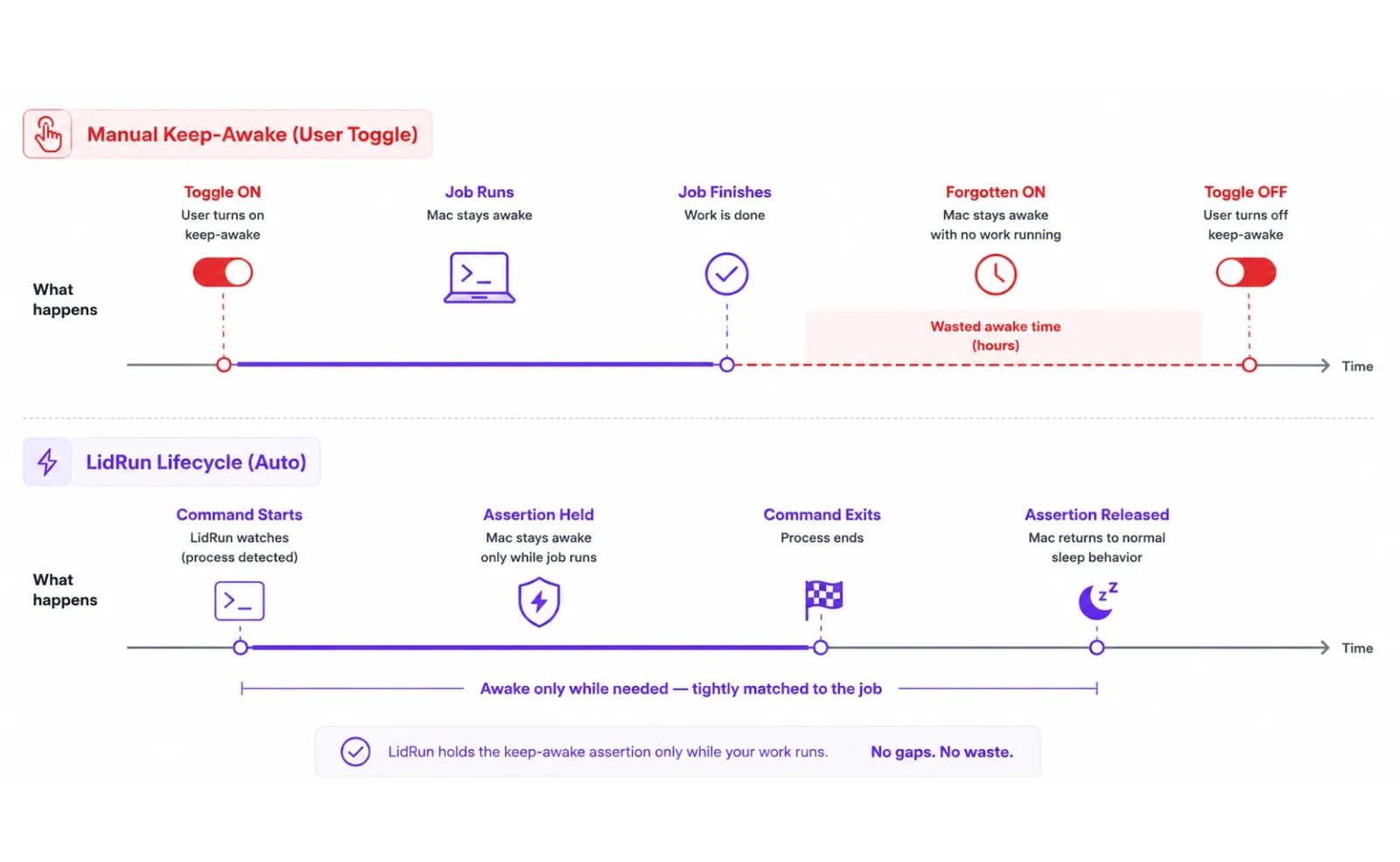
Forget it and the Mac sits awake for hours after a forty-minute job finished - draining on battery, or just not resting on the desk. Turn it off too early and you cut the job off at the knees. Neither is what you actually wanted, which was simpler than the controls allow: keep the Mac awake while this one command runs, then stop. Tie the keep-awake state to the life of the work itself, not to a switch flipped by hand.
The free, built-in way: caffeinate
Before reaching for any app, it's worth knowing macOS already does the core trick for free. caffeinate ships on every Mac, and per its own man page: "If a utility is specified, caffeinate creates the assertions on the utility's behalf, and those assertions will persist for the duration of the utility's execution." Its own example is exactly this pattern: caffeinate -i make forks make, holds an idle-sleep assertion for as long as it runs, and releases when it exits. Swap in your own job - caffeinate -i ./run-migrations.sh or caffeinate -i npm test - and you get the same command-length keep-awake LidRun offers, with zero installs.
The flags matter: -i prevents idle sleep (the common case), -d also keeps the display on, -s prevents system sleep outright but only works on AC power, and -m keeps the disk from spinning down. Leave all the flags off and a bare caffeinate your-command still defaults to preventing idle sleep. It's a genuinely solid tool for a foreground job you're watching.
What caffeinate doesn't touch is a closed lid. Its assertions stop idle sleep, not the forced sleep macOS triggers the moment you physically close the lid on a Mac with no external display attached. The traditional free fix there is the classic clamshell setup - external monitor plus external keyboard/mouse, lid shut, Mac keeps running because macOS treats it as effectively docked. The other lever, the one LidRun's own Closed-Lid mode calls under the hood, is the undocumented-but-well-known sudo pmset disablesleep 1 - a system-wide flag that blocks sleep entirely until something sets it back to 0.
Where the free way runs out
caffeinate tells you nothing when the job ends. There's no exit code printed, no duration, no notification - you're back to watching a terminal tab, or writing your own wrapper like caffeinate -i ./job.sh; echo "exit $?" and remembering to check it later. For a forty-minute migration that's a minor annoyance; for an overnight export you started before bed, it means waking up to a terminal window and scrolling, not a clear answer.
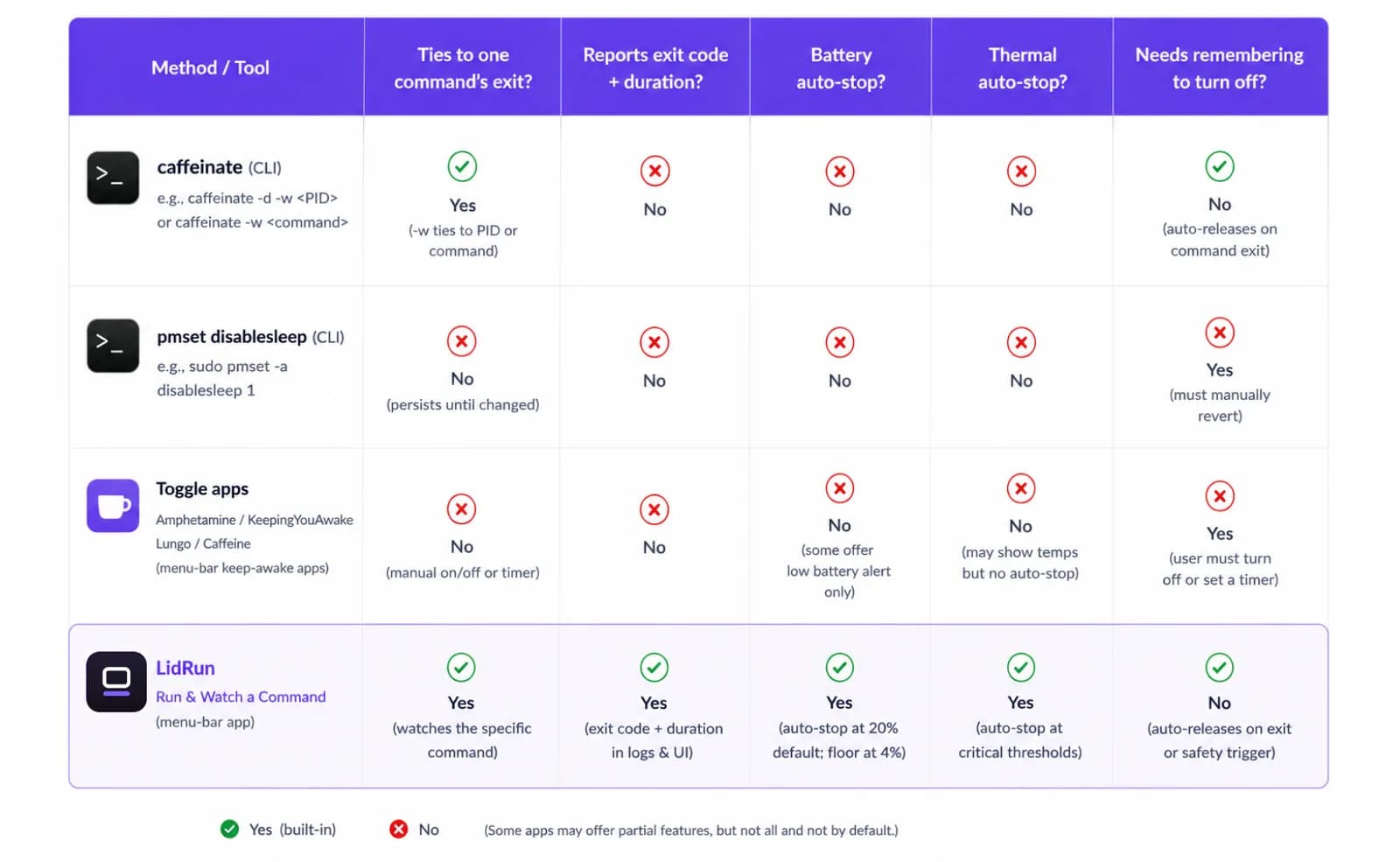
caffeinate also doesn't know anything about your battery or your Mac's thermal state. It holds the assertion blindly for as long as the process runs - which is exactly what you asked it to do, but it means an unattended caffeinate -i job left running on battery overnight has nobody watching your configured low-battery floor for you. pmset disablesleep is blunter still: it needs sudo, it's system-wide (blocks sleep for everything, not just your one job), and it stays set to 1 until something explicitly reverts it - skip that step and the Mac won't sleep for anything until you remember.
Third-party toggle apps - Amphetamine, KeepingYouAwake, Lungo, the original Caffeine - are worth naming fairly rather than dismissing. Amphetamine in particular has a rich trigger system: it can activate on app launch, on a schedule, or by battery level, which is more configurable than anything LidRun offers here. KeepingYouAwake and Lungo are deliberately minimal menu-bar toggles; Caffeine is the one-click classic. What none of them do is watch a specific command's exit code - they manage a persistent awake state you start and stop yourself, or on a trigger unrelated to whether your job is actually still running. That's the same forgot-to-turn-it-off problem from the first section, just with a nicer menu bar icon.
Hand the command to LidRun instead
Run & Watch a Command is a Pro feature that flips the caffeinate model around: instead of you managing the keep-awake state, you hand LidRun the command and it manages the state for you. Under the hood it launches your command through the same login shell your Terminal uses (/bin/zsh -l -c), so PATH tools - Homebrew, pyenv, nvm, whatever claude or ollama need to resolve - work the same way they would if you'd typed the command yourself. It holds keep-awake for the command's entire lifetime and releases the instant it exits, the same promise LidRun makes everywhere else in the app: command running → stay awake, command done or unsafe → release.
While it runs, LidRun captures a rolling tail of the output - the last 200 lines, visible live in the menu bar window - so you're not staring at a bare terminal hoping it's still alive. It's a live view, not a saved log file, so if you need the full transcript for later, redirect the command's own output to a file as you normally would. If you type a bare interpreter with nothing to actually run (python3 with no script), the runner flags it rather than pretending a zero-second exit was a real job.
When it ends, you get the part that matters most: the exit code and how long it took, formatted plainly (12m 34s, 1h 23m). You always get a local notification; if you've set up a push provider - ntfy.sh (free) or Pushover - it reaches your phone too, and on Pro you can additionally fan it out to Telegram, Discord, Slack, or a generic webhook URL. If you start a session on battery, LidRun tells you your configured auto-stop floor up front (20% by default) rather than letting you find out later.
This is also the honest safety difference from a bare caffeinate hold: if your battery drops past that threshold, or the Mac hits critical thermal pressure, LidRun doesn't just quietly let the assertion go and hope for the best - it sends the running command an actual terminate signal, the same as clicking Stop. That's a real interruption, not a soft suggestion, so it's more protective than a blind wake lock, though a job stopped a few minutes before it would have finished on its own is still an interruption, not a guarantee the run completes. And like caffeinate, this keeps the Mac awake through idle sleep, not through a physically closed lid - pair it with Closed-Lid mode (or an external display) if the lid is going to be shut.
The same thing from the command line
If you live in the terminal, lidrun -- <command> [args...] does the same lifecycle-tying, and unlike Run & Watch, it's free and fully self-contained - it works even if the LidRun app isn't running, because it holds its own short-lived IOKit assertion just for the wrapped process, then releases it when the process exits. lidrun -- ./run-migrations.sh or lidrun -- npm test reads exactly like typing the command directly, because under the hood it is - same login shell, same PATH resolution. Ctrl-C aborts it like any foreground job.
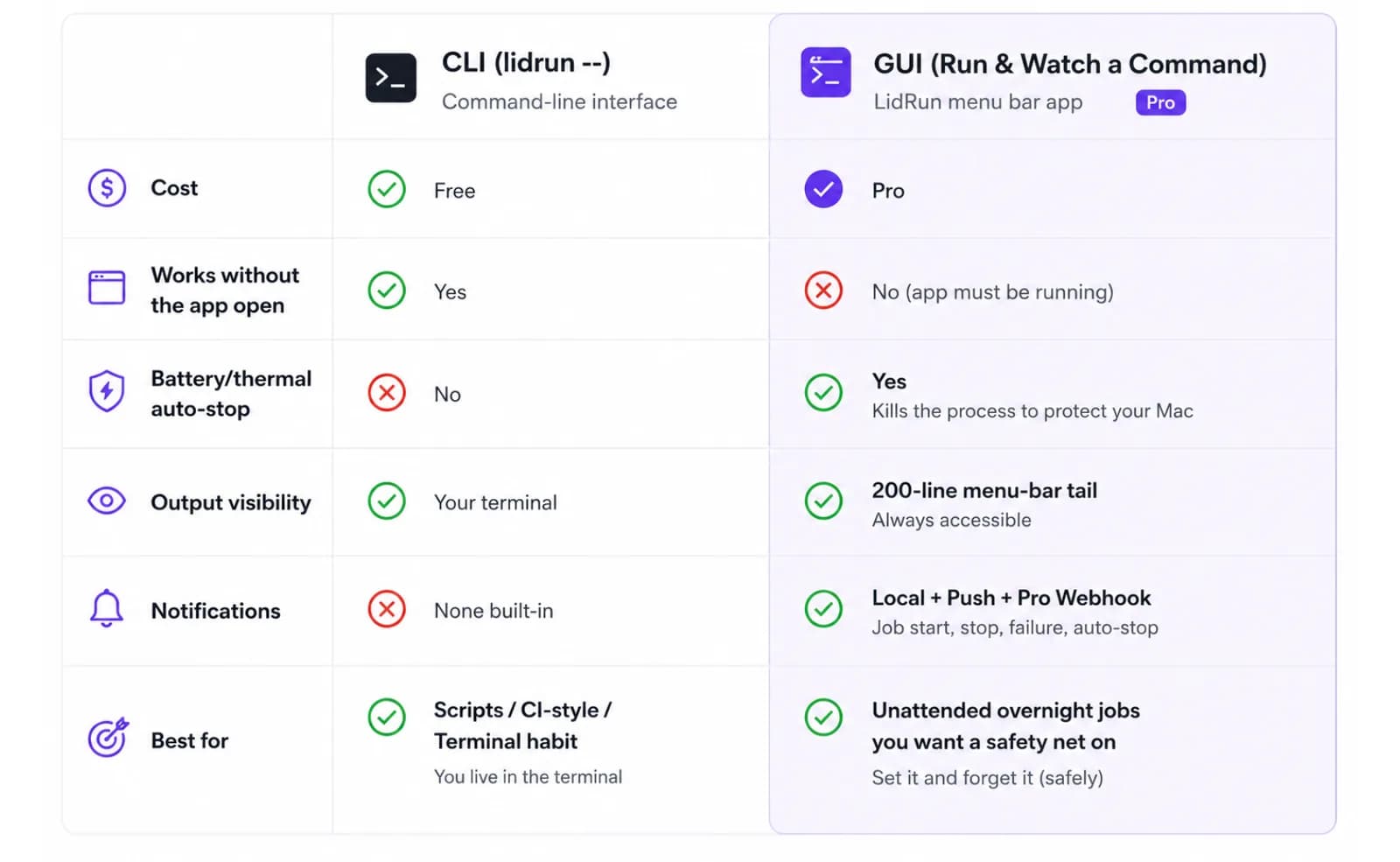
Because it's self-contained, it's honest to say plainly: lidrun -- doesn't check your battery percentage or thermal state itself - that governor lives in the GUI Run & Watch feature, tied to the app's regular safety settings. On battery, for an hours-long job, that's worth knowing before you background it and walk away; mains power is the safer call either way.
One real gotcha worth knowing if you want to chain more than one command under a single keep-awake hold: quote the whole thing as one shell argument. lidrun -- 'npm test && npm run build' works correctly - both commands run under one wrapped session. Wrapping it in an extra shell instead, like lidrun -- bash -c 'npm test && npm run build', does not: LidRun rejoins the argument list with plain spaces before re-running it through the login shell, which silently drops the inner quoting and can skip part of the command. Single-argument quoting is the reliable pattern. Either path also returns your command's own exit code as its own exit code, so it drops straight into a script's &&/|| chain or a $? check exactly like running the command directly.
CLI or GUI runner - which one
Reach for the CLI when you're already about to type the command anyway, you want it in a script or a terminal-driven workflow, or you don't need (or have) Pro. The exit code comes back to your own shell immediately, and there's nothing to open or configure.
Reach for the GUI Run & Watch a Command when you want the battery/thermal auto-stop actually watching the job - not just holding an assertion and hoping - or when you want a phone notification without keeping a terminal window open, or when a live output tail in the menu bar is more comfortable than a terminal tab. It costs a Pro license; the CLI path is the free equivalent for everything except that safety governor and the notification fan-out.
Either way, the destination is the same: the work finishes, the result is known, and the Mac is free to sleep instead of being left awake by a switch nobody flipped back.
Where this fits
Think of the jobs you start and then go do something else: a long database migration you want to confirm completed cleanly, a full test suite that takes twenty minutes you'd rather not babysit, a data export kicked off before bed that should be done by morning. For all of those, the report at the end is half the value - knowing the exit code and the duration tells you whether the migration applied, the suite passed, the export actually finished, without scrolling through output.
It runs inside the same safety boundary as everything else in the app when it's the GUI path: cross your configured battery floor, or hit critical thermal pressure, and LidRun stops the command outright rather than pushing the hardware through it. The CLI path doesn't have that governor built in, so for an unattended overnight run, mains power and a hard, ventilated surface are still the right call regardless of which path you use - this helps reduce risk on a long unattended run; it doesn't promise the job survives no matter what the hardware is doing.
LidRun keeps your work running with the lid closed, with battery and thermal safety built in.
Already have LidRun? Read the setup guide →
Frequently asked
Yes. Run & Watch a Command holds keep-awake for the command's entire lifetime and releases it the moment the command exits, so the Mac stays up for exactly as long as the job runs - the same behavior caffeinate gives you for free when you pass it a command, plus the reporting and safety governor caffeinate doesn't have.
It reports the exit code and the duration (formatted like 12m 34s or 1h 23m), and always posts a local notification. If you've configured a push provider (ntfy.sh or Pushover) it reaches your phone too, and on Pro you can additionally fan it out to Telegram, Discord, Slack, or a generic webhook.
Yes - run lidrun -- your-command and LidRun holds a short-lived keep-awake assertion just for that command, releasing it when it exits. It's free and self-contained, working even without the app running. The GUI Run & Watch a Command feature (menu-bar output tail, notifications, battery/thermal auto-stop) is a Pro feature; the CLI wrapper is the free equivalent minus that safety governor.
No, not by itself. Both the GUI and CLI paths prevent idle sleep, not the forced sleep macOS triggers when you physically close the lid with no external display attached. For a closed-lid job, pair it with Closed-Lid mode (or use an external display, the classic clamshell setup) on top of Run & Watch.
On the GUI path, crossing your configured battery threshold (20% by default) or hitting critical thermal pressure makes LidRun actually terminate the running command, not just release the keep-awake hold and let it run unprotected in the background. The CLI's lidrun -- wrapper has no such check built in - it holds a plain assertion for the process's life regardless of battery level - so mains power is the safer choice for either path on an unattended overnight job.
No built-in timeout on either path. A hung command keeps the assertion held until it exits, you stop it (Stop button in the GUI, Ctrl-C on the CLI), or - on the GUI path only - the battery/thermal safety governor terminates it for you.
Yes, if you quote the whole thing as a single argument: lidrun -- 'npm test && npm run build' runs both under one wrapped session correctly. Wrapping it in an extra shell instead, like lidrun -- bash -c '...', can silently drop part of the command due to how the argument list gets rejoined - quote the compound command as one argument, not as arguments to a nested shell.
The GUI's live view shows a rolling tail of the last 200 lines of output - enough to confirm the job is alive and see recent progress, but it's a live view, not a saved log file. Redirect the command's own output to a file if you need the full transcript afterward.