LidRun CLI: keep a Mac awake from the terminal
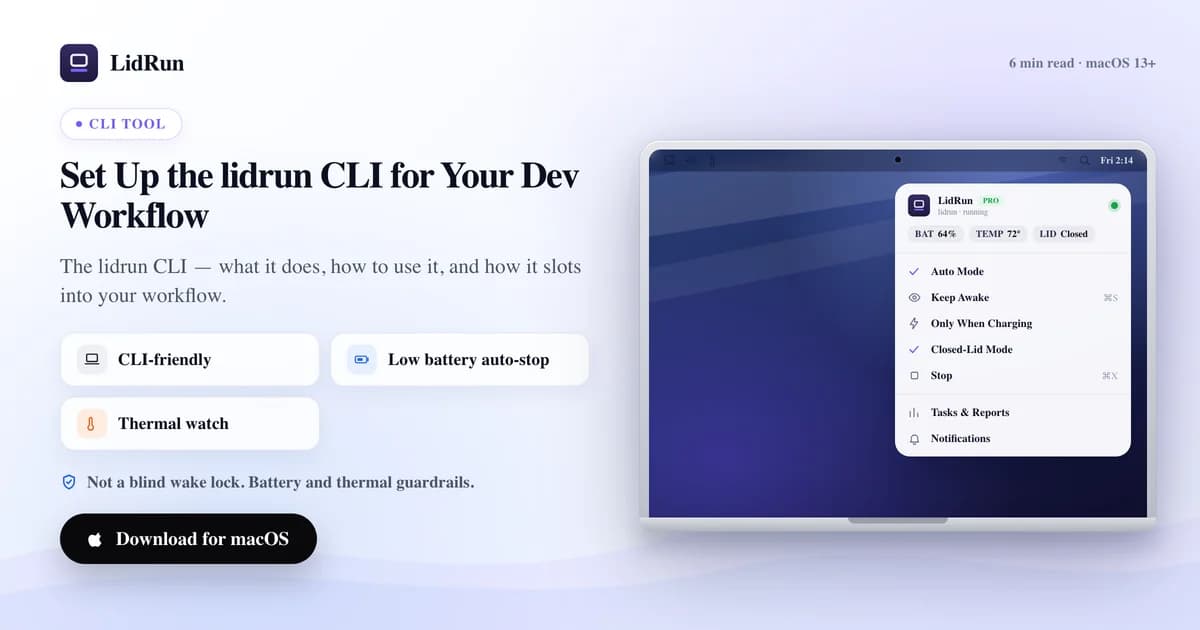
The lidrun command line tool puts LidRun's keep-awake control in your terminal: lidrun status shows the current state, lidrun start and stop toggle it on and off, and lidrun -- <command> wraps a single command in a keep-awake hold for exactly as long as it runs. It's the closest thing LidRun has to caffeinate, and this covers every command it actually has, how to install it, two ways to script it, and - honestly - which parts of a lidrun session get LidRun's battery and thermal guardrails, and which run bare, the way caffeinate does.
What the lidrun CLI actually is
lidrun isn't a separate program with its own logic - it's a small wrapper script, installed to ~/.local/bin/lidrun or /usr/local/bin/lidrun, that runs the same LidRun.app binary you already have, called with a --cli flag instead of double-clicked. Moving the app later, from Downloads to Applications, doesn't break the wrapper, because it's generated to point at wherever the app bundle actually lives at install time.

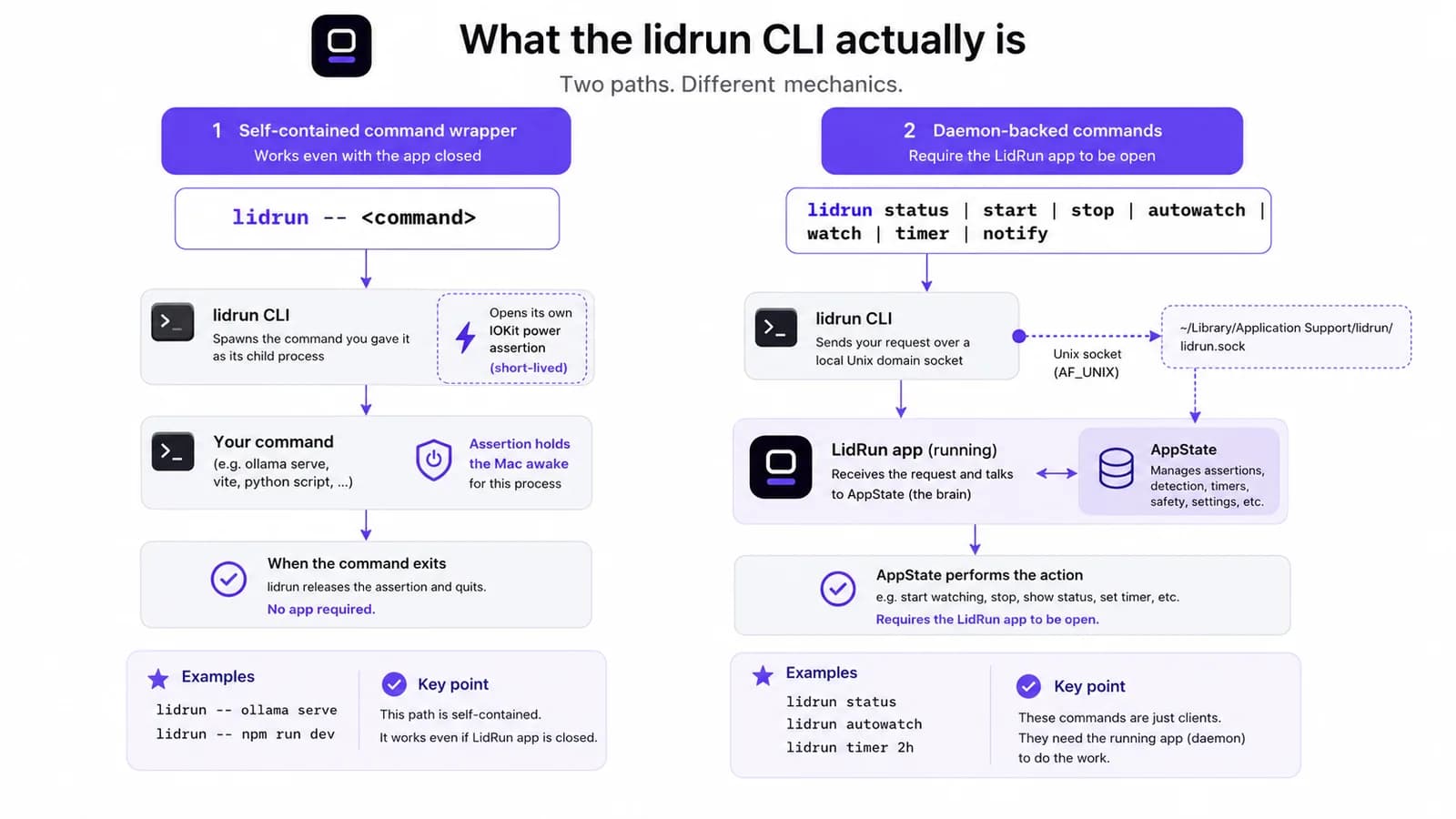
Underneath, it splits into two genuinely different behaviors, and mixing them up is the easiest way to misread what a command is doing. lidrun -- <command> is self-contained: it opens its own short-lived power assertion for the child process and releases it the moment that process exits, without needing the LidRun app open at all. Every other command - status, start, stop, autowatch, watch, unwatch, patterns, timer, notify - is daemon-backed: it opens a local Unix socket connection to the running app and asks it to change state. If the app isn't open, those fail outright with an error, not a silent no-op.
That split matters for what "safety-governed" actually means later in this piece - it isn't the same for every command, and pretending otherwise is the kind of claim that only holds up until someone's Mac runs a battery down in a bag.
The free way: caffeinate and pmset
Before reaching for any tool, macOS already ships two ways to do this from a terminal, and they're worth being straight about - they're genuinely capable, not workarounds. caffeinate -i your-command, or caffeinate -i left running alone in a spare tab, holds an idle-sleep assertion for as long as the utility runs. No install, nothing to trust, and it's been part of macOS for well over a decade - plenty of people who've done this before already have it in their fingers.
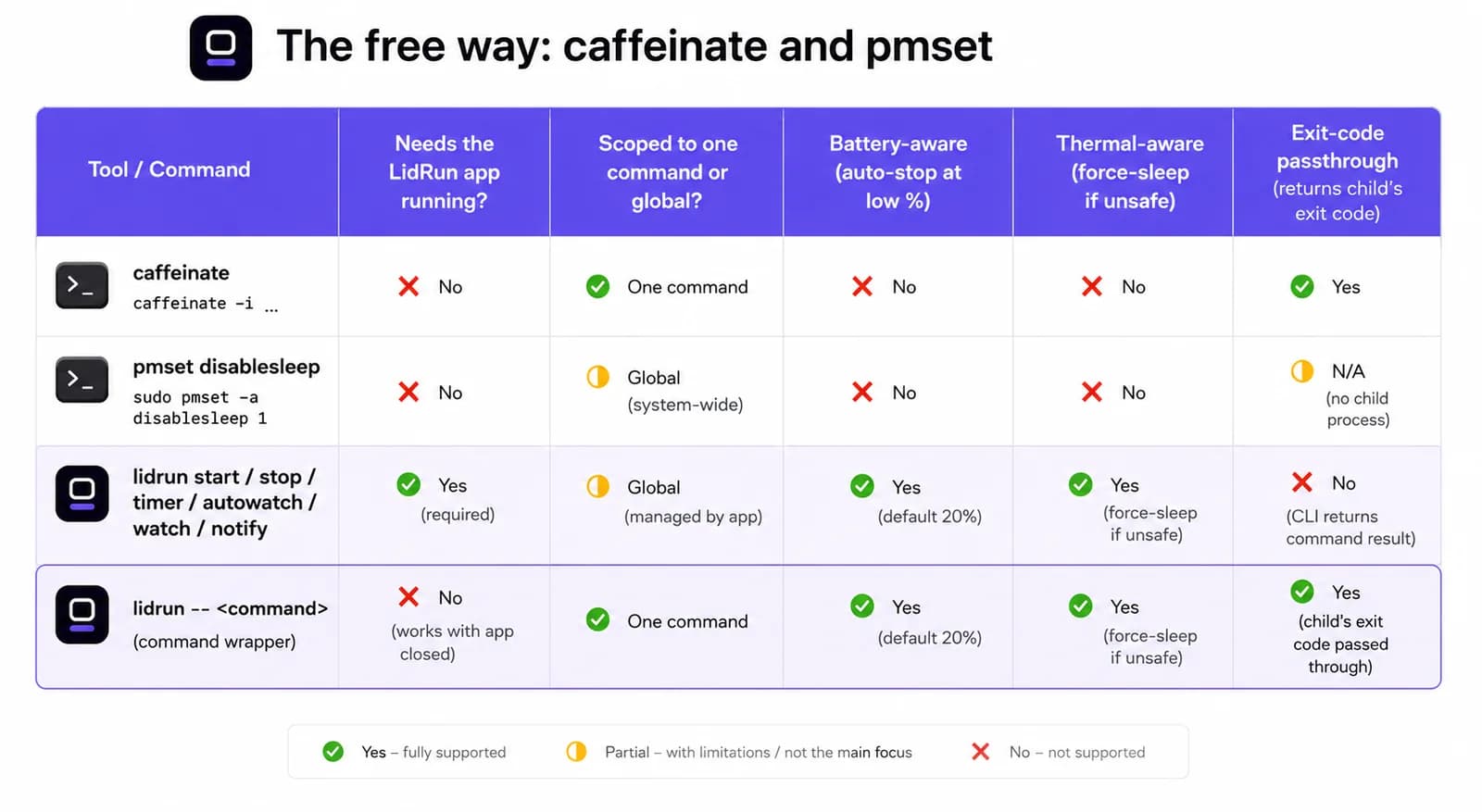
For lid-closed use specifically, pmset disablesleep 1 tells macOS to ignore sleep triggers system-wide, including the lid switch - the exact mechanism LidRun's own Closed-Lid mode uses underneath, which is why LidRun is careful to always pair a disablesleep 1 with a matching disablesleep 0 when a clamshell session ends: on stop, on quit, and again on launch in case the last run didn't clean up. Run by hand, it's a genuine one-liner for closed-lid builds without installing anything.
For a single command you're sitting in front of, caffeinate -i npm run build is honestly as good as anything here, LidRun included.
Related guideRun a long command, then let your Mac sleep when it's doneWhere caffeinate and pmset run out of road
The gap shows up when nobody's watching the session anymore. Neither tool knows the battery percentage or how hot the Mac is running - they hold exactly what they were told to hold, for as long as they were told to hold it, full stop.
disablesleep is the sharper version of that risk, because it's a global setting, not scoped to one terminal tab. If the script that ran pmset disablesleep 1 crashes, gets killed before it reaches the matching 0, or an SSH session drops mid-run, the Mac is left refusing to sleep - lid closed, unattended, however hot it's running - until someone notices and clears it by hand. That exact failure mode is why LidRun's own use of disablesleep is paired defensively in three separate places instead of one.
caffeinate's version of the risk is quieter but just as real: a background caffeinate -i from three deploys ago, still alive in a terminal tab nobody closed, keeping a laptop's battery draining in a bag with nothing checking in on it. Neither tool is wrong to work this way - caffeinate does one job, cleanly, by design. It's just not a battery or thermal floor, and it was never trying to be one.
Installing the lidrun CLI
The CLI isn't a separate download. Open LidRun, go to Settings, then Command Line, and click Install lidrun CLI… - it writes the wrapper script described above and offers a choice of scope.
Installing to ~/.local/bin/lidrun needs no admin password at all; you may need to add ~/.local/bin to your PATH once if it isn't already there, which the installer's own dialog says outright. Installing to /usr/local/bin/lidrun puts lidrun on PATH for every shell without that extra step, but needs a one-time admin password, since writing there needs root.
lidrun --version confirms which build is actually running - it reads the same version number as the app itself, so the CLI can't quietly drift out of sync with the GUI - and lidrun help prints the full command list without leaving the terminal.
Every command the lidrun CLI actually has
lidrun status is worth running first and most. Cold, it prints Mode: Awake Off, Assertion: inactive, Clamshell: off; run it again after lidrun start and Mode reads Awake On with Assertion active - it also adds Battery and Thermal lines whenever the Mac has a battery and a thermal state worth showing. lidrun start and lidrun stop are the explicit on/off pair, and lidrun -- <command> is the wrapper, holding a keep-awake for exactly the lifetime of that one process and handing back its real exit code when it's done - check $? afterward and you're reading the wrapped command's own result, not lidrun's.
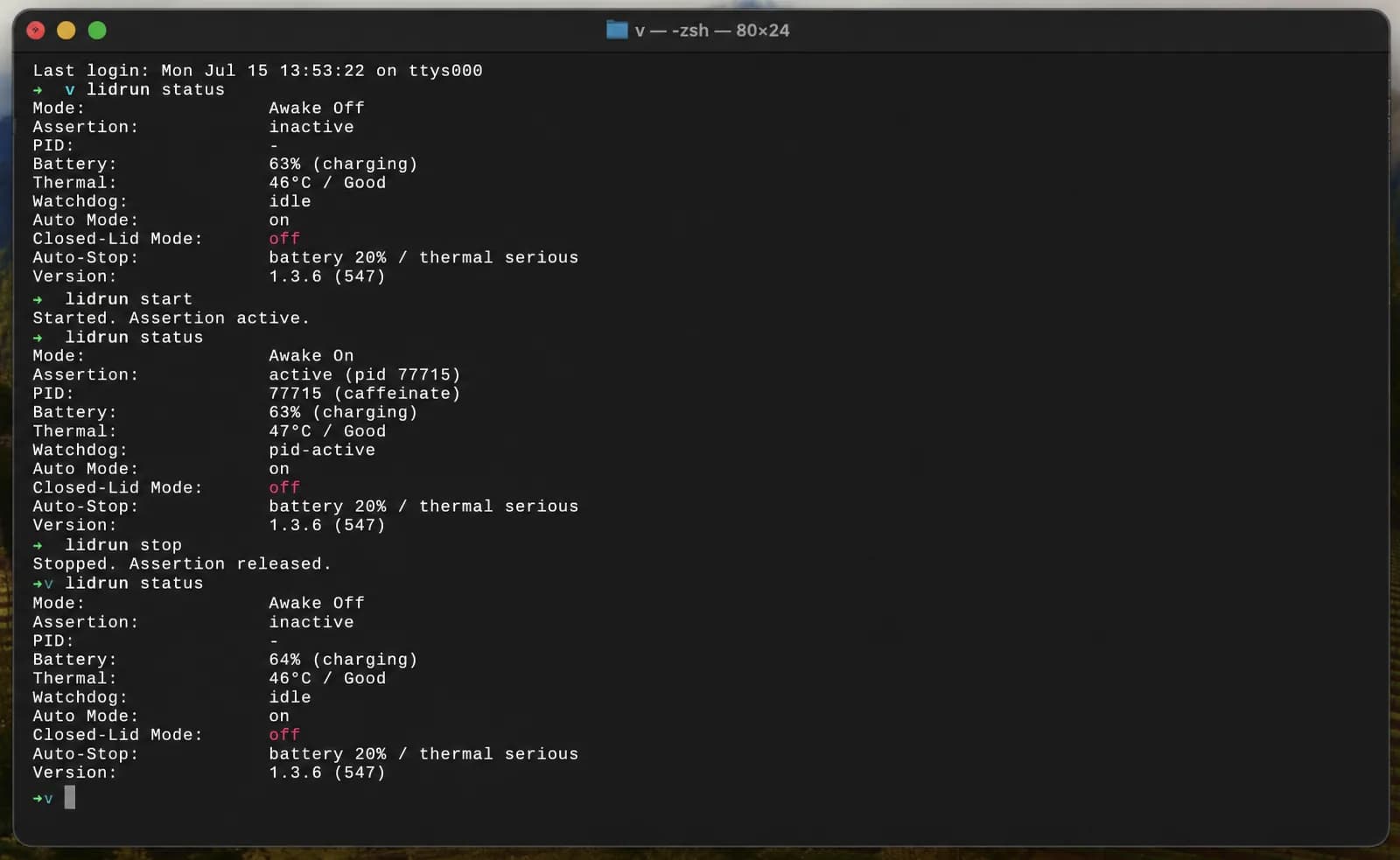
One correction worth making plainly: there's no bare lidrun on, lidrun off, or lidrun toggle. Those words only exist as an argument to autowatch - lidrun autowatch on, off, or toggle turns Auto Mode on or off, the mode that holds a keep-awake only while a watched process name is genuinely running and lets go on its own once it isn't. lidrun watch <pattern> and lidrun unwatch <pattern> add or remove a name from that watch-list, and lidrun patterns lists what's currently on it.
Two more round it out: lidrun timer 3600 holds a keep-awake for a fixed number of seconds and releases itself when the clock runs out, and lidrun notify "Build done" "exit 0" fires a local and push notification through the same channel the app's own alerts use - a reasonable last line in a wrapped script.
Two scripting patterns, and a quoting gotcha
For a whole script with more than one step, bracket it: lidrun start at the top, lidrun stop at the bottom, everything else running in between exactly as it would without LidRun involved. Because both are daemon commands that return immediately, it doesn't matter whether the script sits in a foreground terminal or runs headless over SSH - the app holds the actual state.
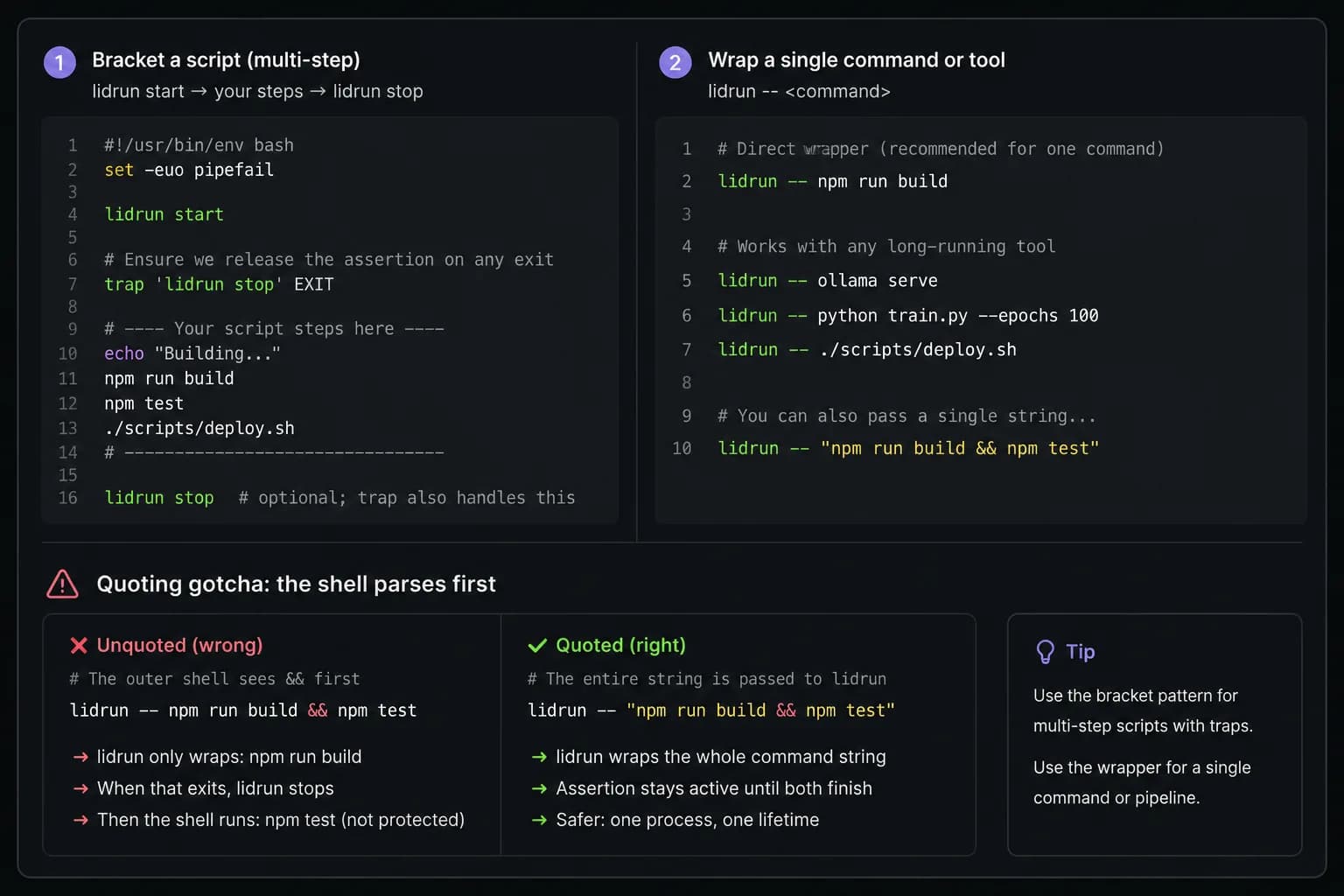
The real risk with bracketing is the same one caffeinate and disablesleep have: if an earlier step fails and the script exits before reaching lidrun stop, the Mac is left under an always-on hold nobody's going to remember to clear. The standard fix is a one-line trap at the top of the script - trap 'lidrun stop' EXIT - which runs lidrun stop no matter how the script exits, crash included.
For a single step, the wrapper form sidesteps the trap entirely: lidrun -- ./build.sh holds the assertion for exactly that one process's lifetime and releases it the moment it exits, pass or fail - the same shape as caffeinate ./build.sh.
One detail worth knowing before it surprises you: lidrun -- runs the joined arguments through a real login shell, so shell operators inside a single quoted string work as expected. lidrun -- "npm run build && npm test" holds one keep-awake across both steps. Drop the quotes and write lidrun -- npm run build && npm test instead, and your outer shell parses the && first - only npm run build gets passed to lidrun, and npm test runs afterward, unwrapped, once lidrun has already exited. Because it runs through a login shell, PATH entries from Homebrew, pyenv, or nvm also resolve the way they do in an interactive terminal, which sidesteps a common gotcha with tools that shell out directly.
What LidRun's safety guardrails actually cover in a CLI session
This is the part worth being precise about, because the honest answer depends on which command you used, not on "the CLI" as one thing. LidRun's battery and thermal protection lives in the running app's own state tracking, not in a raw power assertion by itself - so what a lidrun session gets depends on whether the app is watching that particular assertion.
lidrun start, and timer, and autowatch, hold an assertion the app is actively tracking. By default, if the battery drops below 20% while one of those is active, the app releases the hold on its own - the same thing lidrun stop would do - so the Mac can sleep normally before anything gets urgent. That's the same soft floor the menu bar's Always On toggle gets, because it's the same tracked state underneath.
lidrun -- <command> doesn't get that soft floor, because its assertion lives in the CLI's own short-lived process, outside anything the app is tracking - there's no state for the app to release early. If the LidRun app happens to be open at the same time, which is common since it's a menu-bar utility, its own hard emergency floor still applies system-wide: near 4% battery by default (configurable between 4% and 8%), LidRun calls pmset sleepnow directly, which forces the whole Mac to sleep regardless of who's holding an assertion, including the wrapped command's own. If the app isn't running at all, nothing steps in, and lidrun -- <command> behaves exactly like a bare caffeinate -i <command> hold: no battery floor, no thermal check, just idle-sleep prevention for as long as the process runs.
Practically, that's a fine trade for a build or test you're sitting in front of - you're the safety check. For a genuinely unattended overnight run where the battery floor needs to matter the whole way through, lidrun start paired with lidrun stop, or Auto Mode, with the app open, is the version that's being watched continuously, not just backstopped if things get critical.
Laptop CI, unattended runs, and where the CLI fits next to everything else
The real reason to reach for any of this is a self-hosted runner or a nightly job on a Mac that's actually sitting on a desk somewhere - the kind of unattended machine that idles to sleep on its own, unlike an ephemeral cloud CI VM. Wrapping the job with lidrun -- ./nightly.sh, or bracketing it with start and stop, keeps the Mac from idling out mid-run.
The CLI is one seam in a small set of tools that deliberately overlap. Auto Mode (lidrun autowatch on) keeps the Mac awake only while a watched process name is genuinely running, with nothing to remember to balance afterward. The GUI's Run Command view does the same job as lidrun -- <command> from a window instead of a terminal, and shows the exit code and duration of what it ran when it finishes - the same information $? gives the CLI. Which one to use is mostly about where the job starts: a script reaches for the CLI, a manual one-off reaches for the GUI.
If the workflow lives entirely in a menu-bar toggle rather than a script, Amphetamine, KeepingYouAwake, Lungo, and Caffeine are established, genuinely capable tools with their own trigger rules - app launch, Wi-Fi network, time of day. They're not built primarily around a scriptable, exit-code-aware terminal workflow the way lidrun -- and caffeinate are, so if the job starts in a script or a Makefile rather than a click, the CLI tools are the better fit for that specific job.
The same caveats apply here as everywhere else: a hard, ventilated surface and mains power are the right setup for anything that runs long, and the CLI helps reduce the friction of keeping a Mac awake from the terminal. It doesn't replace actually checking in on a machine you've asked to run unattended overnight.
LidRun keeps your work running with the lid closed, with battery and thermal safety built in.
Already have LidRun? Read the setup guide →
Frequently asked
lidrun status, start, stop, autowatch [on|off|toggle], watch <pattern>, unwatch <pattern>, patterns, timer <seconds>, and notify "<title>" ["<body>"], plus the lidrun -- <command> wrapper, --version, and help. There's no bare lidrun on, off, or toggle - those words only exist as arguments to autowatch.
No. It's self-contained - it opens its own short-lived power assertion for the wrapped command and releases it when the command exits, independent of the app. status, start, stop, and the other daemon commands do need the app open; they talk to it over a local socket and return an error if it isn't.
It depends which command. start, timer, and autowatch hold an assertion the app actively tracks, including the default battery auto-stop at 20%. lidrun -- <command> holds its own separate assertion the app can't release early - if the app is open, its harder emergency floor near 4% battery still forces the whole Mac to sleep regardless of who's holding an assertion; if the app isn't running, nothing intervenes and it behaves like a bare caffeinate hold.
lidrun -- your-command. It waits for the command, releases the hold, and hands back the command's own exit code - $? after lidrun -- npm test reflects npm test's result, not lidrun's.
Not for the default install. Settings, Command Line, Install lidrun CLI… can write to ~/.local/bin/lidrun with no admin prompt - just add that folder to PATH once. Installing system-wide to /usr/local/bin/lidrun asks for an admin password a single time, since writing there needs root.
Mechanically, lidrun -- <command> and caffeinate <command> do close to the same thing - hold an idle-sleep assertion for the process's lifetime. The difference is in the rest of the CLI: start, stop, timer, and autowatch are tied into the same app, battery threshold, thermal state, and notifications already visible in the menu bar, so a script and the GUI are reading one shared state instead of two unrelated tools.
Yes - that's the main real use case: a self-hosted runner or nightly job on a Mac that would otherwise idle to sleep. Wrap the job or bracket it with start and stop, and treat it like any unattended run - ventilated, on mains power, and watched via lidrun start rather than the bare wrapper if the battery floor needs to be active the whole time, not just as a last resort.