Keep your Mac awake only while it's actually working
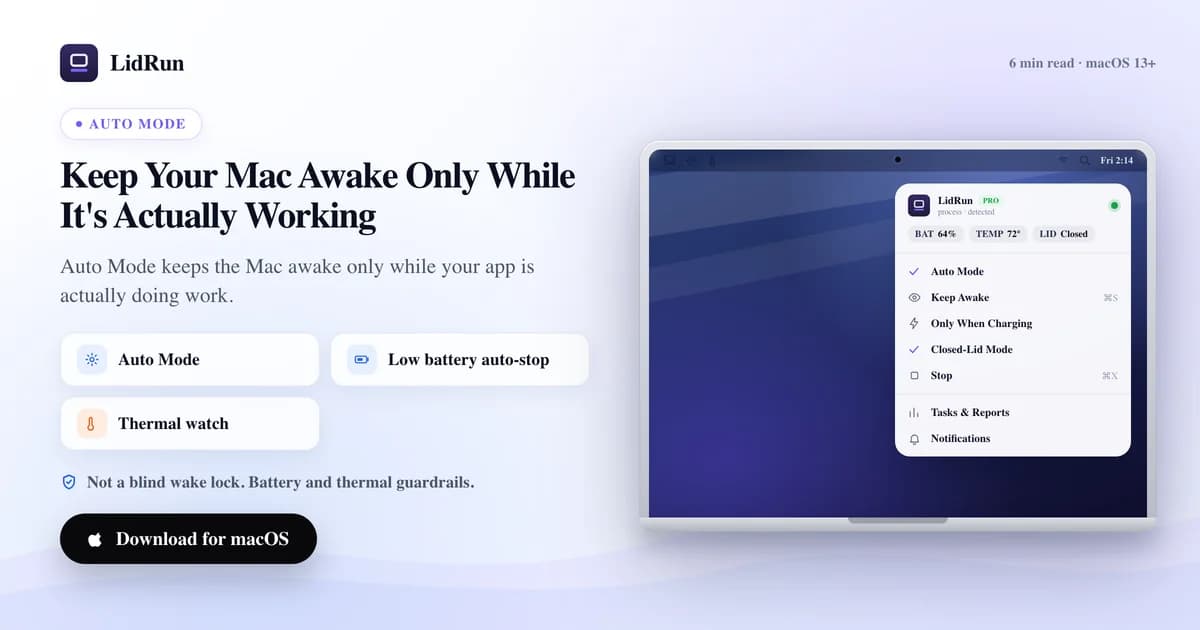
The short answer: a Mac stays awake only while a real workload is running, not just because an app has a window open, when something is watching CPU activity per process instead of merely checking whether it exists. That's what it takes to auto keep awake only while working and let go the rest of the time, and it's the exact job LidRun's Auto Mode does. Most keep-awake tools have one setting: on. Flip it, the Mac stays up, and it stays up long after the job that needed it has finished. LidRun's rule is narrower: agent running, stay awake; agent done or unsafe, release and let the Mac sleep. This piece covers how that actually works, including the free command-line ways to get partway there, and where they run out of road.
An open app is not a working one
A plain wake lock cannot tell the difference between a build that is grinding away and an editor that has been idle for an hour. To it, both are just processes that exist, so it holds the Mac awake either way, and keeps holding it long after the work is actually done.
But "the app is open" and "the app is working" are not the same thing. Claude Code sitting at a prompt waiting for you is not doing CPU work. An Ollama daemon with nothing loaded is not doing CPU work. Holding a Mac awake for either one is just running the battery down for nothing.
Auto Mode draws the line at activity, not presence. It watches a list of dev and AI tools and asks a sharper question for each one: is this process actually busy right now, or is it merely running?
The free way people try first: caffeinate and pmset
macOS already ships two ways to get partway to this for free, and they're worth knowing before reaching for any app. caffeinate is a built-in command-line tool: run caffeinate -i npm run build and the Mac won't idle-sleep for as long as that one command keeps running. The moment the build finishes, caffeinate exits with it, and the assertion is gone. That's genuinely close to keeping a Mac awake only while working, it costs nothing, and it needs zero setup.
For a closed-lid setup, the free primitive one level down is sudo pmset disablesleep 1 - it tells macOS to ignore its own sleep policy entirely, lid included. It's the same underlying switch that every clamshell-mode app, LidRun's own Closed-Lid mode among them, ultimately calls. Set it, close the lid, and the Mac keeps running.
There's also a zero-software route: plug in an external display, keyboard, and mouse while the Mac is on mains power, and Apple's own clamshell behavior lets it run lid-closed with no extra software at all. It only works tethered to a display and power, though - not much help for a laptop working solo on battery in a cafe.
Related guideThe mac keep-awake safety governor: why LidRun lets a hot or idle Mac sleepWhere the free tools run out of road
caffeinate has no idea whether the command it's wrapping is actually busy. Point it at an interactive REPL you've stepped away from and it holds the Mac awake at 0% CPU for as long as the shell stays open, because it never looks at CPU at all - it only checks whether the process still exists.
pmset disablesleep is riskier in a specific way: it isn't tied to anything. Nothing turns it back to 0 automatically. Set it once for a late-night build and forget about it, and the Mac will sit awake - lid closed, possibly in a bag - for as long as the setting is left on. That's a well-known way people find a hot, dead Mac later. It's exactly why LidRun's own Closed-Lid mode, which calls that same pmset switch, always pairs the 1 with a matching 0 on stop, on quit, and again on relaunch, rather than trusting anyone to remember.
Neither tool watches the battery or the thermal state. They'll hold a Mac awake at 2% charge or with the fans maxed out just as readily as at 90% and cool, because there's no signal for that built in at all - managing that tradeoff is entirely on you.
Neither is process-aware across a whole session, either. Run Claude Code in one terminal tab, a dev server in another, and Docker in the background, and caffeinate only knows about the one PID you launched it against - you'd need to wrap each command separately and remember to.
How Auto Mode measures activity
LidRun watches for tools by process name or app bundle, and for shell interpreters - python, node, ruby, perl, bun, deno, java, sh, bash, zsh, php - it also reads the command line, so a pattern like train.py matches even though the process running it is just called "python". Detection is only half the job, though.
CPU is the deciding factor. For a command-line process, the default floor is 20% of one core, and it's adjustable from 1% to 50% in Settings. A GUI app has to clear a fixed 40%-of-one-core floor no matter how that slider is set - a merely-open Cursor window idling in the single digits never counts, only one that's actually compiling or indexing does. A brand-new CLI process gets the benefit of the doubt on its very first check, since there's no CPU delta to compare yet and LidRun would rather not miss the start of a real job; a GUI app gets no such free pass.
Known coding agents - Claude Code, Codex, Cursor's agent, Windsurf, Aider, Cline, Continue, Goose, OpenHands, Zed, plus local runtimes like Ollama, LM Studio, and vLLM - get one more layer once they've proven they did real work at least once: after that, they count as active by presence rather than CPU%, because an agent waiting on a model response can sit near 0% CPU without actually being done. A freshly launched agent that hasn't done anything yet still has to earn that trust the normal way, on CPU.
The holdoff, with real numbers
Real workloads are bursty - a build pauses between stages, an agent waits on a network call, inference catches its breath between tokens. Release the assertion the instant CPU dips and the Mac could fall asleep in the middle of a job.
The default holdoff is 60 seconds, adjustable from 10 to 600 in Settings: after the last active sample, LidRun keeps holding for that long before deciding the work has actually stopped. A known agent that has already proven work gets a longer 30-minute holdoff instead, because sitting near-idle while it waits on an API response is a normal part of the job, not a sign it's done.
How often LidRun checks is a separate dial from how long it waits. The poll interval is Fast (5 seconds), Balanced (10 seconds, the default), or Battery saver (30 seconds) - or any exact value from 1 to 60 seconds in Advanced. A coarser check trades a little responsiveness for less background CPU of its own.
Auto Mode with Closed-Lid, and seeing what it's watching
Auto Mode and Closed-Lid are separate switches, not competing modes, and they run together. Auto Mode decides whether a task is genuinely active; Closed-Lid separately stops the lid closing from forcing sleep. Turn on Auto Mode, then close the lid with Closed-Lid enabled, and the same CPU-and-holdoff logic keeps deciding whether the assertion holds - it's not a blind wake lock just because the display went dark.
For seeing what it's actually watching, the menu bar dropdown has an "Active workloads" card: every matched process shows up there, active ones listed with live CPU%, idle-but-within-holdoff ones summarized underneath. If a tool you expect isn't showing up at all, that's the honest signal to go check the watch-list rather than assume Auto Mode is broken.
Why letting it sleep is the point
An always-on wake lock has a cost whether or not anything is happening: on battery it drains the cell, plugged in it still keeps the chip from resting. The value of Auto Mode is that it ends when the work does - and by default, if nothing watched has been active for 20 minutes, LidRun proactively puts the Mac to sleep rather than just releasing the assertion and waiting on macOS's own idle timer. Both that 20-minute window and whether it sleeps at all are adjustable in Settings.
Every keep-awake decision still runs through the same safety thresholds no matter which mode is active. By default LidRun starts winding down at 20% battery, treats 5% as critical, and force-releases at a hard floor around 4% regardless of what's still running. Auto Mode decides when staying awake is justified by the work; the safety layer decides when it's no longer safe to, full stop.
None of this replaces basic care. Set the CPU floor and holdoff once and mostly forget about them - but keep the Mac ventilated for long AI or dev runs, and treat the battery thresholds as a guardrail, not a substitute for plugging in during a multi-hour job.
Where this fits, and what it costs
Auto Mode is part of LidRun's paid tier. Keep Awake, the Timer, and Charging-only mode are free with no session limit, but the CPU-based auto-detection described in this article is Pro. If the only thing needed is "stay awake while this one command runs," caffeinate or LidRun's own lidrun -- <command> CLI wrapper cover exactly that for free, with none of the tuning above.
Against the other menu-bar tools: Amphetamine is free and has the deepest rule engine of the group - app-based, network-based, and battery-based triggers - but its rules are about which app is running, not whether it's actually busy. KeepingYouAwake and Caffeine are simple, free, one-click toggles with no automatic release logic at all. Lungo is a clean paid timer-based toggle. None of the five watches per-process CPU the way Auto Mode does; that's a narrower job, not a claim that it beats any of them at what they're built for.
LidRun keeps your work running with the lid closed, with battery and thermal safety built in.
Already have LidRun? Read the setup guide →
Frequently asked
Turn on Auto Mode and pick the tools to watch - LidRun ships a default list covering common AI CLIs, local model runtimes, and build tools. A process only counts as active once its CPU usage clears the floor (20% of one core by default for CLI processes, a fixed 40% for GUI apps), so an idle window sitting open in the background doesn't hold the session on its own.
Yes. Command-line processes use the adjustable threshold in Settings, 20% of one core by default and tunable from 1% to 50%. GUI apps must clear a fixed 40%-of-one-core floor regardless of that slider, since a merely-open app tends to idle well under that.
No - that's what the holdoff is for. After the last active sample, LidRun keeps the Mac awake for 60 seconds by default (adjustable from 10 to 600) before deciding the work has stopped, so short pauses between build stages don't end the session. A known AI agent that has already proven work gets a longer 30-minute holdoff, since sitting near-idle while it waits on a model response is normal, not a sign the task is done.
Once no watched process has been active for the whole holdoff window, LidRun releases the keep-awake assertion. By default it also proactively puts the Mac to sleep after 20 minutes of no detected work, rather than just letting macOS decide on its own idle timer - both the wait and whether it sleeps at all are adjustable. Battery and thermal limits apply throughout, in every mode.
caffeinate and pmset are free and built into macOS, but neither looks at CPU - caffeinate just checks whether the wrapped process still exists, and pmset disablesleep is a blunt on/off switch with nothing to turn it back off automatically. Auto Mode adds the layer both are missing: a CPU threshold per watched process, a holdoff so brief pauses don't end the session, and battery/thermal limits that override it regardless of what's running.
Yes - they're separate switches, not alternatives. Auto Mode decides whether a task is active; Closed-Lid separately keeps the lid closing from forcing sleep. Running both means the same CPU-and-holdoff logic still governs the Mac after the lid is shut.
No - Keep Awake, the Timer, and Charging-only mode are free with no session limit, but Auto Mode's CPU-based detection is part of LidRun's paid tier. For a single command with no tuning needed, the free lidrun -- <command> CLI wrapper or macOS's own caffeinate cover that case.
The menu bar dropdown has an Active workloads card that lists every matched process live, with active ones showing current CPU% and idle-but-within-holdoff ones summarized separately. If a tool isn't appearing there at all, check that it's on the watch-list before assuming detection is broken.