What Is Keeping Your Mac Awake? Here's How to Find Out
Your Mac's fans are spinning and the screen never dims - something is holding a wake assertion, and macOS won't sleep until it lets go. Finding the cause takes less than two minutes once you know where to look. This guide walks through Activity Monitor's Energy tab, the Terminal command that lists every active power lock on the system, and what to check next if that command comes back empty.
How macOS power assertions work
macOS doesn't sleep on a countdown timer alone. Before dimming the display or spinning down the disk, the kernel checks whether any running process holds a power assertion - a request filed through the IOKit power management framework that tells the system it needs to stay awake. macOS honors that request until the process releases it or the process ends.
Two assertion types account for most sleep behavior. PreventUserIdleSystemSleep blocks the Mac from sleeping at all - disk, display, everything. PreventUserIdleDisplaySleep keeps only the screen lit and lets the rest of the system sleep if it chooses. A download manager, a video player, caffeinate run from Terminal, or a Mac keep-awake app like LidRun can hold either type, for different reasons.
Assertions aren't a bug - they're a designed feature, and the same mechanism cuts both ways. The lock that keeps a Mac awake through an overnight AI run is the identical mechanism a forgotten browser tab uses to keep it awake after the video stopped playing. The goal isn't to distrust every assertion; it's to know which ones you asked for and which showed up uninvited.
Using Activity Monitor to find the cause
Open Activity Monitor from Applications → Utilities, or find it with Spotlight. Click the Energy tab. The Preventing Sleep column shows Yes or No for every process the system is tracking - click the column header to sort active assertions to the top.

Common surprises in that list: a browser tab with a paused video, a cloud-sync client mid-upload, a Time Machine backup still running in the background, a podcast app, or a video call that stayed open after you left the meeting. Right-click a suspicious entry and choose Inspect Process to see its full binary path and parent process - that usually settles it.
Activity Monitor is a solid first pass, but it has blind spots. CLI tools and background daemons - including caffeinate launched from Terminal - sometimes appear under a generic name, or don't show up in the list at all. For those, the Terminal command below gives the fuller picture.
Related guideKeep your Mac awake only while it's actually workingReading pmset -g assertions in Terminal
Open Terminal and run pmset -g assertions. The output lists every active power assertion on the system: the type, the human-readable name the app gave it, and the process ID that filed it. A summary block at the top splits them into Listed (currently active) and Timed Out (the timer fired, but the app never called release).
A timed-out assertion can still block sleep - the process set a deadline, the deadline passed, but the lock itself was never released. If a PID in the output looks unfamiliar, cross-reference it with ps aux | grep, followed by that PID, to confirm which process it belongs to. Some assertions carry an explicit timeout; others are indefinite - an indefinite PreventUserIdleSystemSleep held by a frozen or crashed background agent keeps the Mac awake with no visible cause, and it's the first thing worth checking if the machine has been up far longer than expected.
pmset -g assertions only shows what's active right now - it has no memory. Two related commands cover the gaps. Plain pmset -g (no assertions flag) includes a SleepDisabled line - a different, global setting that some tools, and LidRun's own Closed-Lid mode, flip with pmset -a disablesleep instead of filing a normal assertion (more on that in the next section). And pmset -g log prints a historical timeline of sleep, wake, and assertion events, useful if you want to know what was holding the Mac awake overnight rather than right now.
To stop a CLI assertion such as caffeinate, find its PID in the pmset output and run kill followed by that PID. Quitting an app releases its assertions immediately too - regular assertions are process-bound, so macOS clears them the instant the process ends, no separate cleanup step required. If an assertion shows no clear owner, or its process already crashed, a reboot clears every outstanding lock.
When pmset -g assertions comes back empty
Sometimes pmset -g assertions returns nothing at all, yet the Mac still feels like it never fully powers down - the fan spins up and down, or the display flickers on with no app in sight. That's usually not a hidden assertion; it's a scheduled dark wake. macOS periodically wakes briefly for network tasks - iCloud sync, Find My, Handoff, and Power Nap - even with nothing holding a lock, then goes back to sleep on its own seconds later.
If you want to rule that out, check System Settings → Battery → Options and turn off Wake for network access. It won't stop a genuine assertion - if something is really filing PreventUserIdleSystemSleep, that setting won't touch it - but it removes the background noise so a repeat pmset -g assertions check is easier to read.
This is also the moment to check plain pmset -g for a SleepDisabled: 1 line, described above. It won't show up under pmset -g assertions because it isn't an assertion - it's a standing system setting, most often left on by pmset -a disablesleep from a script, a third-party tool, or an app (LidRun's Closed-Lid mode included) that crashed before it could turn itself back off.
Intentional vs unwanted wake assertions
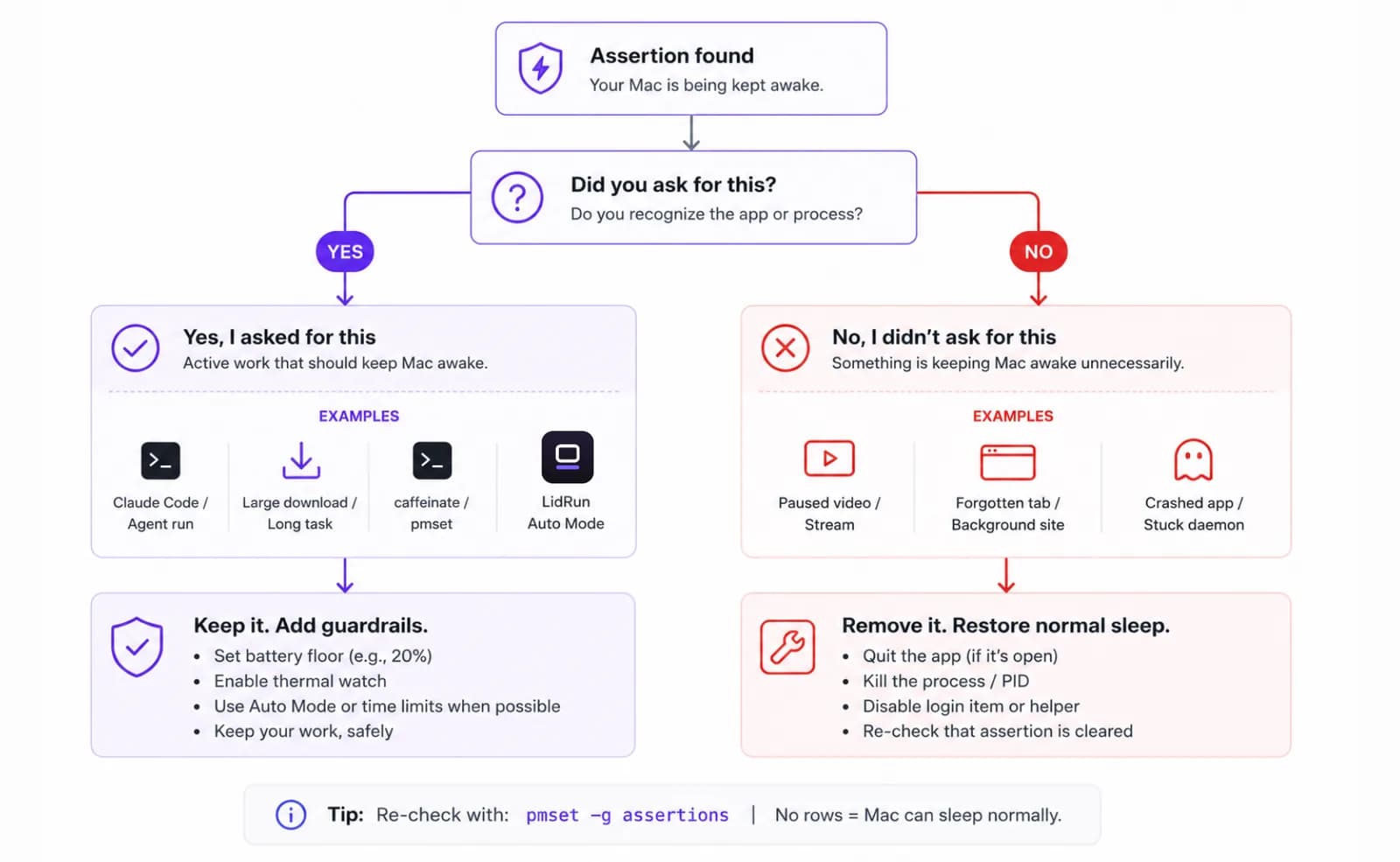
Not every assertion needs to be removed. If you're running a long Claude Code session, a local model job, or a Cursor agent overnight, something should be holding that assertion - killing it would kill your work too. The real question isn't just 'why is my Mac awake?' but 'did I ask for this?'
A download manager holding sleep prevention until a transfer finishes is doing its job. A video player holding it after you closed the window isn't. A tool you configured on purpose - LidRun, caffeinate -i run by hand - is intentional. A browser tab with a paused video you forgot about is not. The distinction is consent, not the mechanism.
If you land on 'yes, I want this,' you already have free, native options. caffeinate -i, run from Terminal, files the same PreventUserIdleSystemSleep assertion described earlier for as long as the command runs - add -t 3600 for a one-hour ceiling. It's process-bound, so ending the command or closing the Terminal window releases it automatically. Caffeinate can't help with a closed lid, though - an idle-sleep assertion doesn't reach clamshell sleep. The only free lever there is sudo pmset -a disablesleep 1, and it behaves differently on purpose: it's a global, standing setting rather than a process-bound one, so it survives even if the app that set it crashes, and stays on until something explicitly runs pmset -a disablesleep 0 or the Mac reboots. Menu-bar apps like Amphetamine, KeepingYouAwake, Lungo, and Caffeine wrap the same underlying mechanism in a one-click toggle, which is a perfectly good choice if a manual switch is all you need. Either way, it's still the same assertion or the same disablesleep flag under the hood - which is exactly why pmset -g assertions is worth knowing regardless of which tool filed the lock. The LidRun vs caffeinate comparison walks through the full cost and feature breakdown.
For a hold you want to keep but keep safe, the guardrails are what matter: an automatic stop before the battery runs dangerously low, awareness of thermal state so a hot Mac isn't held awake indefinitely, and scoping the assertion to one task so it releases the moment that task ends instead of relying on memory. LidRun's Auto Mode handles the scoping: point it at a process name - a Claude Code session, a build, a render job - and it holds the assertion only while that process is running, then releases it the instant the process exits. Agent running, stay awake; agent done, release - that's the whole design, not a blind wake lock left on until someone remembers to turn it off. The auto keep-awake, only while working guide covers that pattern in detail. On battery, LidRun also stops itself below a threshold - 20% by default, adjustable from 15% to 50% - regardless of what's still running, and drops out of Closed-Lid mode once the system reports critical thermal pressure (with a warning at the serious stage before that), because a closed lid blocks the Mac's main cooling path and no amount of automation should keep it closed while it's overheating.
When the culprit is unwanted, quitting the app fixes it immediately. If the same process keeps reappearing after a restart, check System Settings → General → Login Items and Background Items for agents set to launch automatically. Removing or disabling the login item stops the cycle at the source.
LidRun keeps your work running with the lid closed, with battery and thermal safety built in.
Already have LidRun? Read the setup guide →
Frequently asked
Open Terminal and run pmset -g assertions. The output lists every active power assertion, the app that filed it, and the assertion type. For a visual approach, open Activity Monitor, click the Energy tab, and sort by the Preventing Sleep column to see which processes are holding a wake lock.
Each line shows an assertion type such as PreventUserIdleSystemSleep, the name the app gave it, and a process ID. The summary block at the top separates active assertions (Listed) from ones whose timer fired but whose lock was never released (Timed Out). Both can block sleep, and the PID lets you trace each one back to its source process. This command only shows assertions, though - a separate, global setting called SleepDisabled (visible in plain pmset -g) can also keep a Mac awake and won't appear in this list.
Yes. macOS and many third-party download managers file a PreventUserIdleSystemSleep assertion while a transfer is in progress so the Mac doesn't sleep and interrupt it. Once the download finishes, the assertion is released and normal sleep behavior resumes.
Quitting the app releases its assertions immediately. For a CLI process like caffeinate, find its PID in pmset -g assertions output and run kill followed by that PID. For a system daemon or background agent, check Login Items in System Settings → General and disable or remove the item so it stops relaunching.
That's usually a scheduled dark wake, not a hidden assertion. macOS periodically wakes briefly for iCloud sync, Find My, Handoff, and Power Nap, then goes back to sleep on its own seconds later. Turn off Wake for network access in System Settings → Battery → Options to rule it out. If the Mac genuinely isn't sleeping at all, also check plain pmset -g for a SleepDisabled: 1 line - that's a separate global setting, usually left on by pmset -a disablesleep, that doesn't show up under pmset -g assertions.
Yes, while a backup is actively running. Time Machine files a sleep-prevention assertion so an in-progress backup isn't interrupted, and it shows up in both Activity Monitor's Energy tab and pmset -g assertions while it's copying files. Once the backup finishes, the assertion is released automatically.