Smart Rules: if-this-then-that automation for Mac power and cooling
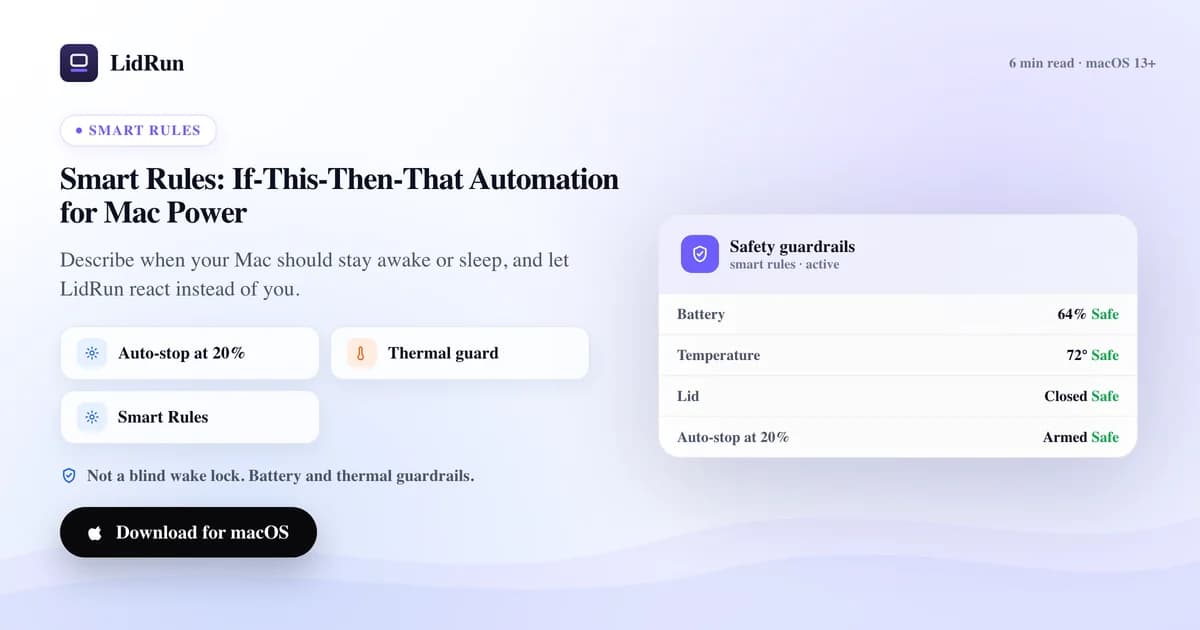
Smart Rules are LidRun's if-this-then-that layer for Mac power automation: you set a condition - a process running, battery below a percent, the chassis staying hot, a time window - and once it holds true, LidRun keeps the Mac awake, lets it sleep, switches a cooling profile, or sends an alert, without you touching a switch. It's the same shift as a thermostat replacing a light switch: you describe the target state once, and the app keeps checking instead of you remembering to. Below is exactly what a rule can watch, what it's allowed to do, how people currently patch this together with caffeinate and pmset, and where that DIY path quietly leaves a Mac awake - or asleep - longer than intended.
Why a single keep-awake switch is not enough
A manual toggle has exactly two states, and a workday has more than two problems to solve. The same Mac that should stay wide awake through a 40-minute build should be free to sleep an hour later once nothing is running and the battery reads 18 percent.
Leave keep-awake on to cover the busy stretches and you also hold the Mac awake through the idle ones - wasted battery, and on a warm desk, a fan spun up for nothing. Turn it off between jobs and you're back to babysitting a switch, catching it the moment a long job starts. A rule is the missing middle ground: you write the condition once, LidRun keeps checking, and the action fires only when the condition is actually true.
The free, native way to automate this - and where it breaks
Most people don't reach for a dedicated app first, and they don't need to for a one-off job. macOS ships two real levers. caffeinate -i some-command keeps idle sleep from happening for exactly as long as some-command runs, then gets out of the way on its own - genuinely the right tool for a single foreground job. caffeinate -s does the same but only while the Mac is on AC power, which matches what most build scripts actually want. For the lid specifically, sudo pmset disablesleep 1 is the same switch LidRun's own Closed-Lid mode flips - it tells macOS to ignore the clamshell-sleep trigger entirely, and sudo pmset disablesleep 0 puts it back. macOS also has a free, no-terminal path for "keep it open with the lid down": plug into power, attach an external display, connect a wired or wireless keyboard or mouse, and Apple's own clamshell mode runs the Mac lid-closed at full power with no third-party software involved. If you want something closer to a rule, the Shortcuts app can trigger a "Run Shell Script" action off a battery-level or time-of-day automation, so a battery-below-20% event can fire a script that calls caffeinate or pmset for you.
None of that is wrong, and for a single job it's honestly plenty. The trouble shows up once you stack more than one condition, or forget to close the loop. A caffeinate -i & left running in a background terminal doesn't know your job finished - it holds the Mac awake until you remember to kill it, or until you close the lid on a Mac that's still fully powered up inside a bag. pmset disablesleep 1 is worse to forget: it doesn't expire, doesn't watch your battery, and doesn't know the chassis is running hot - it stays disabled on this boot and the next until a matching 0 is actually run. None of these native tools read CPU temperature at all (macOS doesn't expose it to a shell script without a third-party reader), so a script built on them has no way to back off when the machine genuinely gets hot, and no record of what fired or when.
The conditions a Smart Rule can react to
A rule starts with one or more conditions, and LidRun requires all of them to hold at once - there's no OR inside a single rule; if you need "either/or," build two rules with the same actions. A condition can match a process or app name against a pattern (so a rule keys off Claude Code, Codex, Cursor, Ollama, Docker, an Xcode build, or a python script - matching a running process or app name exactly or as a prefix, case-insensitive), battery below or above a percent, temperature staying above a number of degrees for a duration, on-battery vs. on-AC power, the lid being closed, no matching workload having run for N seconds, or a time window.
The engine re-checks every 5 seconds. Duration-based conditions - "temperature above X for Y seconds," "no workload for N seconds" - only count time while every condition in that rule is holding simultaneously. If any one of them drops, even briefly (AC unplugged for a second, a workload blinking off between steps), the hold timer resets and the countdown starts over. That's deliberate: a rule should react to a sustained state, not a flicker.
"No matching workload for N seconds" checks against the same Auto-Watch pattern list you set in Settings, not the specific pattern typed into that rule - worth knowing if you're using it to auto-release after a custom job: add that job's process name to your Auto-Watch patterns too, or the rule has nothing to watch for going away.
Temperature comes from the SMC sensor keys LidRun reads directly. Because no single key exists on every Mac, it tries a list of candidates and takes the hottest valid reading, so what a rule compares against is the warmest part of the machine it can actually see, not a guess. If a given Mac has no readable sensor for that comparison, the condition simply never evaluates true - the rule stays dormant instead of erroring.
What a rule is allowed to do
Actions revolve around LidRun's own controls, and that limit is deliberate: keep the Mac awake, stop keeping it awake, switch to a cooling preset (Quiet, Balanced, AI Workload, or Emergency Max) within what the hardware allows, send a notification (with an optional push to your phone), sleep the Mac, start or stop Closed-Lid mode, or log a note. It doesn't pretend to do things macOS won't let an app do.
Fan write-control is largely restricted on Apple Silicon by firmware and SIP, so a cooling action leans on what the hardware exposes rather than forcing a manual fan curve; if fan control isn't available on your Mac or your license tier, a rule's cooling step is simply skipped while its other actions - keep awake, notify, sleep - still fire. Cooling actions also only ever elevate, never downgrade: if you've manually set fans to Max, a rule's "switch to Balanced" step won't pull them back down. Only an emergency-thermal rule forces Max regardless of what's already set, which is what stops a routine rule from quietly undoing a deliberate choice.
None of a rule's actions ask for confirmation once you've turned the rule on - including Sleep-the-Mac and Closed-Lid mode, which is exactly why the app's own copy in Smart Rules warns you to enable those two deliberately. What a rule does is visible, but not yet labeled as a rule: firing "keep awake" or "sleep the Mac" produces the same Activity Log entry a manual action would ("Keep Awake started," for instance) - the entry doesn't say which rule triggered it. If you're tuning a new rule and want to confirm it actually fired, Console.app's com.lidrun.app subsystem, RuleEngine category, logs the rule's name every time it runs - the more precise place to look while you're testing thresholds.
Smart Rules itself is a Pro feature with its own master switch, off by default even on a Pro license. Auto Mode, on the free tier, already starts and releases keep-awake around detected work; Smart Rules is the conditional layer on top of that - extra cooling, alerts, or a controlled sleep when there's real risk.
What's a built-in preset vs. what you can customize today
LidRun ships with 15 built-in rules across AI coding agents, local AI, dev & build, and safety. You can turn each one on or off, but not delete it, and five ship disabled by default - LM Studio, Python, Node/npm, Xcode build, and ffmpeg - because a broad interpreter pattern like "python" or "node" matches too many unrelated processes to leave on for everyone out of the box.
Where the in-app builder is more limited today: adding a custom rule from the Smart Rules window currently means typing a process name pattern, which creates one fixed shape of rule - that process running keeps the Mac awake and switches to AI Workload cooling. The battery-percent, temperature-and-duration, lid, and time-window conditions covered above all exist as built-in presets you can enable, but the visual builder doesn't yet let you type your own threshold for them. If you want a custom battery or temperature rule today, the built-in presets are the way to get one; the rules themselves live in a plain JSON file in Application Support, if you're comfortable poking at it directly.
Rules a developer would actually set
Stay awake while it works, back off once it's done: the Claude Code, Codex, Cursor, and Ollama presets each keep the Mac awake and switch to AI Workload cooling the moment that process is running, with a 5-minute cooldown so the rule doesn't refire every tick while the job continues. Docker gets the same treatment but with Balanced cooling instead of AI Workload. Pair any of those with the built-in "no AI workload for 10 minutes → stop keep-awake" rule, and an overnight model pull or agent run releases the Mac on its own once it's genuinely idle, instead of leaving keep-awake on for the rest of the night.
Two safety presets are on by default and need no setup: battery below 10 percent, on battery power, sends a low-battery notification; battery below 5 percent, on battery power, puts the Mac to sleep outright. Both run independently of whatever a workload rule is doing, and both sit on top of the app-wide safety governor that already gates keep-awake on battery and thermal state underneath every rule.
The two temperature presets show the duration gating in practice: above 90°C held for 5 minutes switches to Emergency Max cooling and sends a "Mac running hot" notification; above 95°C held for 2 minutes skips straight to sleeping the Mac. Both need the reading to stay elevated continuously for that long, so a normal, brief spike during a build doesn't trip either one. Airflow and where you put the Mac are still on you - a rule reacts to a number, it can't fix a closed bag.
For anything outside the built-in patterns - vllm, Blender, a training script with an odd binary name - typing that name into "Add a custom rule" gets you keep-awake plus AI Workload cooling in one step. If you also want that job to respect a battery floor or a time window, enable the matching built-in safety presets alongside it rather than expecting one rule to do everything today.
LidRun keeps your work running with the lid closed, with battery and thermal safety built in.
Already have LidRun? Read the setup guide →
Frequently asked
A matching process or app running, battery below or above a percent, temperature above a number of degrees for a duration, on-battery vs. on-AC power, the lid being closed, no matching workload for N seconds, and a time window. All of a rule's conditions must hold at once - there's no OR inside a single rule; use two rules for an either/or.
No. Actions are LidRun's own levers - keep awake, stop keep-awake, switch a cooling preset within what the hardware allows, notify, sleep, or toggle Closed-Lid mode. Fan write-control is largely restricted on Apple Silicon by firmware and SIP, so a cooling action works within those limits; where fan control isn't available, that step is skipped and the rule's other actions still run. Cooling actions only elevate, never quietly pull a manually-set Max back down.
Yes - built-in presets sleep the Mac below 5 percent battery and notify below 10 percent, both on battery power, independent of whatever a workload rule is doing. LidRun's safety governor already gates keep-awake on battery and thermal state underneath every rule, so this isn't the only backstop.
Use "no matching workload for N seconds." It waits for your Auto-Watch pattern list (in Settings) to show nothing running for that long before it fires, so a brief pause between steps doesn't trigger it early. It watches your global Auto-Watch list, not a pattern typed into that specific rule - add the job's process name to Auto-Watch too, or there's nothing for the condition to watch going away.
Not from the rule builder yet. Typing a custom rule today creates a process-pattern rule - that process running keeps the Mac awake and switches to AI Workload cooling. Battery, temperature, lid, and time-window conditions currently come from the built-in presets, which you can turn on or off individually.
The engine checks every 5 seconds, but it only enumerates running processes - the expensive part - when at least one enabled rule actually needs process information. With only battery, thermal, power-source, lid, or time-window rules turned on, the check stays a near-free no-op.