Reading real CPU temperature on Intel and Apple Silicon Macs
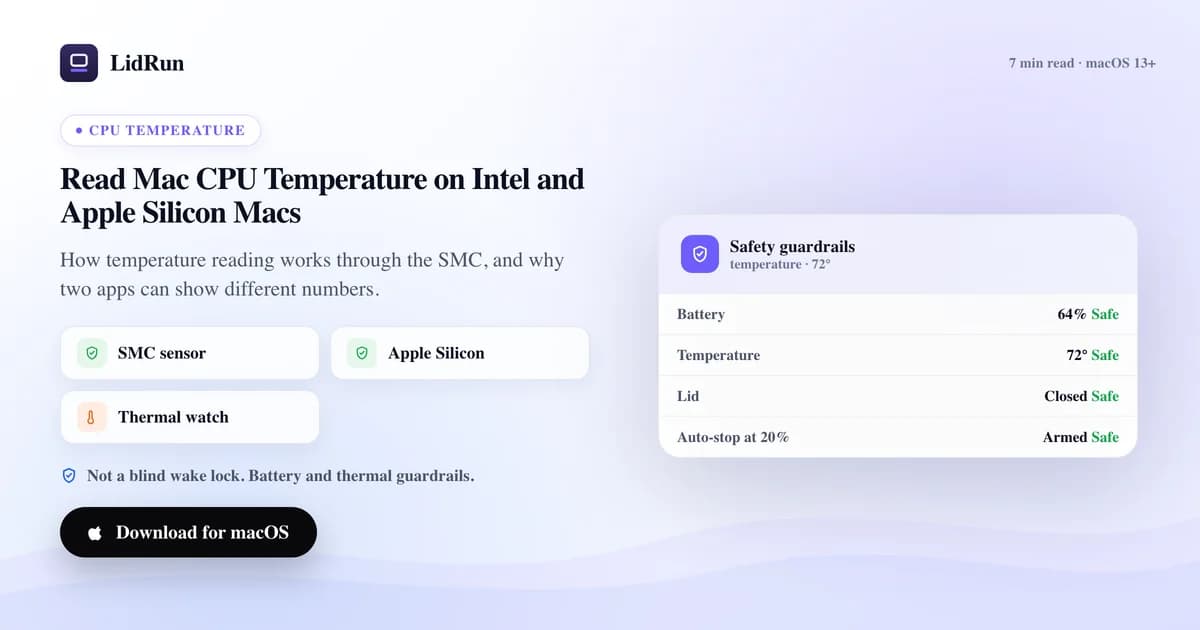
Description: macOS has no built-in way to show CPU temperature - not in Activity Monitor, not anywhere in System Settings - so reading Mac CPU temperature always means going around that gap the same way every tool does: talking to the SMC (System Management Controller), the small controller that sits between the operating system and the actual sensors. Reading it means asking for a specific four-character sensor key and decoding whatever numeric format that particular chip uses - sp78 fixed-point on Intel, IEEE flt floating point on Apple Silicon - which is also why two tools on the same machine, including Terminal's own pmset -g therm, can show you two different numbers for what looks like the same thing.
There's no Apple API that just hands you a number
Open Activity Monitor and look for a CPU Temperature column - there isn't one. Apple has never shipped a built-in temperature display anywhere in macOS: not in Activity Monitor, not in System Settings, not through any public temperature API. That's not an oversight; Apple treats the sensor data as an internal detail of its own thermal management, not something apps are meant to read directly.
Everything that does show you a number, free or paid, is going around that gap the same way: by talking to the SMC, the small always-on controller that sits between macOS and the actual thermal sensors and fans. There's no "read CPU temperature" system call - you ask the SMC for a specific four-character sensor key (like TC0D or Tp01) and it hands back a handful of raw bytes that mean nothing until you know how to decode them.
That's the real answer to "how do I read my Mac's CPU temperature": pick the right key for this specific Mac, then decode the bytes it returns using the correct format for this specific chip. Get either step wrong and you get a wrong number, or no number at all - which is exactly why two temperature tools on the same Mac can disagree, and why some readers show nothing at all on a brand-new chip.
The two decoders: sp78 on Intel, IEEE flt on Apple Silicon
The SMC doesn't return one universal numeric type - each key carries its own data type, and the decoder has to match it or the result is garbage. Temperature keys use two different formats depending on the Mac's architecture.

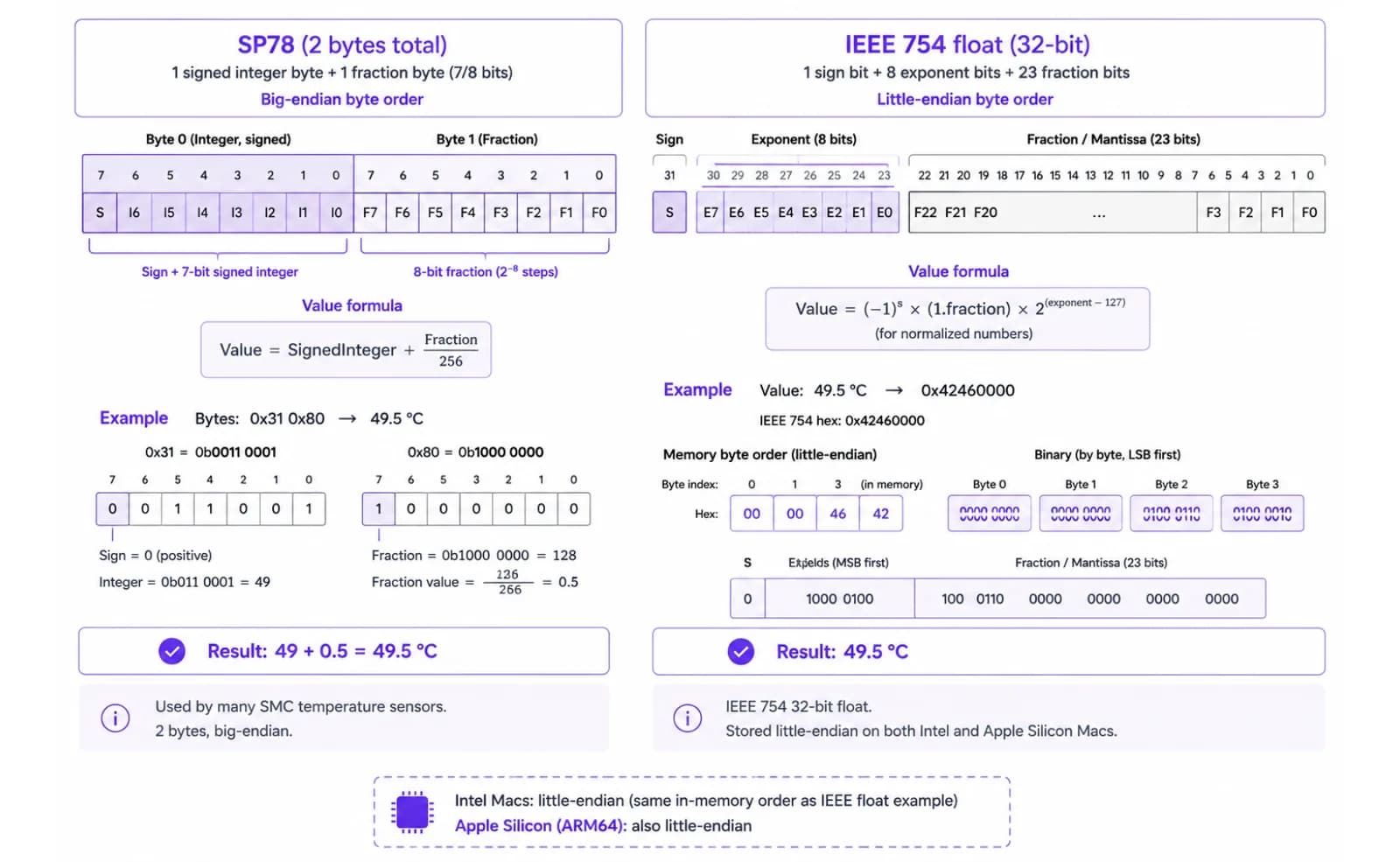
On Intel Macs, temperature comes back as sp78: a signed 8.8 fixed-point number, one byte of whole degrees and one byte of fraction. Decoding it is simple arithmetic - the first byte read as a signed integer, plus the second byte divided by 256. Bytes 0x31 0x80, for example, decode to 49 + 128/256 = 49.5°C.
On Apple Silicon, the same sensor family reports as flt: a standard 4-byte IEEE-754 floating point number, just stored little-endian instead of the byte order you'd normally expect. It's the identical 32-bit float format used everywhere else in software - Apple just packs the bytes in reverse.
Fan RPM has its own encoding split too - fpe2 fixed-point on older Intel hardware, flt on modern Intel and every Apple Silicon Mac - so a reader built only for one chip generation's number formats will misread, or flatly fail to read, hardware from the other side of the transition. LidRun checks each key's actual reported type before decoding, rather than assuming one format for the whole Mac.
Related guideMac fan control for developersThere's no single 'CPU temperature' key - and it moves with every chip
Even once you can decode a key, you still have to know which key to ask for, and that changes by Mac model and, on Apple Silicon, by chip generation.
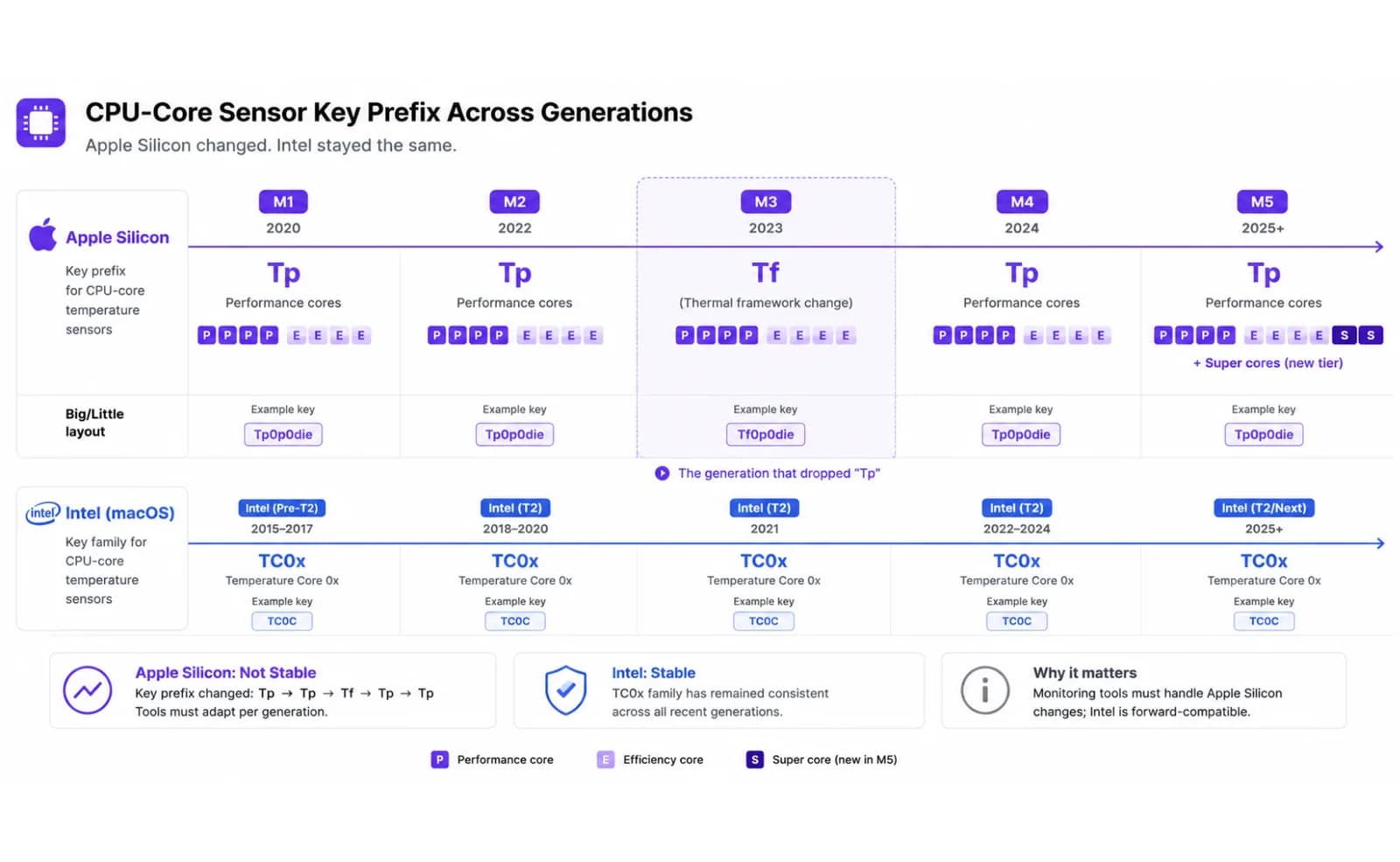
Intel Macs are relatively simple: CPU sensors live under the TC0x family - TC0D (die), TC0P (proximity), TC0E and TC0F (filtered/virtual readings), TCAD (package) - and most Intel readers just probe that short list.
Apple Silicon is fragmented on purpose, because the chip has far more distinct thermal zones than a single "die." M1 exposes performance-core keys like Tp01, Tp05, and Tp0D, an auxiliary CPU cluster under Tc0a/Tc0b, and GPU keys under Tg05/Tg0D. M2 adds separate efficiency-core keys (Tp1h, Tp1t) alongside its performance cores. Then M3 changes the naming convention outright: performance-core and GPU keys move to a new Tf prefix (Tf04, Tf09…) and efficiency cores get their own Te prefix - the generation that dropped Tp for CPU cores entirely. M4 brings Tp back for performance cores while keeping Te for efficiency. M5 adds a further "super core" tier under its own Tp suffixes.
That's the real reason a temperature reader can go from working perfectly to showing nothing on the very next Mac you buy: a tool with a hardcoded M1/M2 key list reads nothing on an M3, because the keys it's looking for no longer exist there - they moved to a different letter. It isn't a bug in your Mac; it's a key list that didn't get updated for the new chip.
LidRun handles this with a two-step approach: try a static list of known keys first (fast, no probing needed on Macs it already knows), and if none of them return a reading, enumerate the SMC's full key table once - anywhere from a few hundred to roughly a thousand keys depending on the Mac - and keep whatever decodes to a plausible temperature under the die-sensor prefixes (Tp, Te, Tf, Tg, Tc), discarding skin, ambient, and battery sensors that would understate how hot the chip actually is. The result is cached, so later polls cost almost nothing.
The free and native ways to check it yourself
You don't need LidRun, or any paid app, to see a real number. A few free options exist, each with a real limitation worth knowing before you trust it.
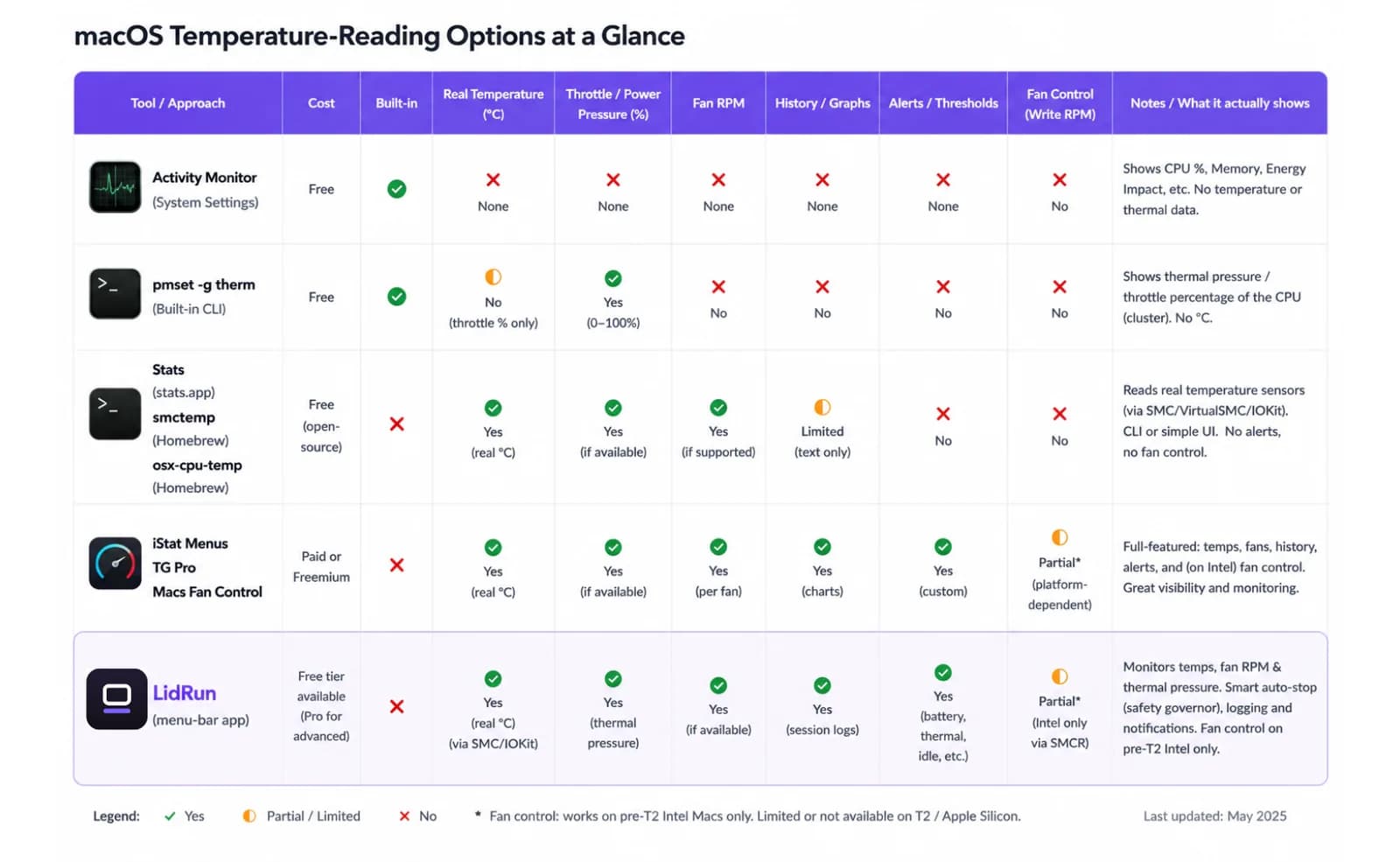
Terminal's built-in pmset -g therm is the closest thing macOS ships to a temperature command - but read the output carefully: the CPU_Speed_Limit line it prints isn't a temperature, it's a throttle percentage. 100 means the chip isn't being limited at all; a lower number means macOS is actively capping CPU speed to manage heat. It's a genuinely useful "is my Mac struggling right now" signal, and it's free and built-in, but it will never show you a degree reading.
For an actual number, free and open-source SMC readers exist and do exactly the key-and-decode work described above. Stats (exelban/stats) is a free, open-source menu-bar app that tracks Apple Silicon's shifting key names release over release. Command-line tools like smctemp and osx-cpu-temp do the same decoding from Terminal with no GUI required (osx-cpu-temp predates Apple Silicon and only covers Intel).
Paid or freemium tools - iStat Menus, TG Pro, Macs Fan Control - read the same SMC keys and add polish: history graphs, alerts, and in TG Pro's and Macs Fan Control's case, fan control on top of the reading. None of them have access to a number Apple hides from everyone else; they're doing the identical SMC handshake, just with more maintenance behind the key list and a nicer interface wrapped around it.
Why two apps show different numbers
If one tool says 68°C and another says 74°C on the same Mac at the same moment, neither is necessarily wrong. They're almost certainly reading a different sensor, or turning several sensors into one number a different way.
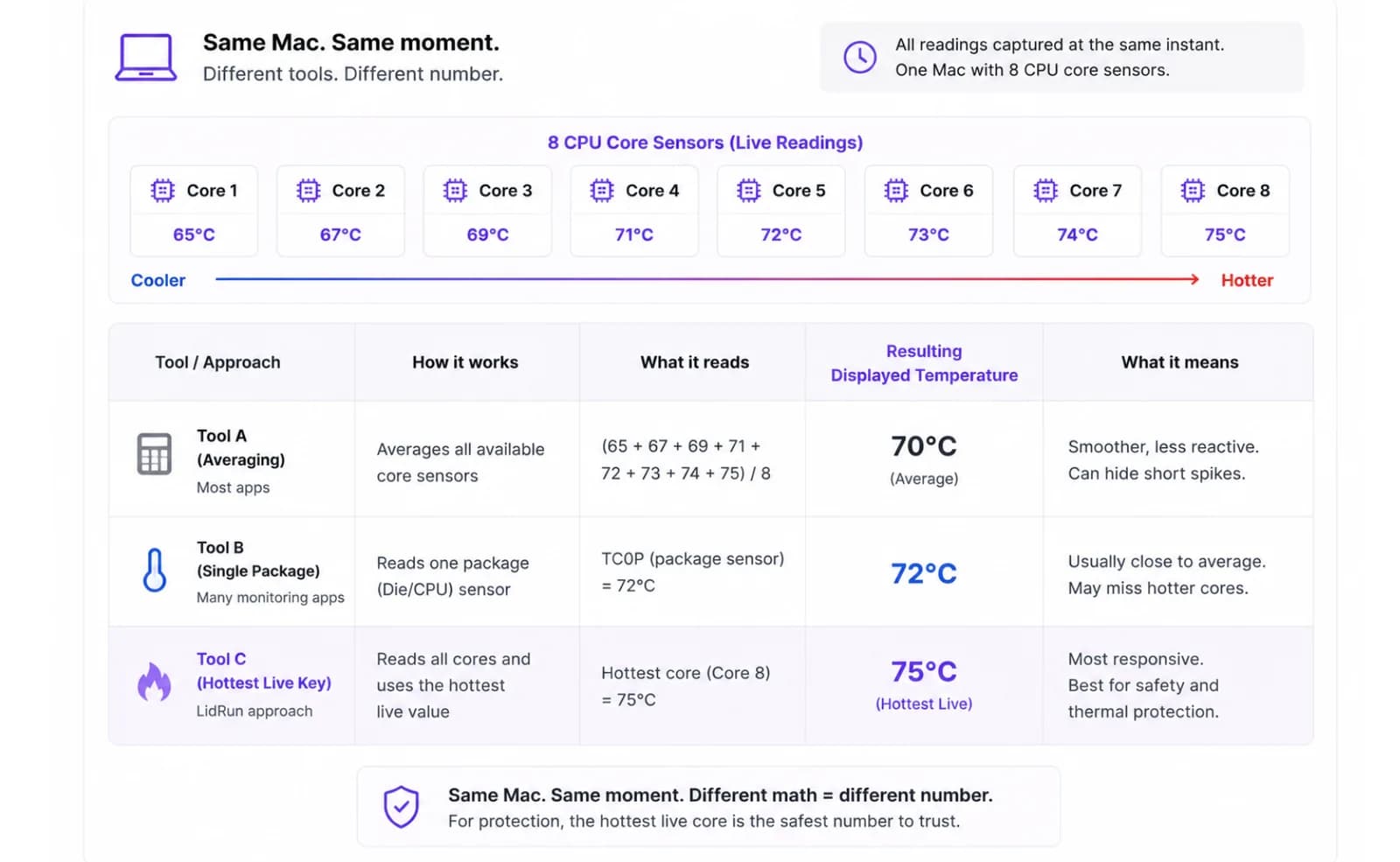
Say a Mac has eight core sensors reading between 65°C and 75°C at that instant. A tool that averages the cores (the approach Stats and smctemp both use, for a friendlier "current CPU temp") might show 70°C. A tool that reports one specific package sensor might show 72°C. A tool that reports the hottest live sensor it found - LidRun's approach - shows 75°C. All three numbers are real, honest readings of the same silicon; they just answer slightly different questions.
Averaging gives a smoother, more representative everyday number. Reporting the maximum is the more conservative choice for anything safety-related, because throttling is triggered by the single hottest die sensor crossing its limit, not by the average - so a monitor that's deciding whether to back off, rather than just displaying a number, has a real reason to prefer the peak over the mean.
The practical lesson: treat any single CPU temperature as a reading from one tool's chosen sensor and chosen method, not as the one true value for your Mac. What matters for judging whether something's actually wrong is the trend over the last few minutes and how far it's climbing - not whether your number matches a friend's tool to the degree.
The risk of trusting just one reader
The chip-generation problem above isn't hypothetical - it's already caused real, documented failures. btop, the popular open-source system monitor, shipped a temperature reader that only implemented the sp78 decoder; because it never handled flt, it silently showed no CPU temperature on every Apple Silicon Mac (a bug the project tracked as issue #1653) until it was fixed. Nothing crashed and no error appeared - the number was just missing, which looks like "my Mac has no temperature sensor" rather than "this tool's decoder is incomplete."
The same failure mode applies to stale key lists, not just missing decoders: a reader built before M3 shipped and never updated will read nothing on an M3, because the performance-core keys it's probing for (Tp01, Tp05…) don't exist there anymore - they're Tf04, Tf09 instead. A stale key list and a missing decoder produce the identical symptom: a blank or zero reading that looks like a hardware problem when it isn't.
There's a separate, smaller risk with tools that go further than reading. Macs Fan Control, TG Pro, and smcFanControl all install a privileged helper daemon so they can write to the SMC - the legitimate mechanism fan control actually requires, since Apple requires a Developer-ID-signed, root-level helper for it and there's no lighter-weight path. But it does mean a second background process now has the ability to hold your fans at a manual target. If you quit the app without returning it to automatic, that daemon can keep running with its last manual setting rather than handing control back to macOS's own firmware curve.
None of this means those tools are untrustworthy - Stats, TG Pro, and Macs Fan Control are all actively maintained and have kept chasing new Apple Silicon generations as they ship, even if full support sometimes lags a chip's release by a version or two. It means a temperature number is only as current as the key list and decoder behind it, and that list has changed with real consequences every year Apple has shipped a new chip.
What actually counts as 'too hot'
Once you have a real number, the harder question is what to do with it - and there's no single safe threshold that works across every Mac, because Apple deliberately runs its chips close to their thermal ceiling under sustained load. That's normal operation, not a warning sign.
M1 chips are designed to run as hot as roughly 100°C under sustained heavy load without degrading - that's the SoC design working as intended, not a fault. M2 runs even hotter under the same conditions, commonly into the 100s. Intel Macs regularly sit in the 90-100°C range under load, which is simply how that architecture behaves. The fanless MacBook Air has no fan to fall back on at all - it manages heat purely by throttling, so a sustained 90-100°C reading on an Air is its normal operating envelope, not evidence something's wrong.
Throttling itself - the chip capping its own speed to manage heat - typically starts somewhere around 95-100°C on most recent Macs, which is the hardware's own protection doing its job, not a sign your workload broke something.
Because a single "safe" degree number doesn't hold up across models, the more useful signal is the qualitative one Apple actually built for this: ProcessInfo.thermalState, a four-level assessment (nominal, fair, serious, critical) described by what your Mac needs to do, not by a temperature. It's the signal every well-behaved app is meant to respond to, and it's what LidRun's own safety response is built around rather than a fixed degree threshold that would false-trigger on a normal, healthy Mac under real load.
Where LidRun fits
Reading temperature isn't a paid feature in LidRun - every install gets it, on Intel and Apple Silicon alike, using the same key-and-decode approach described above: the hottest valid key from the active list, sp78 or flt matched to whatever the SMC actually reports for that key.
The reason LidRun reads it at all isn't to show you a prettier gauge than the free tools already do. It's there so LidRun's own safety response has a real signal while it's holding your Mac awake for an agent run. LidRun's core promise is simple: agent running → stay awake; agent done or unsafe → release, or sleep. That's not a blind wake lock that holds the Mac open no matter what - the "unsafe" side leans primarily on thermalState, the officially documented signal, backed by the numeric temperature and CPU throttle percentage as a secondary check. On critical heat, LidRun always releases its keep-awake hold immediately, on any Mac, lid open or closed. If Closed-Lid mode is on and the lid is actually shut - the case where heat has nowhere to vent - sustained critical heat escalates from a release to an actual sleep, since Closed-Lid's own sleep-prevention would otherwise keep the Mac awake regardless of the release. With the lid open, it only releases and never force-sleeps a Mac you're actively using.
Fan control is the one place LidRun stays deliberately modest about what it promises, especially on Apple Silicon. Fan RPM is a firmware-guarded write there - the SoC's own thermal controller actively manages the curve and can reject a manual override outright, and on several Apple Silicon Pro/Max chips the firmware simply won't spin the fans below roughly the high 70s°C no matter what any app asks for. That's a real hardware ceiling, not a gap in any particular tool's engineering. So treat temperature reading as the reliable, always-on layer, and keep the Mac ventilated on a hard, open surface during long runs - that still does more for thermal headroom than any fan curve can promise on its own.
LidRun keeps your work running with the lid closed, with battery and thermal safety built in.
Already have LidRun? Read the setup guide →
Frequently asked
It talks to the SMC (System Management Controller) and asks for specific four-character sensor keys, then decodes the bytes using the format that key actually reports - sp78 fixed-point on Intel, IEEE flt floating point on Apple Silicon. There's no public macOS API that just returns "CPU temperature"; every reader, free or paid, does this same SMC handshake.
Apple has never built a temperature display into Activity Monitor or anywhere else in macOS. The sensor data lives in the SMC, and Apple treats it as an internal detail of its own thermal management rather than something to expose in a system UI - which is exactly why a whole market of third-party menu-bar apps exists to fill that gap.
Different Mac models expose different sensors under different names. Intel uses the TC0x family; Apple Silicon spreads readings across many per-cluster keys (Tp, Te, Tf, Tg depending on chip generation) because it has more distinct thermal zones to report. LidRun tries a list of known keys and, if none match, enumerates the SMC once and keeps whatever decodes to a valid die-sensor reading.
Almost certainly a stale key list, not a hardware problem. Apple Silicon's performance-core and GPU keys moved from the Tp prefix to a new Tf prefix specifically on M3 - the generation that dropped Tp for CPU cores - so a reader built before M3 shipped is probing for keys that don't exist on it. The same risk applies to any future generation that renames its sensors again; a reader that enumerates the SMC live instead of trusting a fixed key list, like LidRun does, isn't exposed to this.
They're reading different sensors or combining them differently - one might average several core sensors for a friendlier number, another might report a single package sensor, a third might report the hottest live sensor it found. All three can be honest readings of the same hardware; treat any one number as a chosen sensor's value, not the single true temperature.
There's no single safe number that works across every model, because Apple runs its chips close to their design ceiling under load on purpose - M1 is designed to reach close to 100°C, M2 runs even hotter, and Intel Macs regularly sit in the 90-100°C range under heavy work, all without damage. The more useful signal than a fixed degree is macOS's own ProcessInfo.thermalState (nominal/fair/serious/critical), which is what actually determines whether an app should back off.
Reading temperature and fan RPM works the same way on every Mac LidRun supports. Writing a manual fan target is a harder, less certain thing on Apple Silicon specifically - the firmware actively manages the curve itself and, on several Pro/Max chips, won't spin fans below a fixed temperature no matter what's requested. LidRun doesn't promise a manual fan curve it can't reliably back on M-series hardware.