Mac fan control for developers
Short answer: on a modern Mac, developers can't set a custom fan curve — Apple's firmware owns the fan RPM, and on Apple Silicon even the workarounds older tools relied on get reclaimed within seconds by macOS's own thermal daemon. What you can control is visibility and timing: see the heat coming, and act (or let something act for you) before a long build, container stack, or local model run gets throttled or the Mac has to protect itself. This guide covers what fan control on Mac really means today on Intel vs Apple Silicon, the free native commands that show you what's happening right now, where the DIY path runs out, and the thermal-aware workflow LidRun uses instead.
Why developer workloads run hot
Compiling a large project, running a stack of Docker containers, or serving a local model keeps the CPU — and on Apple Silicon, often the GPU and Neural Engine too — pinned near its ceiling for minutes or hours, not seconds. That sustained draw, not a brief spike, is what actually raises chip temperature.
Once the SoC gets hot enough, macOS throttles it to protect itself: clocks come down, and the build that was flying ten minutes ago slows down mid-run. You can watch this happen yourself, for free, in Terminal: run pmset -g therm and look at the CPU_Speed_Limit line. At 100 you're running full speed; anything below that means you're throttled right now, live, no third-party app required.
The instinct at that point is to want to crank the fans and push through it. On a modern Mac that instinct runs straight into how tightly the hardware is locked down — which is the part most fan-control advice glosses over.
What macOS actually lets you control (and what it doesn't)
Two different things get called "fan control," and mixing them up is where most confusion starts. Reading the fans — current RPM, min/max range, chip temperature — is allowed on every Mac, Intel or Apple Silicon. Writing a new target RPM, actually commanding a fan to spin faster than the firmware wants, is a privileged hardware operation, and on Apple Silicon it's mostly not available to any app, no matter how it's built.

Under the hood, driving a fan on Intel is a two-step SMC (System Management Controller) write: flip a mode key to "manual," then write a target RPM. Pre-T2 Intel Macs generally accept that write outright. T2 Macs (the 2018–2020-ish MacBook Pro/Air generation, iMac Pro, Mac Pro) are a specific trap: they accept the manual-mode switch but then silently reject the actual target-RPM write — so a tool that only checks the first step reports "fan control enabled" on hardware that never actually spins up differently. On Apple Silicon, the fan sits in the firmware's own "system mode," and a direct manual-mode write is rejected outright. Some tools work around this with an undocumented unlock key, but even then macOS's thermalmonitord daemon reclaims control back to the firmware curve within seconds unless that unlock is actively held — a fragile, unsupported path that Apple can close in any OS update, not a real API.
This is worth saying plainly, because a lot of fan-control marketing doesn't: any tool promising full, reliable manual fan control on an M-series Mac is overstating what the platform allows today. LidRun does not promise fan RPM control on Apple Silicon, and it would be dishonest to imply otherwise — LidRun's own capability probe never assumes a write worked, and on M1 through M4/M5 hardware it comes back monitor-only far more often than not.
Related guideA Macs Fan Control alternative for developersThe free, native way to check what's happening
Before reaching for any app, it's worth knowing macOS already ships two free ways to see real thermal state, no install required. pmset -g therm in Terminal prints CPU_Speed_Limit and CPU_Scheduler_Limit — when either drops below 100, you're throttled. It runs identically on Intel and Apple Silicon and needs no special permissions.
sudo powermetrics --samplers smc -i1000 -n1 goes a level deeper and prints the actual CPU die temperature, and on most Intel Macs, live fan RPM. It needs sudo because it's reading raw sensor data. On Apple Silicon, the fan-RPM portion of that output has been inconsistent release to release; the temperature reading is the part that holds up reliably there.
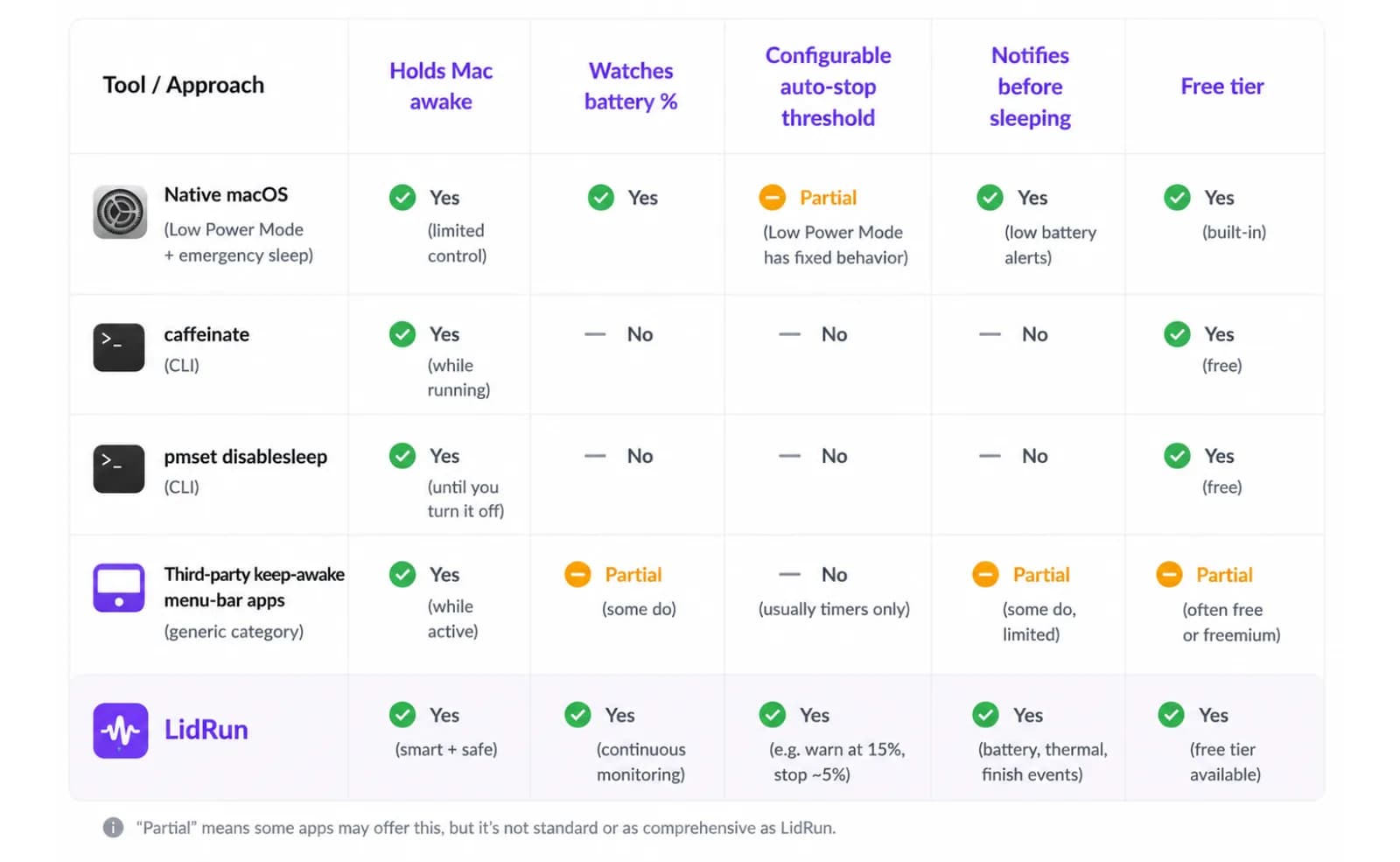
What macOS doesn't ship is any GUI for this — Activity Monitor shows CPU percentage and an Energy score, never temperature or fan speed, which is exactly the gap third-party menu-bar tools exist to fill. Free options like Stats (a popular open-source menu-bar monitor) read temperature and fan RPM without writing anything; Macs Fan Control reads sensors for free on every Mac and adds RPM presets and manual control on the older Intel hardware that still accepts the write. Neither changes the Apple Silicon ceiling above — they're reading the same locked door, just with a better window into it.
Where the DIY path runs out
Watching a Terminal window or a menu-bar readout works fine for a five-minute build you're sitting in front of. It stops working the moment the run is long or unattended — a long Xcode build, an overnight fine-tune, a Docker Compose stack you kick off and walk away from. Nobody actually re-runs pmset -g therm every thirty seconds for an hour.
On the Intel Macs where RPM writes genuinely land, forcing fans yourself carries a smaller but real risk: if the process doing the writing crashes or gets killed without handing the fan back to "auto," it can leave a fan pinned at a fixed speed — annoyingly loud at idle, or stuck low if it died mid-ramp while the Mac was still working. That's a known failure mode of ad hoc SMC writes, not a hypothetical, which is why any tool doing this should always restore the firmware's automatic curve on exit or crash, not just on a clean quit.
On T2 Intel Macs specifically, the trap runs the other way: a tool can report "fan control enabled" because the mode write succeeded, while the actual RPM write is silently rejected underneath — so you believe you have control and don't. Closing that gap means confirming the target-RPM write actually landed before calling a Mac controllable, not just checking that the mode switch didn't error.
A thermal-aware workflow instead of chasing RPM
If you can't reliably command the fans — which, on most of today's fleet, you can't — the practical goal shifts from control to awareness plus timing: know when a run is heating up, and act before it throttles or the Mac has to protect itself.
LidRun reads temperature and fan state continuously and surfaces it in the menu bar, so a hot build is visible instead of a surprise. On the Macs where a fan-RPM write is actually confirmed writable — mostly older Intel and T2 hardware — it ramps fans on a proportional curve: quiet below roughly 62°C (56°C once the lid is closed and heat has fewer places to escape), rising smoothly as the chip warms, and pushed toward full once temperature crosses about 90°C or the CPU's own speed limit collapses to 60% or lower, on the reasoning that a stalled build matters more than a quiet fan at that point. Quiet, Balanced, AI Workload, and Emergency Max presets sit on top of that curve for when you want to bias it by hand.
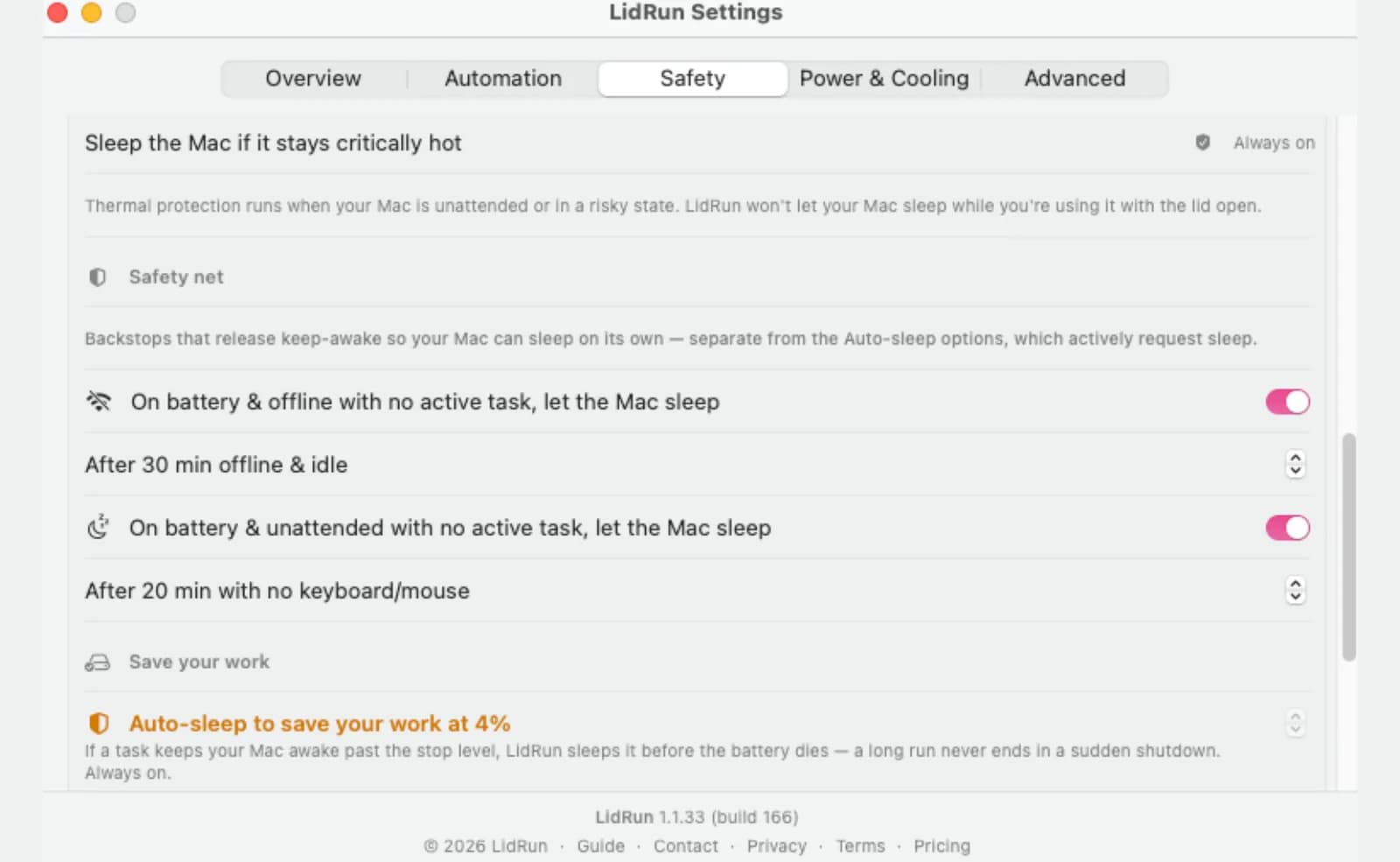
That fan ramp is deliberately not framed as a safety mechanism — fans are a comfort and throttle-recovery aid, not what keeps a Mac from overheating. A separate, independent check, driven by SMC temperature plus macOS's own thermal-pressure signal, treats sustained heat around 98–100°C, or a CPU speed limit collapsing under roughly 30–50%, as serious enough to act on regardless of what the fans are doing. And if a fan write is ever left mid-flight — a crash, a killed process — a 90-second lease means it reverts to the firmware's own curve automatically instead of staying stuck.
Where LidRun fits — and where it honestly doesn't
On Apple Silicon, LidRun does not drive your fans. It watches thermal state — SMC temperature where readable, CPU throttle, and macOS's own thermal-pressure signal — and backs off instead: a setting labeled "Don't hold when the Mac is hot" (on by default) won't let a new watched run start while the Mac is already running hot, and if you're using Closed-Lid mode, a second setting, "Drop Closed-Lid if the Mac gets too hot" (also on by default), ends that override at genuinely critical heat so the Mac can throttle and sleep the way it's designed to, instead of running hot and unwatched under a closed display.
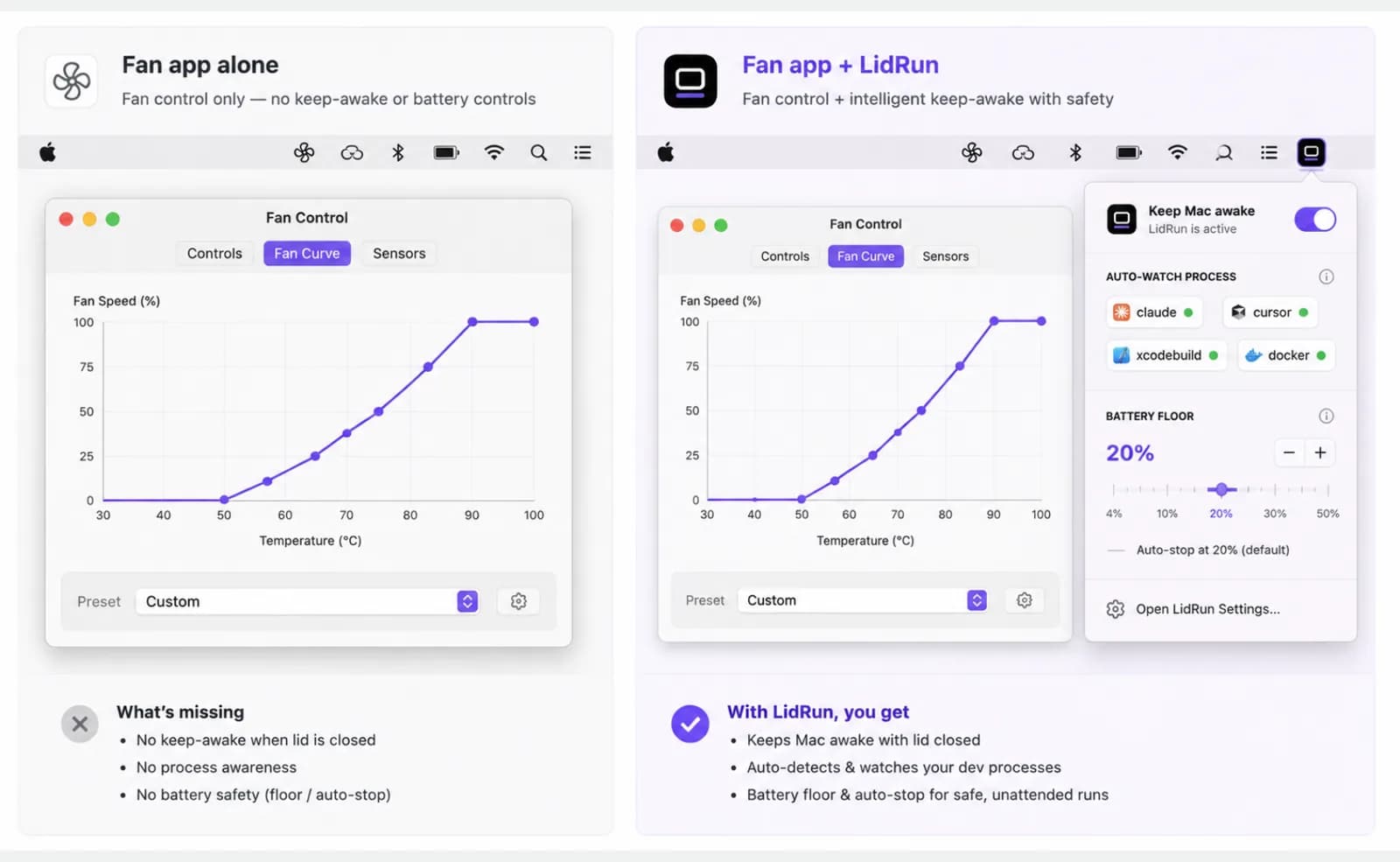
On the Intel and T2 Macs where fan writes are confirmed to actually work, that same thermal read also drives the proportional fan ramp described above — one thermal picture, two different levers, depending on what the hardware honestly allows.
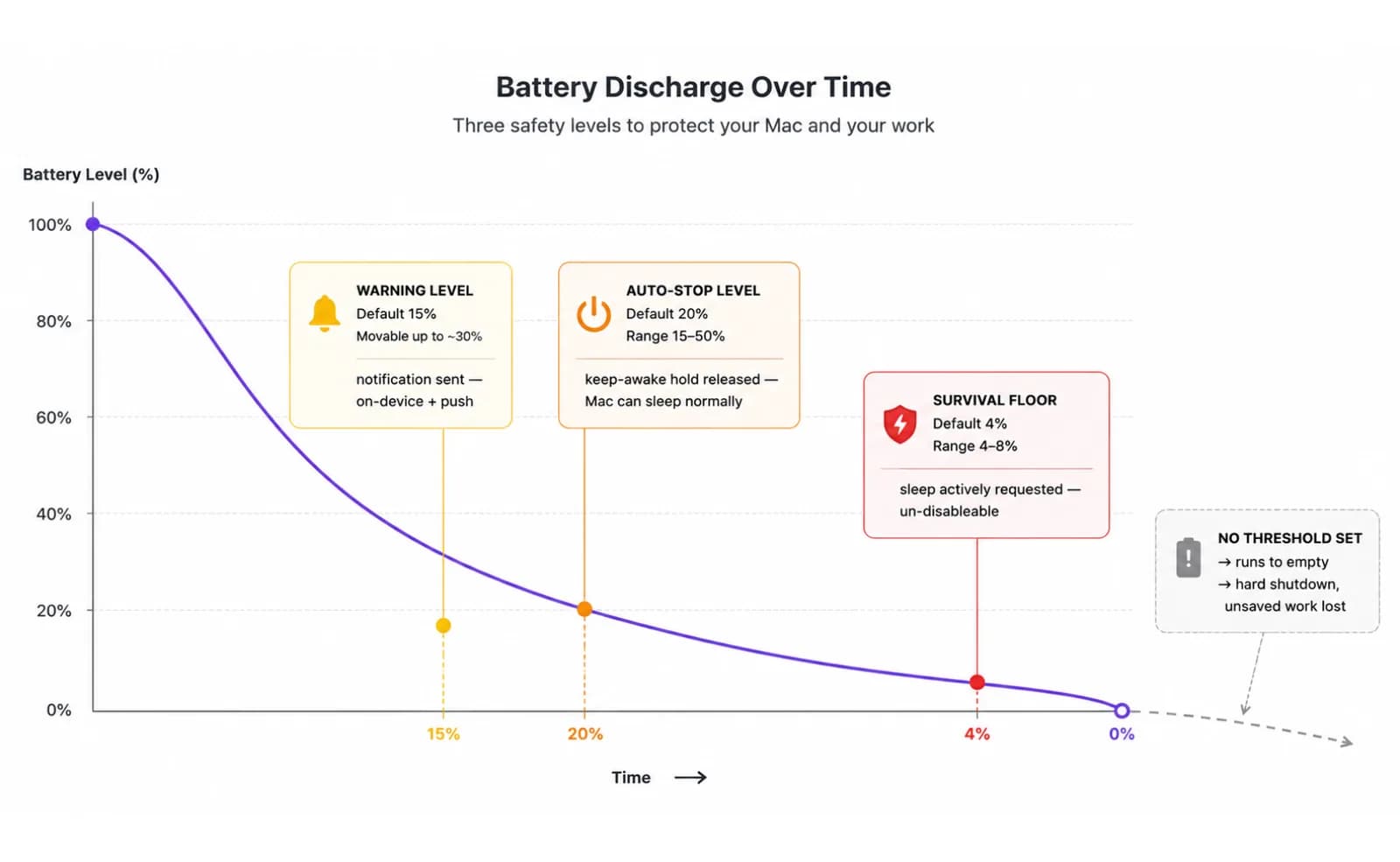
The promise underneath either path is the same: agent running, stay awake; agent done or the Mac is unsafe, release and let it sleep. That's a different bar than a cooling readout on its own — the goal isn't a quieter fan, it's not losing an unattended build or an agent run to heat you didn't see coming, without pretending LidRun can force a fan that won't move. If you run long builds, containers, or local models unattended, it's worth trying LidRun on your own machine to see what your Mac is actually doing while you're not watching it.
LidRun keeps your work running with the lid closed, with battery and thermal safety built in.
Already have LidRun? Read the setup guide →
Frequently asked
On the Intel and T2 Macs where a fan-RPM write is actually confirmed to work, yes — LidRun ramps fans on a proportional curve and offers Quiet, Balanced, AI Workload, and Emergency Max presets. On Apple Silicon, no: LidRun doesn't promise fan RPM control there. It reads temperature and throttle state continuously instead and gates your keep-awake session on it.
Apple Silicon keeps the fan under the firmware's own "system mode." A direct write to force manual control is rejected outright, and even the undocumented unlock some tools use gets reclaimed by macOS's thermal daemon within seconds unless it's actively held — a fragile, unsupported path, not a real API. Reading temperature and fan RPM works fine everywhere; writing a new target RPM is what's blocked.
Yes. Run pmset -g therm in Terminal — if CPU_Speed_Limit reads below 100, you're throttled right now. sudo powermetrics --samplers smc -i1000 -n1 goes further and prints actual CPU die temperature, plus fan RPM on most Intel Macs. Both ship with macOS already; neither requires a third-party app.
It reads temperature and throttle continuously and shows it in the menu bar, so a hot run is visible instead of a surprise. "Don't hold when the Mac is hot" (on by default) blocks a new watched run from starting while the Mac is already running hot, and if heat crosses a critical threshold, LidRun can drop a Closed-Lid override so the Mac sleeps instead of being pushed further.
LidRun supports macOS 13 Ventura and later on both. Thermal monitoring — temperature and throttle reads — works the same way on either. Fan RPM control is limited to the Intel and T2 Macs that actually confirm the write; Apple Silicon stays monitor-only.