Get a ping when your training run or build finishes
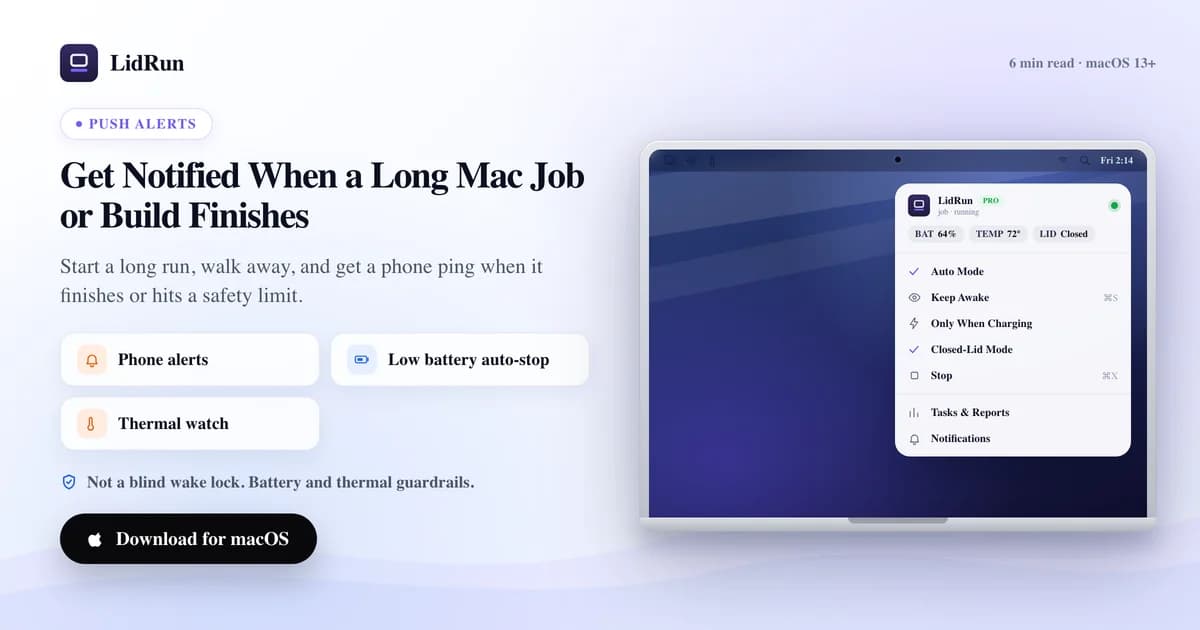
Run your job under LidRun and it pings you the moment the process exits - with the exit code and how long it ran - so you get notified when a Mac job finishes instead of babysitting a terminal window. Phone push (ntfy.sh or Pushover) is free; Telegram, Discord, Slack, and a custom webhook are part of Pro. If you'd rather not install anything, macOS already has a few commands that can notify you when a shell command finishes - this guide covers both: the free native way, and exactly how LidRun's channels work end to end.
Why you keep checking the terminal
macOS has no built-in way to say "tell me when this finishes." Terminal.app can flash its Dock icon when a background shell command completes (Preferences → Profiles → Shell → "Notify when process completes"), but that only helps if you're sitting at the Mac to see it - it doesn't reach your phone, and it says nothing about whether the command actually succeeded. An ollama pull, a cargo build, a training loop, or a Claude Code / Codex session running unattended finishes in total silence otherwise.
So you either sit and re-check, or you walk away and guess: come back too early and you're waiting again, too late and you've lost time you could've spent on the next thing. Generic keep-awake apps - Amphetamine, Caffeine, KeepingYouAwake, Lungo - solve the first half of this well, stopping the Mac from sleeping, but none of them watch a specific command or tell you when it exits. That's a different job than a menu-bar toggle.
The fix is one message the instant the process exits, saying whether it actually succeeded. The rest of this guide covers two ways to get that: build it yourself with what's already on your Mac, or let LidRun do it.
The free, native way to get pinged
macOS ships enough to build a rough version of this without installing anything. say "build finished" speaks a phrase out loud - fine if you're in the next room. osascript -e 'display notification "Build finished, exit 0" with title "Terminal"' posts a real Notification Center banner, the same kind any app produces. Chain either onto a command with ; (runs regardless of success) or && (runs only if it succeeded): npm run build && osascript -e 'display notification "Build finished" with title "npm"'.
For something with a bit more polish, terminal-notifier (brew install terminal-notifier) is the standard free tool for this - terminal-notifier -title "Build" -message "Finished" posts the same kind of banner with a nicer command-line API. None of these three reach your phone, though; they're Notification Center only, on the Mac you're sitting at.
The part people usually miss: none of say, osascript, or terminal-notifier keep the Mac awake either. If the display sleeps and idle sleep kicks in before the job finishes, macOS can pause the whole process - the build stalls, and the notification command at the end of the chain never runs. caffeinate -i in front of a command holds off idle sleep for exactly as long as that command runs, which is the piece the notification tools don't provide on their own.
Put together, that's the complete free, native recipe - stay awake for the job, then say something when it's done:
caffeinate -i npm run build; osascript -e 'display notification "Build finished" with title "npm"'
Where the DIY chain breaks
Three things go wrong with caffeinate plus a notification command in practice. First, caffeinate is a blind wake lock - it has no idea what your battery or thermal state is, and it will hold a MacBook awake at any charge level or temperature for as long as the wrapped command runs. That's fine for a five-minute build at a desk; on a longer unattended run it's a real way to end up at a dead battery or a thermal shutdown, especially with the vents blocked under a laptop stand or in a bag. Keeping the Mac ventilated is on you either way - no notification, from any tool, cools the chassis.
Second, osascript, terminal-notifier, and say only reach the Mac you're at. If you've stepped away, you don't see the banner until you happen to look at the screen again - which is the exact problem you were trying to solve.
Third, closing the lid stops the whole chain. Unless you've separately run pmset disablesleep 1 - which needs admin auth and is a heavier, standing toggle you have to remember to set back to 0, not something scoped to one command - shutting the lid suspends the Mac, the job, and the notification command with it.
LidRun's free version: a wrapped command plus one notify call
This is the gap LidRun fills, and the free tier already covers the basic version of it. The rule is simple: agent or command running → stay awake; command done, or something becomes unsafe → release and let the Mac sleep. The free CLI recipe:
lidrun -- npm run build; lidrun notify "Build finished" "exit $?"
lidrun -- <command> wraps the command in a keep-awake assertion for its lifetime - it's self-contained, and no LidRun app needs to be running for that part. Worth being precise about: on its own, that wrap is a plain wake lock like caffeinate, no battery or thermal awareness built in, released the moment the child process exits. lidrun notify "<title>" "<body>" is the piece that adds a real notification, and it does need the LidRun app running in the menu bar - it posts a local banner plus, if you've turned on phone push in Notifications & Alerts, sends it to your phone via ntfy.sh (free, topic-based - install the ntfy app, subscribe to a topic you pick, LidRun posts to it) or Pushover (a one-time paid app, not a subscription). Both commands are free - no Pro tier required.
LidRun's baseline safety floor - auto-stop once battery drops to around 4%, backing off under sustained thermal pressure - belongs to the app's own modes: Keep Awake, Timer, and Run & Watch a Command, all running under LidRun's state machine rather than a bare IOKit assertion. If you want the job itself watched with that safety net, not just wrapped, that's what free Keep Awake/Timer or Pro Run & Watch give you over the raw CLI wrap - it's not a blind wake lock left running no matter what's happening to the Mac.
Telegram, Discord, Slack, and a webhook - the Pro layer
If you want alerts to leave the Mac entirely - land in a channel your team already watches, or reach an app you don't have to install - that's LidRun's Pro integrations: Telegram, Discord, Slack, and a generic webhook, all configured from the menu bar's Notifications & Alerts window. Phone push above stays free regardless; these four are the same tier that unlocks Run & Watch a Command, closed-lid mode, and Smart Rules.
Telegram, without creating your own bot: open the shared LidRun bot on Telegram (@Libruntest_bot, or the "Open the LidRun bot" button in the app) and tap Start, then open @userinfobot to get your own numeric Chat ID, and paste that Chat ID into LidRun. That's the whole setup - no bot token, no BotFather. An advanced field lets you use your own bot instead; leave it blank to use the shared one.
Discord and Slack work the same way from LidRun's side: create an incoming webhook URL from the channel's integration settings (Discord: channel settings → Integrations → Webhooks → New Webhook; Slack: your workspace's Incoming Webhooks app) and paste the URL in. Discord messages post as {"content": "..."}; Slack posts as {"text": "..."} - the same JSON either service's own webhook docs describe, so there's nothing LidRun-specific to learn.
The generic webhook is for everything else - Zapier, IFTTT, Home Assistant, your own endpoint. LidRun POSTs this to the URL you provide:
{"title": "Task finished ✅", "body": "npm run build (exit 0) after 2m 14s", "event": "session_finished", "app": "LidRun"}
event is a short machine key you can route on - session_finished and all_tasks_finished for completed work, thermal_critical and sleep_failed for the safety side.
Delivery is fire-and-forget with one retry: if a channel rejects the message, LidRun waits 5 seconds and tries once more, then logs the failure rather than retrying indefinitely. Each request times out after 15 seconds. Use "Send test" next to each channel before a real run, so a bad Chat ID or webhook URL doesn't quietly swallow your first alert.
What actually triggers an alert
Two broad kinds of event are worth knowing about. The first is a finished command. Run & Watch a Command (Pro, in the app) runs your command, holds keep-awake for its lifetime, and on exit fires an alert with the exit code and duration already in it - "Task finished" or "Task failed," not just "it stopped." Auto Mode (Pro) does the same across a whole watch-list of processes and pings once everything on it has finished, but only while you're actually away - lid shut, or idle a few minutes - so it doesn't add a banner every time you're sitting at the desk.
The second is a safety event, and it has two tiers. LidRun's baseline safety floor - releasing keep-awake because the Mac got critically hot or the battery hit its emergency threshold, or LidRun failing to restore normal sleep after closed-lid mode - pushes to your phone under the free "Critical safety alerts" toggle, independent of license. Watchdog (Pro) adds more specific detection on top: an agent that looks stuck waiting on you, a dropped network connection, and the same thermal/battery-critical conditions caught earlier and reported in more detail.
One rule ties it together: phone push, a local banner plus ntfy or Pushover, is free for every event LidRun can raise. Telegram, Discord, Slack, and the webhook are the Pro layer on top, fanning the exact same events out to more places.
If you also turn on "Away notifications" (free), shutting the lid with something running sends a short message saying what's running and what LidRun will do about battery and heat, then a short recap when you open the lid again - one message per moment, not a stream of updates.
LidRun keeps your work running with the lid closed, with battery and thermal safety built in.
Already have LidRun? Read the setup guide →
Frequently asked
No. Open the shared LidRun bot (@Libruntest_bot) in Telegram, tap Start, then paste the numeric Chat ID that @userinfobot gives you into LidRun's Notifications & Alerts window. There's no bot token to generate and nothing to register with BotFather. An advanced field lets you use your own bot instead - leave it blank to use the shared one.
Phone push - a local banner plus ntfy.sh or Pushover - is free, and it covers task-finished pings, LidRun's baseline safety floor (low battery, overheating), and away notifications. Telegram, Discord, Slack, and the custom webhook are Pro, along with Run & Watch a Command (the mode that automatically builds the exit-code-and-duration alert), Auto Mode, and Watchdog.
The generic webhook POSTs JSON: {"title": "...", "body": "...", "event": "...", "app": "LidRun"}, where event is a short machine key like session_finished you can route on. Discord receives {"content": "..."} and Slack receives {"text": "..."} - the standard shape each service's own incoming-webhook docs describe.
Yes, for Run & Watch a Command (Pro): the title reads "Task finished" or "Task failed," and the body includes the exit code and how long it ran. The free lidrun -- <command> CLI wrap doesn't build that message automatically - chain it with lidrun notify "title" "exit $?" to get the same information for free.
For Telegram/Discord/Slack/webhook sends: once. If a channel rejects the message, LidRun waits 5 seconds and tries again, then logs the failure rather than retrying indefinitely. Local banners and ntfy/Pushover phone push are a single fire-and-forget request, not retried the same way.
Yes. caffeinate -i your-command; osascript -e 'display notification "Done" with title "Job"' keeps the Mac from idle-sleeping while the command runs, then posts a Notification Center banner when it's done. It's local-only - it won't reach your phone if you've stepped away, and it has no awareness of whether your battery or thermal state is safe to keep pushing.
Yes. When LidRun's baseline safety floor releases keep-awake - critically hot, or battery near its emergency threshold - that pushes to your phone under the free "Critical safety alerts" toggle, independent of task-finished pings. Watchdog (Pro) adds more specific alerts on top, like an agent that looks stuck waiting on you or a dropped network connection.