Closed-lid mode on macOS, without a kext
Yes - closed-lid mode on a Mac works without a kernel extension. It's the documented pmset disablesleep toggle, the same lever behind sudo pmset -a disablesleep 1 in Terminal, just held automatically instead of left for you to manage by hand. Here's the specific version: what that toggle actually does, what caffeinate and Apple's own external-display clamshell mode already give you for free, what goes wrong if you flip the switch yourself, and how LidRun holds it without leaving your Mac stuck awake.
Why closing the lid puts a Mac to sleep in the first place
Close a MacBook lid with nothing else attached and macOS sleeps within seconds. That's clamshell sleep, and it's a different mechanism from ordinary idle sleep. Apple's own supported way around it is external-display clamshell mode: plug in a monitor, stay on AC power, and the Mac runs lid-shut indefinitely with zero third-party software - there's a screen for macOS to keep driving, so the closed lid stops mattering.
Without an external display, none of the popular keep-awake tools can touch that boundary the normal way. caffeinate, Amphetamine, KeepingYouAwake, Lungo, and Caffeine all work by holding an IOKit power assertion - IOPMAssertionCreateWithName, the documented API for "don't idle-sleep." That's real, and it's genuinely effective at keeping a display or the whole Mac awake while the lid is open. But an assertion only blocks idle sleep. Closing the lid triggers a lower-level clamshell sleep that no assertion can stop, no matter which app is holding it - that's an OS-level boundary, not a gap in any particular tool.
The only public, documented lever that actually changes lid-close behavior with no display attached is pmset disablesleep - a system-wide power management setting that ships with macOS itself.
The free options: Apple's clamshell mode, caffeinate, and pmset
If you have a spare display, use it. Connect it, stay plugged into power, and close the lid - that's Apple's real, supported closed-lid setup: no extra software, no admin password, nothing to remember to turn back off. It's the right answer for a permanent desk setup.

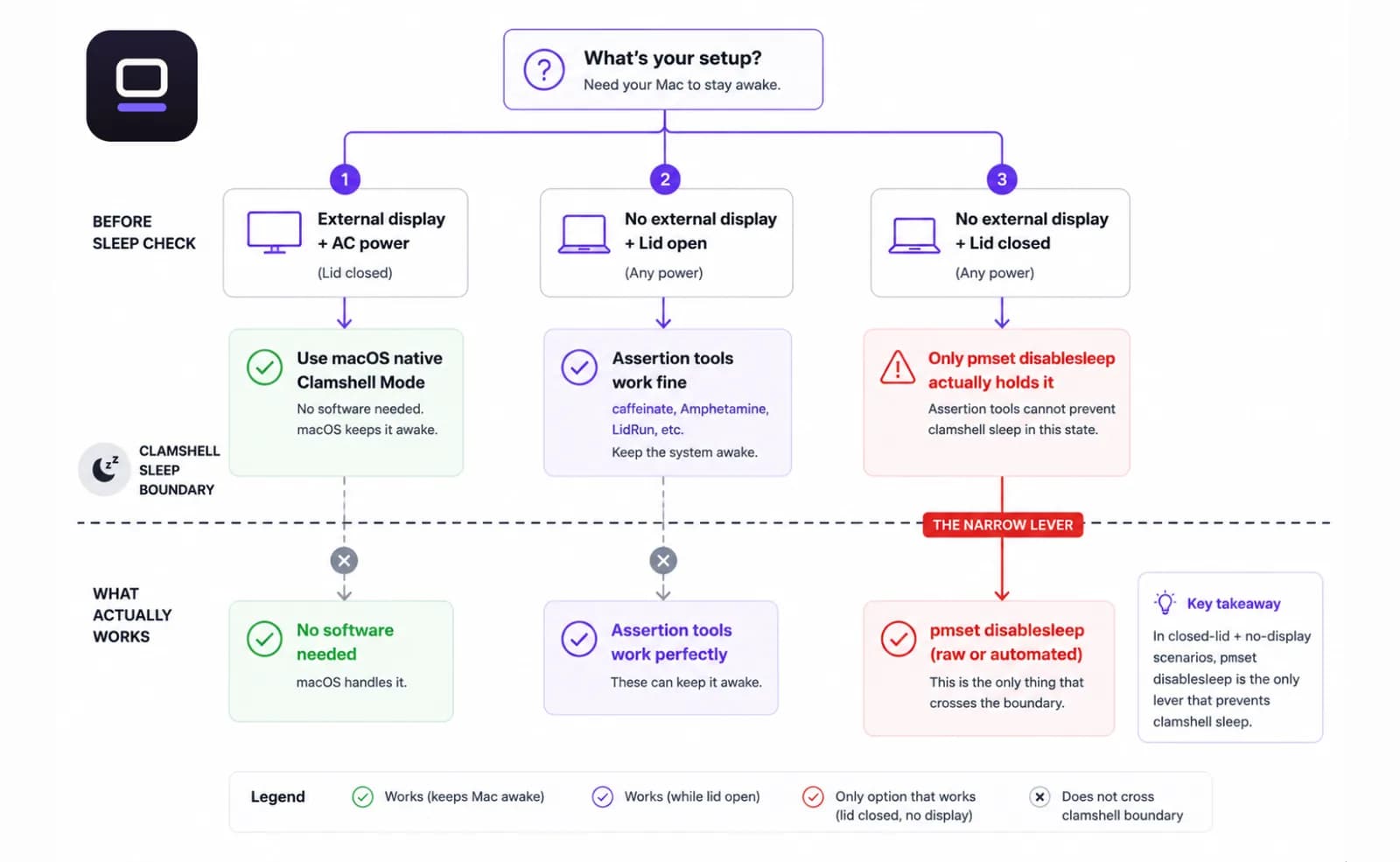
No spare display? caffeinate is Apple's built-in command-line tool (man caffeinate). caffeinate -i blocks idle sleep, caffeinate -d also blocks display sleep, and caffeinate -s keeps the whole system awake on AC power for as long as the process runs. It's genuinely useful for a script that shouldn't idle-sleep - but it inherits the same clamshell-sleep blind spot as every assertion-based tool: close the lid with no display attached and the Mac still sleeps underneath it.
The lever that actually works lid-shut, with no display, is the same one closed-lid apps automate: sudo pmset -a disablesleep 1 in Terminal, checked anytime with pmset -g | grep SleepDisabled, turned back off with sudo pmset -a disablesleep 0. It's documented, free, and already on your Mac.
Related guideDoes a Mac alarm go off with the lid closed?The catch: it's a global setting, and it doesn't turn itself off
disablesleep isn't scoped to your Terminal session or your script - it's a persistent, system-wide flag. Set it to 1 and it stays 1 through app quits, closed Terminal windows, and finished SSH sessions. Forget to set it back and the Mac genuinely cannot sleep until something resets it: you running the command again, or a reboot.
That's the real risk people mean when they're cautious about closed-lid tools - a laptop that physically can't sleep, shut in a bag, with nothing watching thermal or battery state. pmset itself has no idea what the SoC temperature is or how much battery is left. It just holds the setting until told otherwise.
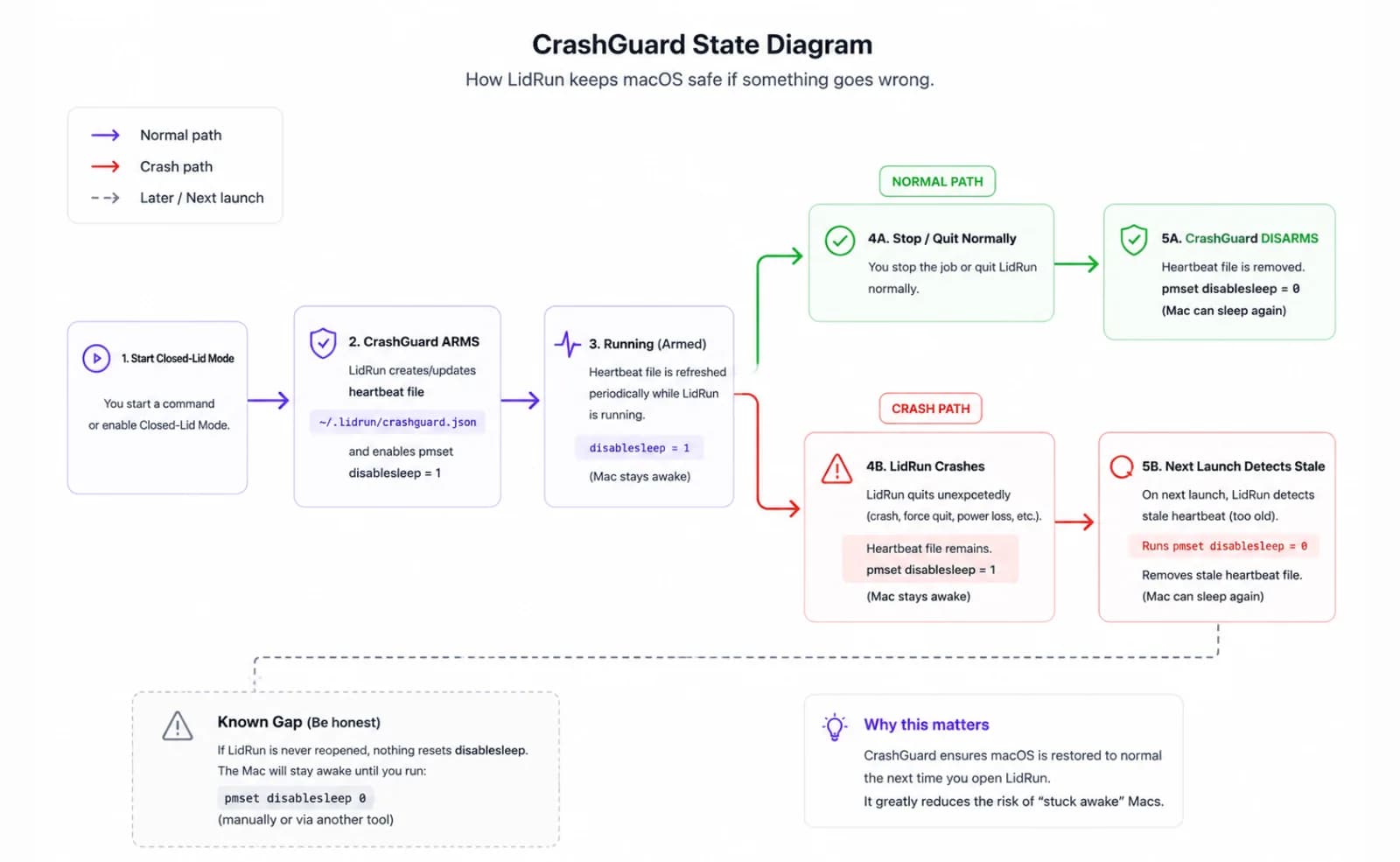
It's also the exact failure mode a crash-safety layer exists to catch - because a script or app that sets this flag and then crashes, gets force-quit, or loses its SSH connection leaves the identical stuck setting behind.
A safer way to run it by hand, if you go that route
If you're comfortable in Terminal and don't want another app, treat the pairing as non-negotiable. Set disablesleep to 1 right before the job, and put the matching disablesleep 0 in a trap on EXIT at the top of the script so it fires even if the job dies partway through.
Check the state before you trust it - pmset -g | grep SleepDisabled shows the current value in one line. Worth running before you close the lid, and again the next time you open it.
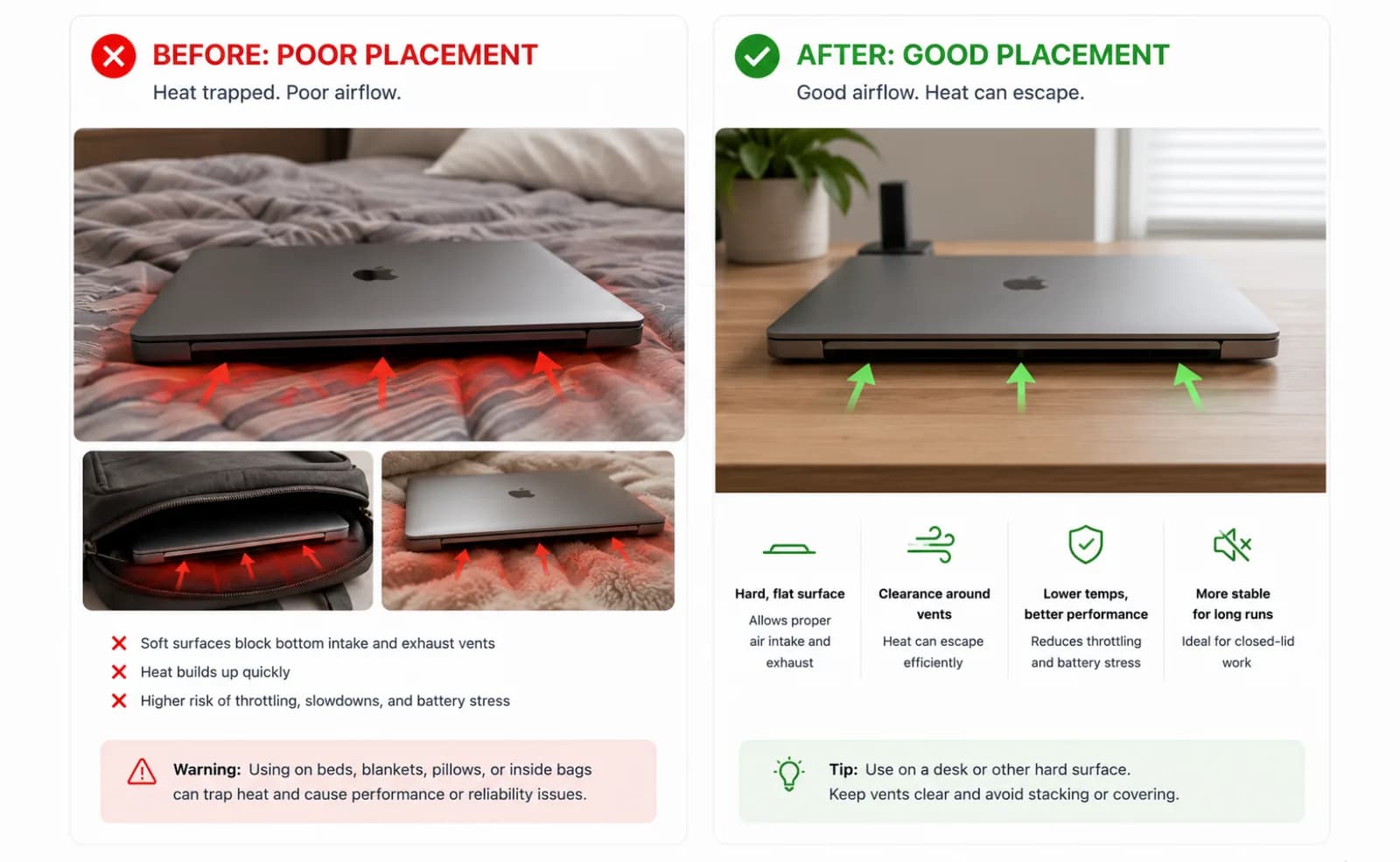
The physical rules apply no matter which tool flipped the switch: a hard, flat, ventilated surface, never a bed or a closed bag, and mains power for anything longer than a short job. A closed lid restricts airflow over the keyboard deck regardless of what's holding it shut.
Where LidRun fits: the same toggle, held automatically
LidRun's closed-lid mode is that identical pmset disablesleep toggle - no kernel extension, no DriverKit driver faking a display. What's different is what wraps it. LidRun pairs every enable with a matching disable on stop, on quit, and again on relaunch, so the setting doesn't depend on you remembering.
For the crash case pmset can't cover on its own, LidRun writes a small "armed" state file with a heartbeat while closed-lid mode is active. If the app crashes or gets killed, the next launch finds that file still armed, recognizes the previous session never cleaned up, and resets disablesleep to 0 automatically - that's CrashGuard. It only fires on the next launch, though: a crashed session with nobody reopening LidRun leaves the setting on until you do, or until a reboot - the same limitation the manual command has.
Admin auth is unavoidable - changing disablesleep needs administrator rights, same as it would from Terminal. LidRun asks you to approve a privileged helper once during setup; after that, closed-lid mode toggles with no repeated password prompt. Skip that step and it falls back to a per-use admin prompt instead. Either way, nothing runs without your explicit approval.
On the thermal side, LidRun treats the SoC as critical once it reads 100°C or higher, or the CPU throttles down to 30% or less of normal performance - whichever trips first. If that critical state holds for about two minutes and you've stepped away (no input for five minutes) or the lid is physically shut, LidRun escalates from releasing its hold to pushing the Mac to sleep outright. A present user with the lid open is never force-slept on heat alone - that guardrail exists so an active session doesn't get yanked out from under you. On battery there's a matching floor: the critical-battery threshold defaults to 5% and can't be set below 4%, so that safety floor isn't something you can accidentally turn off.
LidRun also checks whether you're already in Apple's own clamshell setup - an external, non-built-in display actively driving the desktop - and treats that as a legitimate reason to be awake lid-shut without needing its own toggle at all. And because closed-lid mode needs that admin-level pmset change, it isn't Mac App Store sandbox-safe; LidRun ships as a notarized, direct-download DMG instead, so it's still scanned by Apple, just not distributed through the Store.
The philosophy underneath all of it: agent running, stay awake; agent done or unsafe, release and let the Mac sleep. Closed-lid mode is a Pro feature - the free plan includes a limited number of closed-lid sessions to try before a one-time Pro unlock is required.
How this compares to Amphetamine, KeepingYouAwake, Lungo, and Caffeine
These are solid, well-built menu-bar apps, and for their actual job - holding idle sleep or display sleep, on a schedule, per app, or by trigger - they do it well. If what you need is "don't dim the screen during a call" or "don't idle-sleep while I'm reading," any of them is a fine, lighter-weight choice than LidRun.
What none of them changes is the assertion-versus-clamshell boundary above: an IOPMAssertion, however it's configured, doesn't survive a lid close with no external display attached. A few of these tools document their own closed-lid options separately from the assertion - worth reading exactly how each one implements it before trusting it with a real job and a shut lid, the same way this article spells out that LidRun's version is pmset disablesleep, not a kext.
LidRun's difference isn't the toggle - it's that closed-lid mode is the one thing it does with real safety wrapping (paired enable/disable, crash recovery, thermal and battery auto-stop) rather than a general-purpose keep-awake feature list with a closed-lid option added on.
Honest tradeoffs before you trust any of this with real work
No software toggle changes physics - pmset disablesleep, LidRun's version of it, or a hand-typed Terminal command all have the identical effect on airflow: none. A closed lid restricts airflow over the keyboard deck, so a heavy job behind a shut lid runs warmer than the same job with the lid open. LidRun shows a heat warning before you turn the mode on, so you're opting into that tradeoff knowingly, and its thermal governor watches for rising pressure and can auto-stop the session - that helps reduce risk, it doesn't make the heat go away.
Placement still matters more than any setting: a hard, flat, ventilated surface, never a bed or a closed bag, and mains power for anything longer than a short closed-lid job so battery isn't also draining under pressure.
And if all you actually need is the screen to stay on - not to physically close the lid and walk away - you don't need closed-lid mode at all. A plain keep-awake assertion does that job and skips the admin/helper approval step entirely. Save closed-lid mode for when you genuinely want the lid shut.
LidRun keeps your work running with the lid closed, with battery and thermal safety built in.
Already have LidRun? Read the setup guide →
Frequently asked
No. It's the documented pmset disablesleep toggle - no kext, no DriverKit display-faker. That's the same lever available from Terminal via sudo pmset -a disablesleep 1, just paired and reconciled automatically instead of left for you to manage.
CrashGuard's heartbeat file catches it: the next time LidRun launches, it finds the setting still armed from a session that never cleaned up and resets disablesleep to 0. That only happens on relaunch, though - if you never reopen the app, or reboot, the Mac stays unable to sleep until you do, the same limitation a hand-typed pmset command has.
Changing pmset disablesleep genuinely requires administrator rights - that's a macOS rule, not a LidRun choice. LidRun asks you to approve a privileged helper once; after that, closed-lid mode toggles without a repeated password prompt. Skip that step and it falls back to asking each time instead.
Closed-lid mode needs the pmset disablesleep change, which isn't sandbox-safe - the App Store sandbox wouldn't allow it. LidRun ships as a notarized, direct DMG instead: still scanned by Apple, just not distributed through the Store.
Yes. caffeinate -s and pmset -a disablesleep 1 are both free, built into macOS, and documented. caffeinate can't stop clamshell sleep without an external display; the raw pmset command can, but it's a persistent global setting with no crash recovery and no thermal or battery awareness, so pairing the on with the off is entirely on you.
Usually not. Connect an external display and stay on AC power, and macOS's own clamshell mode keeps the Mac running lid-shut with no third-party toggle at all. Closed-lid mode in LidRun exists for the other case - no external display, lid shut, still want the work to keep running.
Those are general-purpose keep-awake utilities built around IOKit power assertions - good at blocking idle or display sleep on a schedule or trigger. LidRun's closed-lid mode is a narrower, safety-wrapped version of the pmset disablesleep toggle specifically: paired enable/disable, crash recovery, and thermal and battery auto-stop built around it, rather than a keep-awake feature list with closed-lid bolted on.