caffeinate on Mac: command examples, limits, and safer AI workflow options
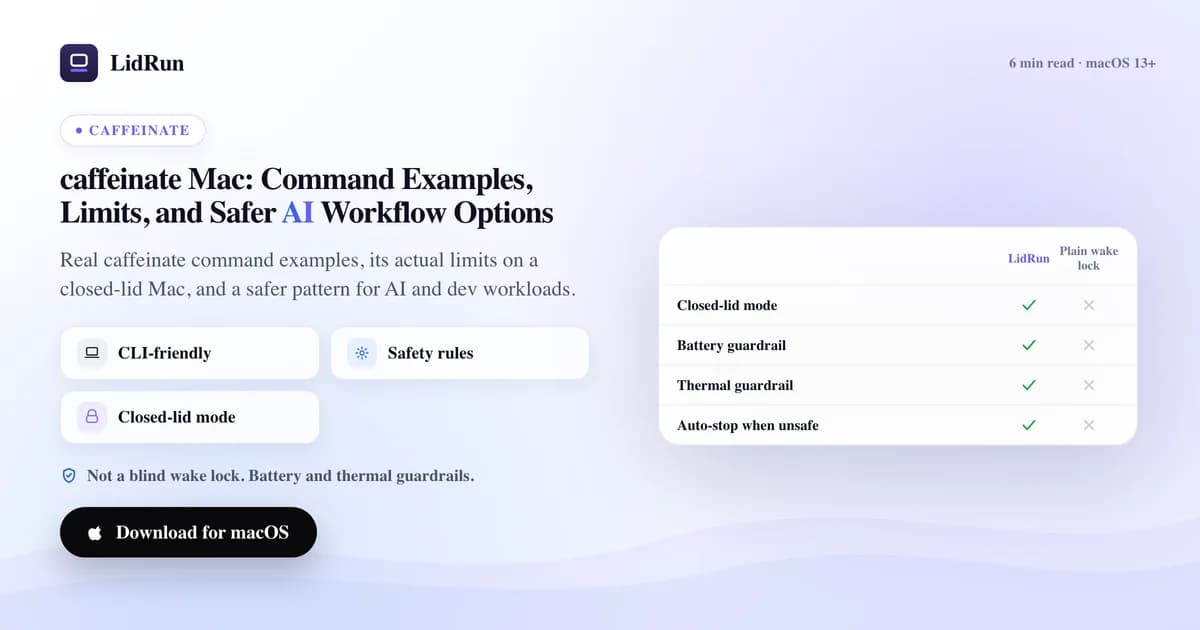
caffeinate is the command-line tool built into every Mac for keeping it awake without opening System Settings - run it alone and it blocks idle sleep until you press Ctrl-C, add -t 3600 and it stops itself after an hour, or wrap a command and it holds the Mac awake only while that command runs. What it doesn't do is touch closed-lid sleep, battery level, or heat: close the lid and a MacBook sleeps regardless of how long caffeinate has been running. Below are the real commands, the free ways around the lid-closed limit (including one most people never hear about), and where a safety-aware tool like LidRun picks up after caffeinate stops.
What the caffeinate command actually does
caffeinate is a small command-line utility that's shipped with macOS for years. It creates a power management assertion - a request to the system not to sleep - for as long as it runs, then releases that assertion automatically the instant it exits. There's no separate "turn it back off" step, which matters later in this article when we get to a workaround that doesn't release itself.
Run it with no flags and it defaults to blocking idle sleep. Add specific flags for specific assertions: -d also keeps the display from sleeping, -m keeps disks from spinning down, -s prevents system sleep (but only while on AC power), and -u declares the user active, which wakes the display and is roughly equivalent to -d -t 5. These stack - they're separate, composable assertions, not one master switch. Run caffeinate -d -i and you're holding two independent holds that both need to end before the Mac can sleep again.
The useful part for developers is that caffeinate has no GUI, no menu bar icon, and no configuration file. It's meant to be scripted - started, run, and released without touching a settings panel. For a terminal session or a script with a clear beginning and end, that's genuinely the right tool.
Caffeinate command examples - and how to check it's actually working
The simplest form is just caffeinate, run in a terminal window you leave open - it blocks idle sleep until you press Ctrl-C or close the window.


For a fixed duration, caffeinate -t 3600 keeps the Mac awake for exactly one hour, then exits and releases the assertion on its own - no need to remember to stop it.
For a specific job, wrap the command directly: caffeinate -i npm run build keeps the Mac awake only while that build runs, and releases the moment it finishes or fails. The same pattern works for caffeinate -i ./deploy.sh, a long rsync, or any other command with a clear start and end. If you didn't start the process yourself - say, a build kicked off from an IDE - caffeinate -w <pid> waits on an existing process ID instead.
Cron jobs run with no interactive terminal, so wrapping the job in caffeinate is a common pattern for anything scheduled overnight: 0 2 * * * /usr/bin/caffeinate -i /path/to/nightly-backup.sh keeps the Mac awake for exactly the backup's duration and no longer.
To confirm caffeinate is actually holding the Mac awake, run pmset -g assertions - it lists every active power assertion and the process that owns it; look for PreventUserIdleSystemSleep next to caffeinate's PID. A simpler check, if you just need to know the process is alive, is ps aux | grep caffeinate.
Each caffeinate invocation holds its own independent assertion, so running two or three at once is fine - the Mac stays awake as long as any one of them is still alive, and killing one doesn't release the others.
Related guideLidRun vs caffeinate: which keep-awake tool fits your workflow?Where caffeinate stops: closed lid, battery, and heat
For its actual job - blocking idle sleep during a script, a build, or a terminal session you're watching - caffeinate does exactly what it says, with no dependencies and no install step.
The limits show up around closed-lid work, and that's exactly where AI coding agents and dev workloads run into trouble: a long refactor in Claude Code, a Docker image building, an Ollama model downloading - all things people want to keep running with the lid down, on a desk, in a bag between meetings, or overnight. caffeinate's assertions don't override the sleep macOS triggers on lid-close; a MacBook still sleeps lid-closed with caffeinate running, full stop.
It also has no concept of battery level or heat. Run caffeinate -t 28800 for an eight-hour session on battery and it holds the assertion the entire time regardless of how low the battery gets, with no way to notice a Mac running hot in a bag and back off.
It's manual and stateless, too - no detection of what's actually running, no memory between sessions. You retype the flags and the target command every time.
The free ways to keep a MacBook awake with the lid closed
Apple's supported route needs no extra software at all: connect an external display, an external keyboard or mouse, and a power adapter, and a MacBook won't sleep on lid-close. This is true clamshell mode, and macOS handles it natively once all three are attached - no command line required.
Without an external display - running on battery, lid closed, no monitor - the only public lever that blocks lid-close sleep is a different command from caffeinate entirely: sudo pmset -a disablesleep 1. It works, but it's a heavier tool than caffeinate. It needs an admin password, and unlike caffeinate's assertion it doesn't release itself when a process exits - it's a persistent, system-wide setting that stays in effect until you explicitly run sudo pmset -a disablesleep 0 or reboot the Mac.
Beyond the command line, several menu-bar apps wrap the same basic idea in a GUI. Amphetamine (free, Mac App Store) adds rich triggers - app launch, time of day, Wi-Fi network, battery level - on top of the same kind of assertion. KeepingYouAwake is a free, open-source menu-bar front end for essentially the same caffeinate-style hold. Lungo is a minimal one-tap menu-bar toggle with a built-in timer. Caffeine is the classic coffee-cup icon toggle the whole category is named after, with both free and paid versions over the years. All of them are solid at the one job they're built for - a manual, on/off keep-awake toggle - and none of them are designed to answer "is real work still running," "how much battery is left," or "is this Mac too hot," because that's not what a keep-awake toggle is for.
The risk in the manual workaround
The disablesleep flag is the part worth being careful with. Because it's global and persistent, if the script or session that set it to 1 crashes - or you just forget the reset command - the Mac won't sleep normally again, lid open or closed, until someone runs the 0 command or reboots it. Left on overnight by accident, that's real, avoidable battery drain and a Mac that never gets the rest a laptop is supposed to get.
Running compute with the lid closed also removes part of the Mac's normal cooling path - airflow around the keyboard and hinge depends partly on the lid being open. Whichever way you keep a closed-lid Mac awake, keep it ventilated - a stand, an open bag, not stacked under other gear - rather than trusting software alone to manage heat.
None of the free options above - caffeinate, the disablesleep flag, or the menu-bar toggles - are tied to whether the thing you actually cared about (the build, the agent, the render) is still running. They hold the Mac awake on a timer or a manual toggle, which means either you babysit it, or you risk it staying awake, hot, and draining well past the point the job actually finished.
A safer pattern for AI and dev workloads
The fix isn't a different sleep-prevention trick - it's pairing the same mechanism with guardrails tied to what's actually happening on the Mac, not a timer. LidRun's closed-lid mode uses that same pmset -a disablesleep lever under the hood, not a private API - but it always pairs the 1 with a matching 0: on stop, on quit, and reconciled again at the next launch if it finds a stale 1 left over from a crash. That's the difference between a lever anyone can flip and one that can't get stuck on by accident.
On top of that, it auto-detects real work instead of running on a dumb timer: Claude Code, Cursor, Codex, Aider, Cline, Ollama, LM Studio, and a dozen other coding agents and local-model runners, plus general dev processes. It counts an agent's mere presence as "working," because a coding agent waiting on an API response can sit at near-zero CPU mid-task - a plain CPU-usage check would wrongly read that pause as "done."
It also gates every session on the two things caffeinate ignores entirely. A configurable battery auto-stop, 20% by default, ends the session before the battery gets dangerously low, and a non-negotiable emergency floor - 4% by default, adjustable up to 8% - force-sleeps to protect the Mac no matter what else is set. A thermal guard reads actual chip temperature and the CPU's thermal-throttle signal, not just the coarse system thermal flag most tools would rely on if they tracked heat at all, and drops closed-lid mode automatically if the Mac is genuinely overheating. It's not a blind wake lock - safety wins over convenience when the two conflict.
The honest version of the pattern is short: agent running → stay awake; agent done, or the Mac is unsafe to keep running → release it and let it sleep. Keep Awake, Timer, and Charging-only modes run free forever, no trial and no session cap. Closed-lid support is part of the paid Pro tier, with a handful of free closed-lid runs to try before deciding.
LidRun keeps your work running with the lid closed, with battery and thermal safety built in.
Already have LidRun? Read the setup guide →
Frequently asked
No - caffeinate's assertions don't override the sleep macOS triggers on lid-close. A MacBook still sleeps lid-closed with caffeinate running, unless it's in true clamshell mode (external display, keyboard, and power all connected) or has disablesleep set via pmset.
Use the -t flag with a number of seconds, for example caffeinate -t 3600 for one hour. caffeinate exits and releases the assertion automatically once the time is up - no Ctrl-C needed.
Yes - wrap the command directly, like caffeinate -i npm run build. The Mac stays awake only while that command runs, and the assertion releases the moment it exits. caffeinate -w <pid> does the same thing for a process you didn't start yourself.
Run pmset -g assertions to see every active power assertion and which process owns it - look for PreventUserIdleSystemSleep next to caffeinate's PID. ps aux | grep caffeinate works too, if you just need to confirm the process is alive.
caffeinate blocks idle sleep only, and only while its process is running - it can't override lid-close sleep and it releases itself automatically when it exits. sudo pmset -a disablesleep 1 is a different, heavier lever that also blocks clamshell (lid-closed) sleep, but it's global and persistent: it stays on system-wide until you explicitly set it back to 0 or reboot, so it's easy to leave on by accident.
For short, watched terminal sessions, caffeinate is genuinely enough. For closed-lid or unattended AI/dev runs, LidRun layers automatic agent detection and closed-lid support on the same basic idea, with battery and thermal auto-stop so the Mac doesn't stay awake, hot, and draining after the job is actually done.