Opening LidRun Outside the App Store
LidRun isn't distributed through the Mac App Store, so the first time you open it, macOS shows a one-time Gatekeeper dialog saying it was downloaded from the Internet, with an Open button. That's Apple's standard check for any signed app installed outside the App Store - not a sign that something's wrong. Click Open, and it won't ask again.
Why LidRun isn't on the App Store
App Store apps run inside a strict sandbox that blocks the specific system permission LidRun needs to manage sleep and clamshell behavior - the ability to call macOS's own pmset power-management tool to hold off sleep while an agent is running, and to disable sleep entirely for Closed-Lid mode. That permission is the whole point of the app: a sandboxed version would lose Closed-Lid mode completely, which is the feature most people install LidRun for.
The tradeoff is that LidRun ships as a direct download from lidrun.com instead. Direct distribution is exactly why macOS shows the extra confirmation dialog the first time you open it - the same check every non-App-Store Mac app goes through, not something specific to LidRun.
What to do when you open it
Double-click LidRun from Launchpad or Applications (or open it straight from the mounted DMG the first time). macOS shows a Gatekeeper dialog - the system's built-in check for anything downloaded outside the App Store - reading close to: "LidRun" is an app downloaded from the Internet. Are you sure you want to open it? with two buttons, Cancel and Open.

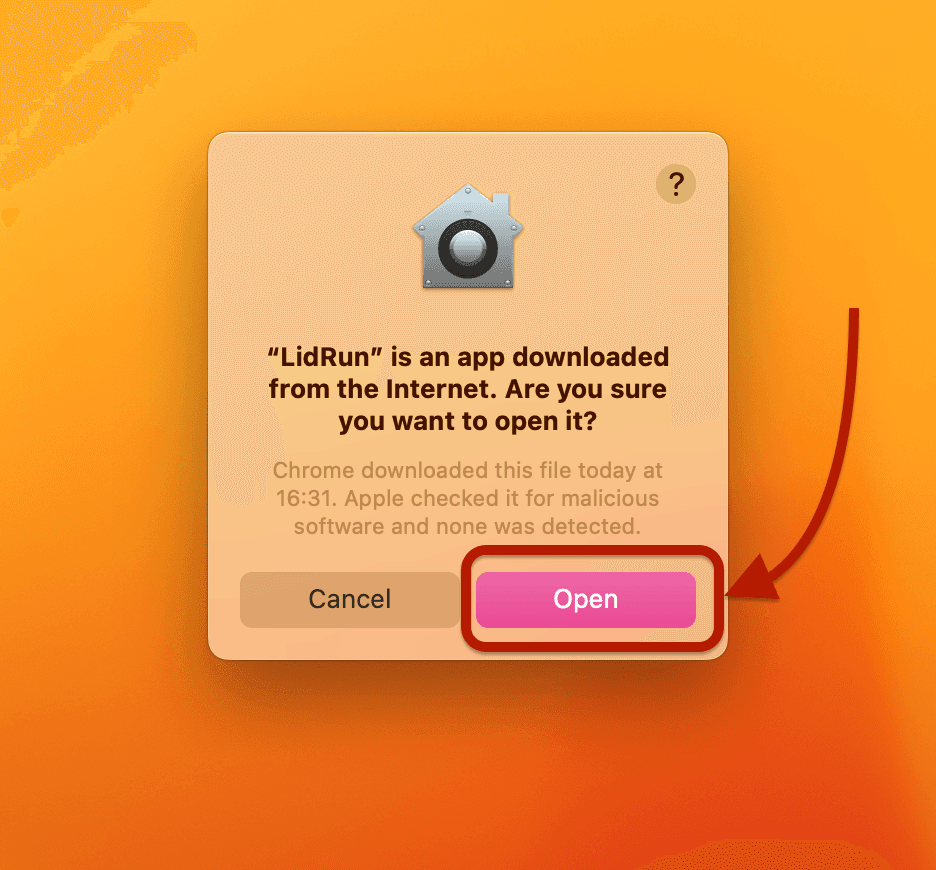
Click Open. macOS briefly shows a "Verifying…" progress indicator while Gatekeeper checks LidRun's signature and notarization ticket, then the app launches. Clicking Open doesn't grant LidRun any access to your files, camera, or data - it only tells macOS you trust this specific signed binary enough to run it once. Later permission prompts, like the Notifications one if you turn on alerts, are separate, standard macOS dialogs unrelated to this one.
That's the only extra step, and it's one-time per download, not per launch. After this first launch, LidRun opens normally like any other app, with no repeated prompts. Updates installed through LidRun's own in-app updater don't trigger this dialog again either - the updater verifies the new version itself and installs it in place, rather than routing through a fresh Finder download.

Why it's safe: signed and notarized by Apple
LidRun is signed with a real Apple Developer ID and notarized by Apple - Apple's automated service scans the actual binary for known malware signatures and confirms it hasn't been altered since signing, before macOS will let it run outside the App Store at all. Unsigned or unnotarized apps get a much harder block from Gatekeeper (a "cannot be opened because Apple cannot check it for malicious software" error, with no simple Open option - you'd have to dig into System Settings to override it). LidRun clears the notarization bar, which is why you only see the lighter "downloaded from the Internet" dialog instead.
The notarization ticket is stapled directly to the LidRun download, so the check works even if you open it offline the first time - macOS doesn't need to reach Apple's servers to confirm it. If you want to verify this yourself: spctl -a -vv /Applications/LidRun.app should report "accepted" with a Notarized Developer ID source, and codesign -dvvv /Applications/LidRun.app shows the signing authority chain.
LidRun also doesn't collect personal data beyond what's needed to run your license - see the privacy policy for the full list. The dialog you see on first launch is about running the app at all; it has nothing to do with LidRun reading your files or browsing history.
If LidRun still won't open
If macOS reports LidRun "is damaged and can't be opened" even after clicking Open, the most common cause by far is a partial or corrupted download - re-download the .dmg fresh from lidrun.com/download and try again.
The second most common cause: opening LidRun straight from the mounted DMG window instead of dragging it into Applications first. macOS can run apps launched directly from a disk image at a randomized, read-only location (Gatekeeper's app translocation), which can misbehave and also blocks LidRun's own updater from writing a new version in place later. Drag the LidRun icon onto the Applications shortcut in the DMG window before opening it - see Install LidRun for the full steps.
If it still won't launch after a fresh download and a proper Applications install, email support with what you're seeing and your macOS version (Apple menu → About This Mac).
Download LidRun and follow this guide from your own menu bar.
Frequently asked
It doesn't - that stronger warning is for unsigned apps, and recent macOS versions make those much harder to open (you'd have to dig into System Settings → Privacy & Security). LidRun is signed with a real Apple Developer ID and notarized, so the dialog you actually see just confirms it was downloaded from the Internet - a lighter, one-time check with a plain Open button.
Yes. LidRun is notarized by Apple, meaning Apple already scanned it for malware and confirmed it hasn't been tampered with before macOS even offers the Open button. This exact dialog appears for any signed app downloaded outside the App Store - it isn't specific to LidRun and isn't a red flag.
The App Store sandbox blocks the system permission LidRun needs to manage sleep and clamshell behavior - specifically, calling macOS's own pmset to hold off or disable sleep. Without that, Closed-Lid mode wouldn't work at all. Direct distribution outside the App Store is the tradeoff for keeping that feature.
No. Clicking Open only tells macOS you trust this specific signed binary enough to run it - it doesn't grant file, camera, or data access on its own. Any permission LidRun actually needs later, like Notifications, shows up as its own separate macOS prompt.
No. It's tied to opening a fresh download in Finder for the first time, not to running an already-approved app. Updates installed through LidRun's own in-app updater install in place without re-triggering it.
Re-download the .dmg from lidrun.com/download - this is almost always an incomplete or corrupted first download. If you opened LidRun straight from the mounted DMG instead of dragging it into Applications, that can also cause it, since macOS can run disk-image apps from a read-only, randomized location. Install it properly and try again; if a fresh, proper install still won't launch, email support with your macOS version.