Get Started with LidRun in 60 Seconds
LidRun keeps your Mac from sleeping while an AI agent, build, or long-running command is still working - click the menu bar icon, select Keep Awake, and your Mac stays awake until you turn it off again. That's the fastest way to get started, and it solves the exact problem that sends most people looking for a tool like this: macOS sleeping mid-task and silently killing a Claude Code session, a Docker build, or an overnight job. Everything else in LidRun - Charging Only, Timer, Auto Mode, and the safety layer underneath all of them - is a variation on when to start holding the Mac awake and when to let go.
Turn on Keep Awake
Click the LidRun icon in your menu bar. The dropdown shows a Keep Awake option - select it, and your Mac will stay awake even if it would otherwise go idle. This is what stops macOS from putting the machine to sleep in the middle of a Claude Code session, an npm build, a Docker image build, or any other job you don't want interrupted.

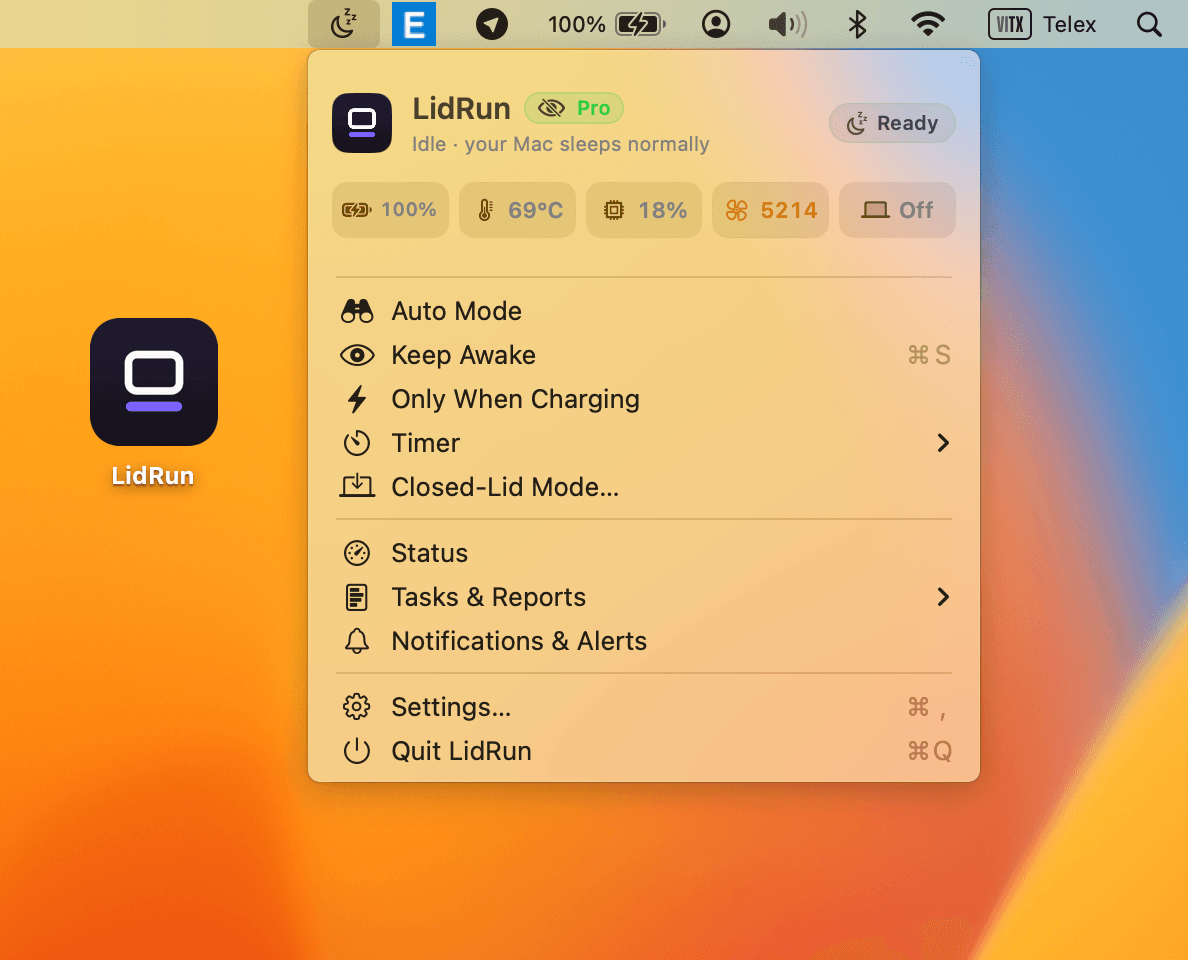
The menu bar icon changes to show LidRun is active, so you always have a visible signal for whether it's currently holding your Mac awake or not.
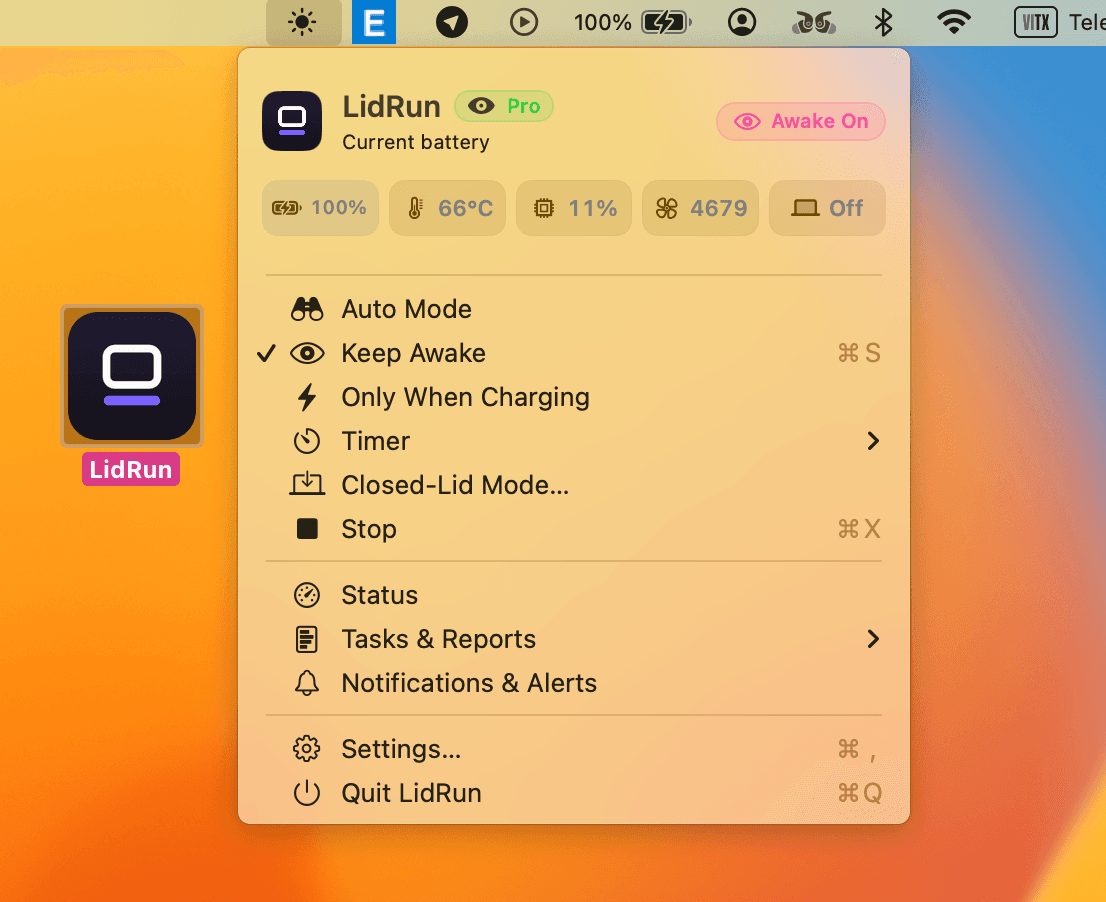
Turn it off again
Click the menu bar icon again and select Keep Awake a second time to turn it off. There's no separate 'stop' button to hunt for - the same menu item toggles it on and off.
Once it's off, your Mac goes back to its normal sleep behavior - nothing about your system settings changed, LidRun just isn't holding it awake anymore.
The other three modes
Keep Awake is the simplest mode, but the same menu has three more: Only When Charging (keeps the Mac awake only while it's plugged in), Timer (keeps it awake for a set number of minutes or hours, then stops on its own), and Auto Mode (watches for tools like Claude Code, Cursor, Docker, or Ollama and arms itself automatically).
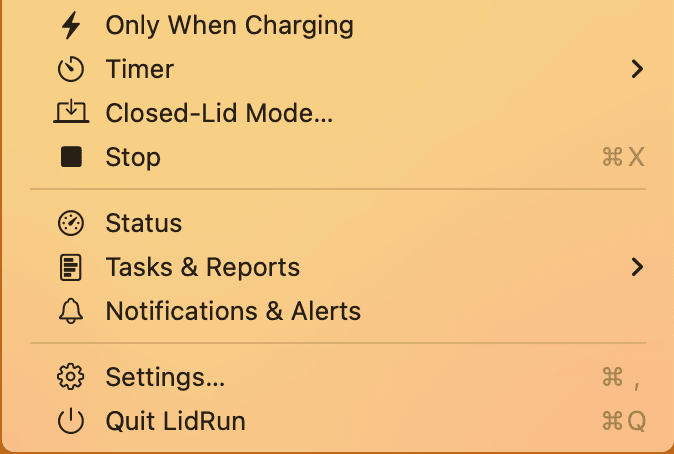
Which one to reach for depends on what you're protecting against, not on skill level. Only When Charging is the easiest default if your main worry is battery life - the Mac only stays awake while it's plugged in, so there's nothing to remember to switch off before you unplug and walk away with it. Timer suits a one-off job with a rough time budget - a render, a large file transfer, an overnight batch script - where you'd rather it release itself after a couple of hours than hold the Mac awake indefinitely if you forget it's running.
Auto Mode is the one built specifically for AI and dev work: it checks every few seconds for a list of processes - Claude Code, Codex, Cursor, Ollama, Docker, npm, cargo, xcodebuild, and dozens more - and only holds the Mac awake while at least one of them is actually doing work, not just open in a window. The moment the last watched task finishes, LidRun releases the hold on its own and the Mac goes back to sleeping normally, so you don't have to remember to turn anything off.
Keep Awake and these three modes all sit on top of the same safety layer: if the battery drops below the auto-stop threshold (20% by default, adjustable from 15-50% in Settings) or the Mac is running dangerously hot, LidRun still releases the hold - turning a mode on doesn't switch off your Mac's own protections. That's the same idea behind Closed-Lid mode, covered separately once you're ready to run with the lid shut.
Download LidRun and follow this guide from your own menu bar.
Frequently asked
Click the LidRun icon in your menu bar and select Keep Awake. Your Mac stays awake until you select it again to turn it off.
The menu bar icon changes to reflect whether LidRun is holding the Mac awake or not - check it any time you're not sure.
Keep Awake stays on until you manually turn it off. Auto Mode checks for specific tools every few seconds - things like Claude Code, Cursor, Docker, or Ollama - and arms itself once one of them starts real work, then releases the hold on its own a short while after the last one finishes. Either way, you don't have to remember to start or stop it.
No - Keep Awake on its own doesn't survive a closed lid; macOS puts the Mac to sleep the moment you close it regardless of any keep-awake assertion. For that, you need Closed-Lid mode specifically, which pairs LidRun's helper with a system-level override, covered in Enable the LidRun Helper and Running Safely with the Lid Closed.
No - it's not a blind wake lock. Underneath every mode, LidRun watches battery level and backs off when it's unsafe to keep going: by default it stops holding the Mac awake once the battery drops below 20% (adjustable in Settings), and it also releases the hold if the Mac is running dangerously hot. The idea is agent running → stay awake, agent done or unsafe → release - not awake no matter what.