Install LidRun on Mac
Installing LidRun takes about a minute: download the .dmg from lidrun.com/download, drag LidRun into Applications, then launch it from Launchpad or Spotlight. Once it opens, a small icon appears in your menu bar - that's LidRun, running and ready to keep your Mac awake while an AI agent, build, or render job is active, then let it sleep again once that work is actually done. Before you download: LidRun needs macOS 13 (Ventura) or later, and the same universal build runs on both Apple Silicon and Intel Macs, so there's nothing to pick.
Download LidRun
Go to lidrun.com/download and click the download button. LidRun ships as a single .dmg file - a disk image containing the app itself, with nothing else to configure before you open it. It's one universal build for every supported Mac, Apple Silicon or Intel, so there's no separate version to choose.

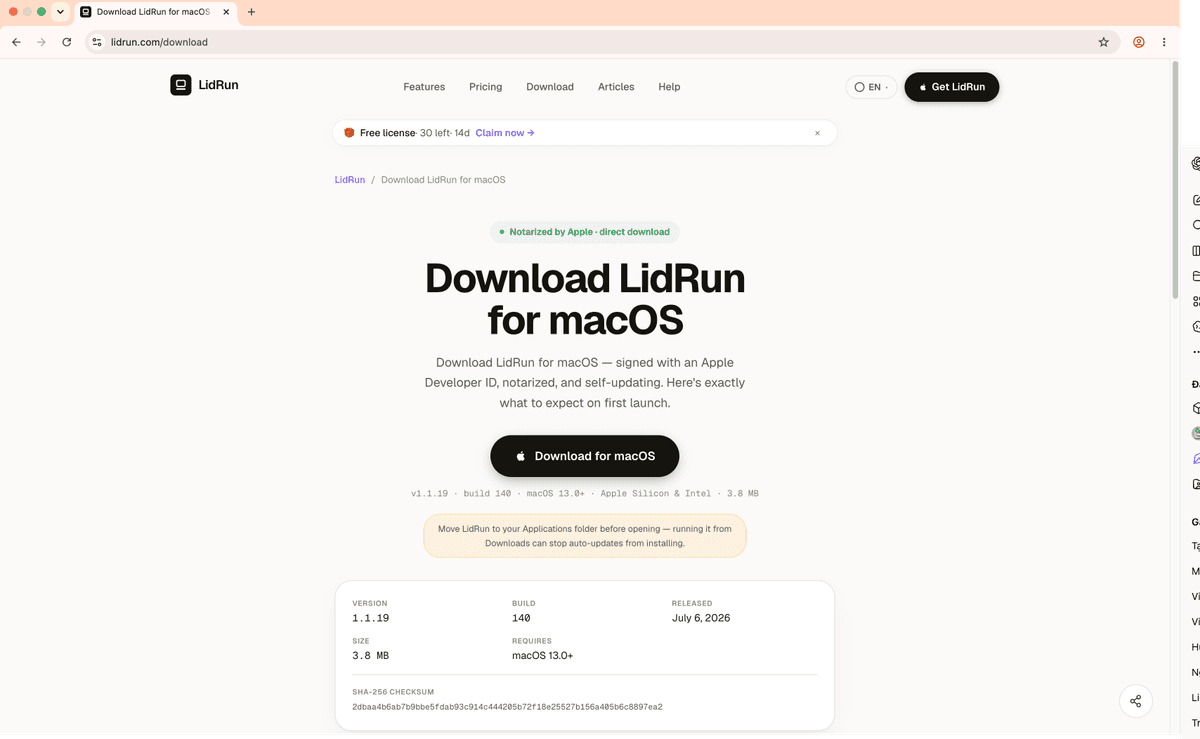
The download finishes in a few seconds on most connections - LidRun is a small menu-bar utility, not a bundled suite, so there's no long wait. Once it's done, open the .dmg from your Downloads folder, or the download bar in your browser.
Drag it into Applications
Opening the .dmg shows a small window with the LidRun icon and a shortcut to your Applications folder. Drag LidRun onto the Applications shortcut - that's the actual install step, and it takes a second. There's no installer wizard and no license agreement to click through; nothing gets written outside your Applications folder.
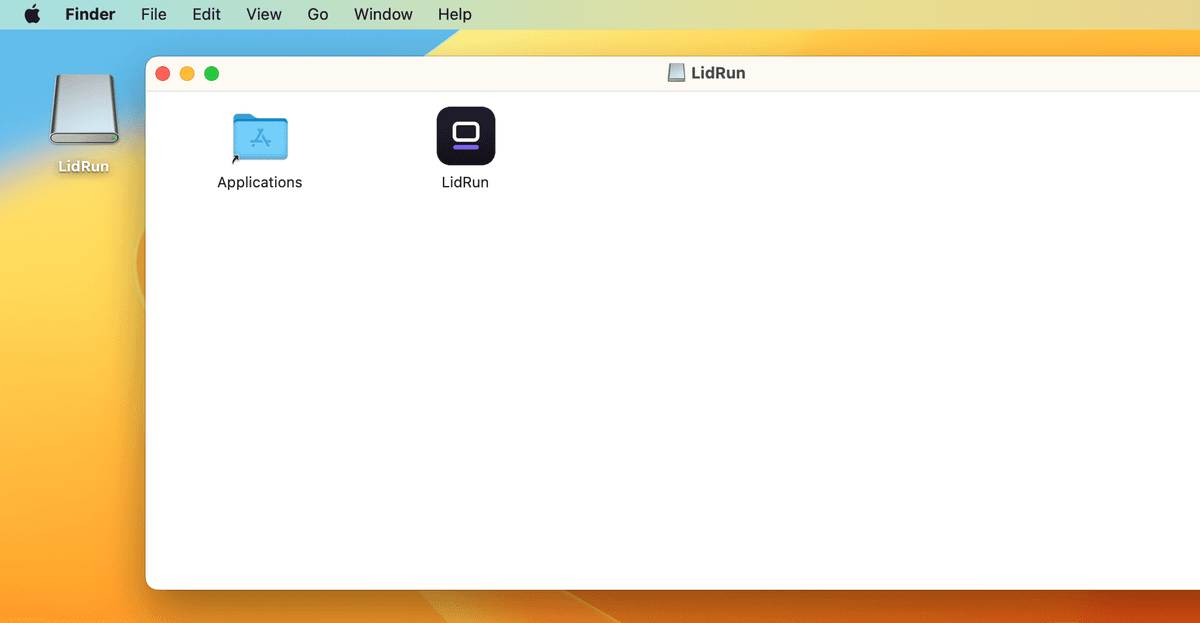
Once the copy finishes, you can eject the disk image - right-click it on your desktop and choose Eject, or drag it to the Trash. The .dmg itself isn't needed anymore once LidRun is sitting in Applications.
Launch LidRun
Open Launchpad or Spotlight (Cmd+Space), type LidRun, and press Enter. The first time you open it, macOS shows a Gatekeeper prompt asking you to confirm you want to run an app downloaded from the internet - that's a standard quarantine check macOS runs on any app that didn't come through the Mac App Store, not a warning specific to LidRun. The next guide, Opening LidRun Outside the App Store, walks through exactly what that dialog means and why it's safe to click Open.
Once LidRun launches, look at your menu bar - a small icon appears there, and nowhere else. LidRun has no dock icon and no separate main window; that menu bar icon is the whole app, and it's where you start a Keep Awake session, check status, and open Settings. The first launch also walks you through a short onboarding - safety guardrails, notifications, launch at login, and Auto-Watch - before LidRun is ready to hold your Mac awake for the work you're running and let it sleep again once that work is done.

Download LidRun and follow this guide from your own menu bar.
Frequently asked
From lidrun.com/download. LidRun isn't distributed through the Mac App Store, so this is the only official source - download links shared anywhere else should be treated with suspicion.
macOS 13 (Ventura) or later. LidRun ships as one universal build that runs natively on both Apple Silicon and Intel Macs, so there's no separate download to pick based on your chip.
No. LidRun is a single .dmg with everything it needs - no separate installer, no admin package, and no extra dependency to set up before you launch it. (An optional lidrun command-line wrapper can be added later from Settings for running commands with lidrun -- <command>, but it's not required for the app itself to work.)
Yes. Once LidRun is copied into your Applications folder, the .dmg has done its job - eject it and delete it if you want to free up the space.
Give it a few seconds after launch. If it still doesn't appear, check Launchpad to confirm LidRun actually opened - some Macs hide new menu-bar icons if the bar is full, so try quitting another menu-bar app to make room. If it still won't start, see Opening LidRun Outside the App Store for troubleshooting.