Updating LidRun
Update LidRun by clicking the menu bar icon, opening Settings, and clicking Check for Updates - or don't: LidRun checks for a new version on its own about once a day and prompts you when one's ready, so most people never need to do this by hand. If a keep-awake mode was active when the update lands, LidRun remembers it and turns it back on right after the relaunch, so a background update doesn't quietly drop the hold you're relying on.
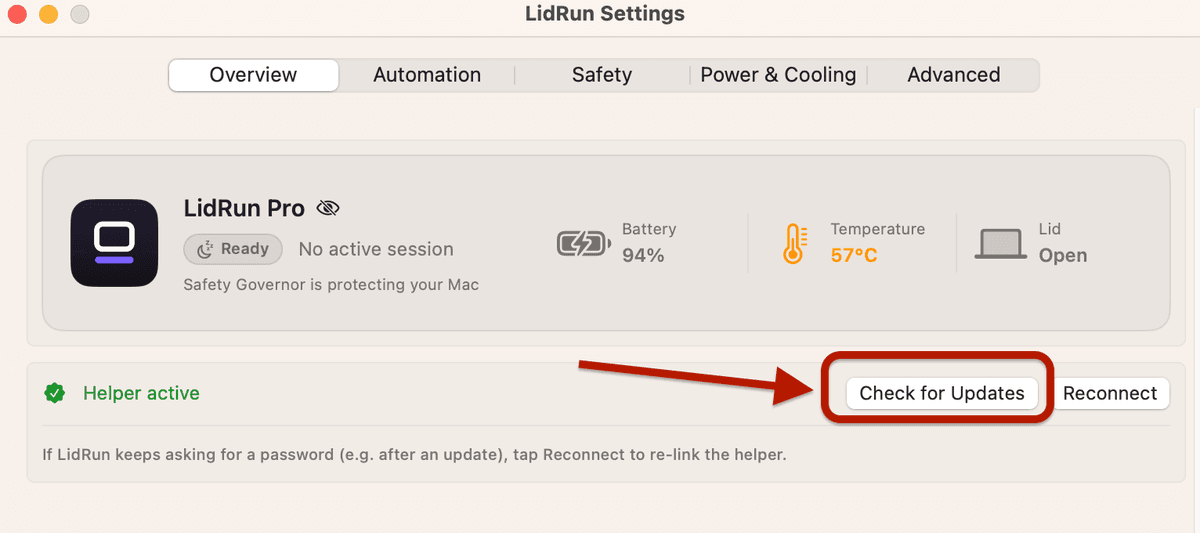
Check for updates from the menu bar
Updates aren't just version bumps - they're how LidRun's battery and thermal thresholds get tuned, notification bugs get fixed, and new auto-stop safeguards reach your Mac. lidrun.com/changelog lists what actually changed in each release, and Settings shows a View Changelog link right next to the update prompt whenever one's available.
Click the LidRun menu bar icon, open Settings, and click Check for Updates. LidRun also checks on its own about once a day in the background; when a newer version is out, it shows a short prompt with what's new before it downloads, installs, and relaunches itself - there's no .dmg to open or Applications folder to drag into for this path.

If a keep-awake mode was active when the relaunch happens - Keep Awake, Charging Only, or Auto Mode - LidRun remembers it and re-arms it right after, so an agent or task you're keeping the Mac awake for doesn't lose its hold just because a background update landed. A running Timer or an active Run Command session aren't resumed this way: a Timer's countdown wouldn't be accurate anymore, and a Run Command's process doesn't survive the relaunch, so restart those manually once you're back. Your settings, license activation, and Activity Log history aren't touched either way - they live in the system Keychain and your Mac's user preferences, not inside the app bundle that gets replaced.
If an update won't apply
Occasionally an update can fail to install cleanly. The most common cause isn't a bad download - it's where LidRun is running from: macOS blocks in-place updates when the app is still sitting in Downloads, opened straight from a mounted .dmg, or running from Gatekeeper's quarantine copy. If that's the problem, Settings shows a banner telling you LidRun can't update from its current location, with a button to reveal it in Finder - move LidRun.app into Applications, reopen it from there, and Check for Updates works normally again.
If that's not it, or Check for Updates still doesn't resolve things after a couple of tries, the reliable fix is a fresh install: go to lidrun.com/download, download the current .dmg, open it, and drag LidRun into Applications again - choose Replace when macOS asks, since you're overwriting the old version, not installing a duplicate.
Quit LidRun fully before replacing it (right-click the menu bar icon and choose Quit), then relaunch from Applications once the new copy is in place. One thing worth knowing if you use Closed-Lid mode: quitting the app turns Closed-Lid back off, on purpose - LidRun restores normal sleep whenever it isn't running to babysit that setting, rather than risk leaving your Mac unable to sleep. Turn it back on from Settings once the new version is running.
If it won't open afterward, see Opening LidRun Outside the App Store for the same first-launch dialog you saw during initial setup. And if the background helper starts asking for a password again right after either kind of update, that's usually a stale daemon reference, not a broken install - use Reconnect next to Helper active in Settings before trying a full reinstall again.
Need a license for another Mac? See pricing →
Frequently asked
No. Your license activation, keep-awake settings, and notification setup all carry over automatically - they're stored in the system Keychain and your Mac's user preferences, not inside the app itself, so replacing the app doesn't touch them.
Click the LidRun menu bar icon, open Settings, and click Check for Updates. LidRun also checks on its own about once a day, so most people never need to do this by hand.
Check Settings first - if it shows a banner saying LidRun can't update from its current location (Downloads or a mounted .dmg), move LidRun.app into Applications and try again. Otherwise, re-download the current .dmg from lidrun.com/download, quit LidRun, and drag the new version into Applications, choosing Replace when prompted. That resolves the vast majority of stuck updates.
No - your license stays activated on the same Mac through any update, including a manual reinstall via a fresh .dmg.
Not if you're on the Keep Awake, Charging Only, or Auto Mode keep-awake mode - LidRun remembers which one was active and turns it back on right after an update relaunches, so the hold doesn't quietly drop. A running Timer or a Run Command session isn't resumed this way, since the timer's clock and the command's own process don't survive the relaunch; restart those yourself once you're back.
lidrun.com/changelog lists every release and what it changed. Settings also shows a View Changelog link right next to the update prompt whenever a new version is available.