How to keep your computer awake
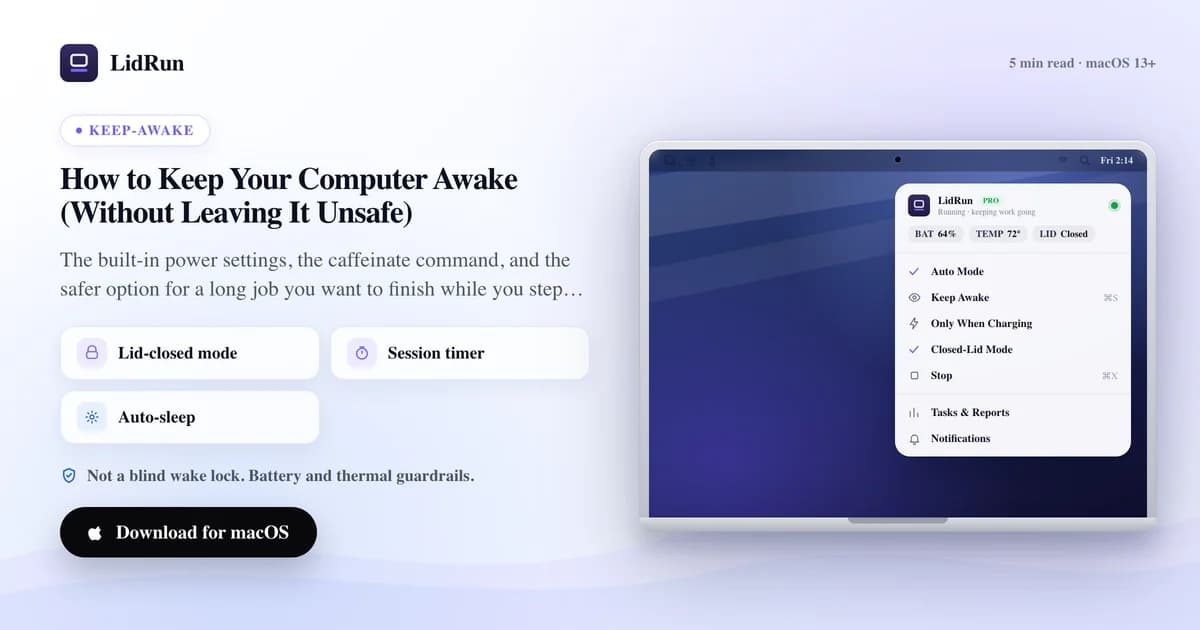
To keep your computer awake, change its power settings so the display and system stay on instead of sleeping after a few idle minutes. On a Mac that lives in System Settings; the harder part is keeping it awake for a long job you want to walk away from - especially with the lid closed. This guide covers both, with the Mac as the focus.
Why a computer sleeps in the first place
Sleep is a power-saving default, not a bug. After a stretch with no keyboard or mouse activity, the machine dims the display, then suspends itself to save energy and battery.
That is fine until you have something running that has no keyboard activity of its own - a long download, a render, a backup, a build, or an AI agent working on its own. To the computer, "no input" looks like "nobody is here," so it sleeps and takes your job down with it.
Keeping a computer awake is really about telling it "work is still happening" even when you are not touching it.
The quick answer on a Mac
Open System Settings. On a laptop, use Lock Screen and Battery; on a desktop Mac, use Energy. Turn the display-off timers up and, while on power, enable the option to prevent automatic sleeping when the display is off.
That keeps a Mac awake while it is idle with the screen open - enough for a presentation, a long read, or a download you are watching.
For a single task, the caffeinate command is cleaner: run caffeinate -i your-command and the Mac stays awake only until that command finishes, then goes back to normal on its own. No setting to undo later.
On Windows the equivalent lives in Settings → Power, and on Linux in your desktop's power settings - but the trade-offs below are the same everywhere.
Related guideHow to keep a Mac from sleepingThe part the settings do not solve
Every built-in method keeps the computer awake while the lid is open. Close a laptop lid and most of them stop - on a Mac, closing the lid triggers a separate clamshell sleep that the usual toggles and even caffeinate do not reach.
The blunt override (pmset disablesleep on a Mac) does survive a closed lid, but it keeps the machine awake no matter what: not enough battery, too much heat, three in the morning - it does not care, and it stays on until you turn it back off.
For an unattended run, the two things worth watching are exactly the two things a plain "never sleep" setting ignores: how much battery is left, and how hot the machine is getting.
A safer way for a job you walk away from
If you are on a Mac and the real goal is to close the lid and let a long job finish, LidRun is built for that. It keeps the Mac awake while the work runs, holds through a closed lid, and then lets the Mac sleep as soon as the job is done.
The difference from a permanent override is that it watches the session. If battery drops past the floor you set or the machine runs too hot, it releases and lets the Mac sleep rather than pushing the hardware - safety over convenience, not a blind wake lock.
A timer caps every run so nothing stays awake overnight by mistake, and a charging-only mode can require mains power first. It is worth trying whenever you catch yourself leaving a laptop propped open just so a job will not die.
LidRun is macOS only and free forever for the core keep-awake features; keeping the lid closed is a Pro feature.
LidRun keeps your work running with the lid closed, with battery and thermal safety built in.
Already have LidRun? Read the setup guide →
Frequently asked
Change the power settings so the display and system do not sleep on idle - System Settings on a Mac, Settings → Power on Windows. For a single task, the Mac's caffeinate command holds it awake only until that task finishes, then releases automatically.
Most built-in settings stop when the lid closes. On a Mac, closing the lid triggers a separate clamshell sleep; you need pmset disablesleep or a tool like LidRun, which keeps the Mac awake lid-closed and adds a battery floor, thermal guardrails, and a timer.
It can, because the machine keeps drawing power instead of suspending. On a laptop, stay on mains power for long jobs, or use a method that stops automatically at a low-battery threshold rather than one that runs the battery flat.
Mainly heat and battery use while it runs unattended, plus the risk of forgetting a permanent override is on. Prefer a method that ends on its own - a finished command, a timer, or a battery and thermal cutoff - over one you have to remember to turn off.