Running Safely with the Lid Closed
Closing the lid puts a Mac to sleep no matter what keep-awake mode you're running - Keep Awake, Timer, Charging Only, and Auto Mode only block idle sleep, not the separate sleep macOS triggers on lid-close - unless you specifically turn on Closed-Lid mode first. Here's why that gap exists, how to turn Closed-Lid mode on correctly, and the real battery and thermal thresholds that keep an unattended run safe.
Keep Awake alone does not survive a closed lid
This is the single most common mix-up: turning on Keep Awake, closing the lid, and expecting the work to keep running. It won't - macOS puts the Mac to sleep the moment the lid shuts, regardless of what keep-awake mode is active. Keep Awake, Timer, Charging Only, and Auto Mode all hold off idle sleep, but none of them override the lid-close sleep on their own.
The reason is architectural, not a LidRun shortcoming: those modes hold an IOKit power assertion, and an assertion only blocks idle sleep - the sleep macOS triggers because nothing's been touched in a while. Closing the lid fires a separate, lower-level clamshell sleep that no assertion can stop. The only lever that prevents lid-close sleep on battery is a system-wide setting, pmset disablesleep, which needs administrator privileges to change. That's what Closed-Lid mode actually flips for you - and why macOS asks for a password the first time, before the Helper is enabled.
Closed-Lid mode is the one setting that actually changes this behavior. If you need work to keep running with the lid shut, that's the mode to turn on - not just Keep Awake.

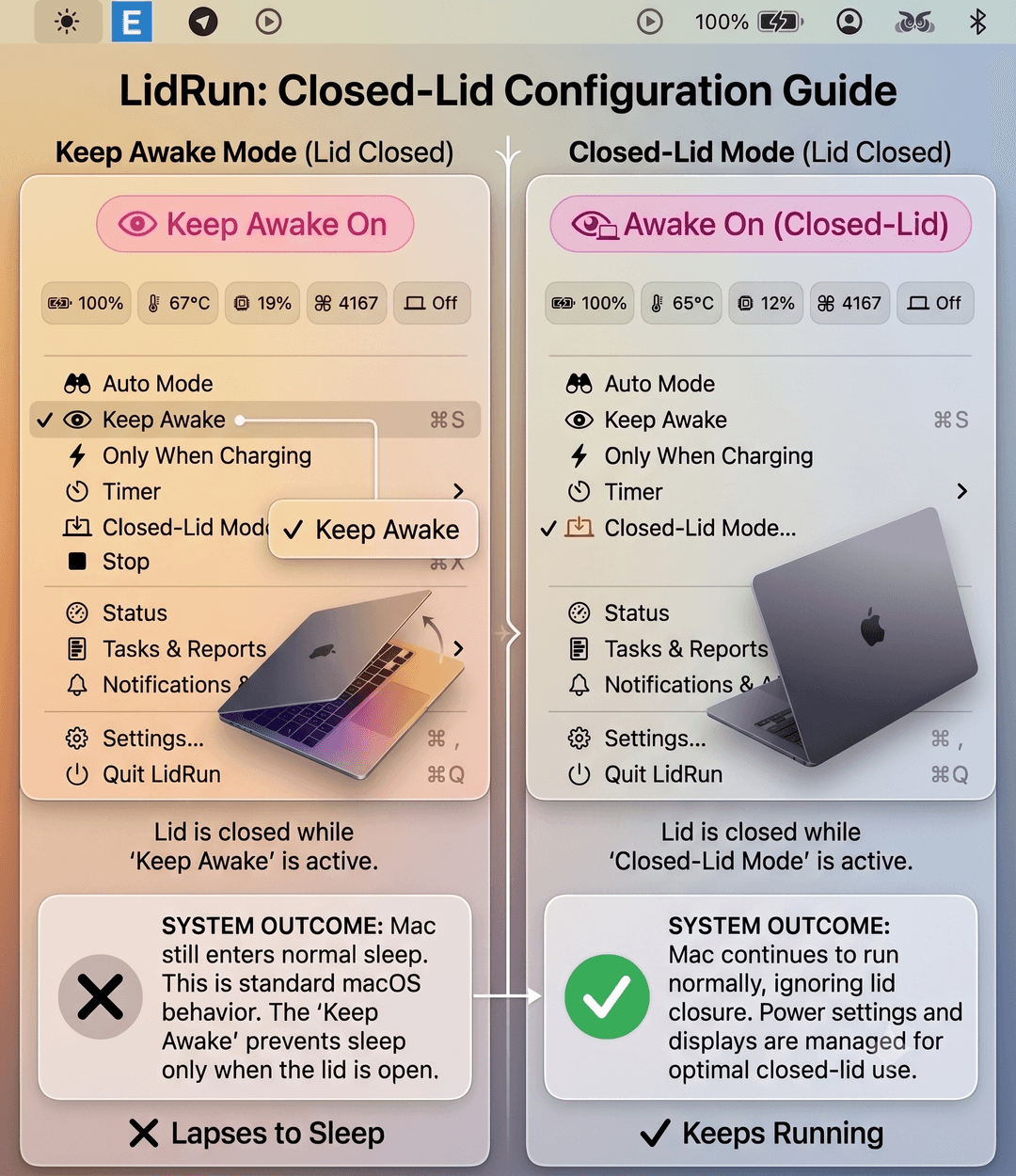
One exception: if the Mac is on AC power with an external display and a keyboard or mouse attached, macOS already keeps it awake with the lid closed on its own - that's native Apple clamshell support, not something LidRun adds. Closed-Lid mode matters for the case that isn't covered: running on battery, or with no external display.
Turn on Closed-Lid mode correctly
Click the menu bar icon and select Closed-Lid Mode. You'll see two options: 'Sleep when done', marked Recommended, where the Mac sleeps automatically once the job actually finishes, and 'Stay awake until I turn it off', which stays awake indefinitely until you end it yourself.
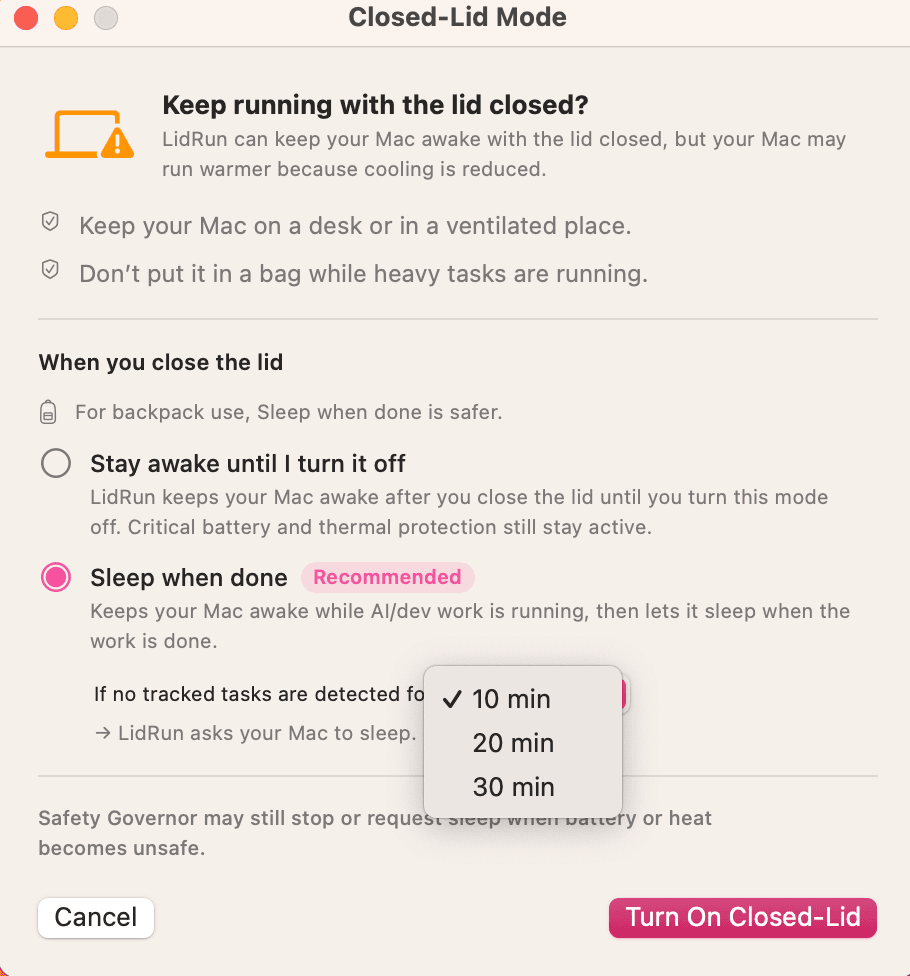
'Sleep when done' watches for tracked AI or dev work and, once none has been active for a set idle window - 10 minutes by default, adjustable to 20 or 30 - asks the Mac to sleep. That's a shorter window than the general Auto Sleep default, on purpose: a closed lid runs warmer, so there's less reason to hold it open once the work is actually finished.
Pick one, confirm, and only then close the lid. Turning on Closed-Lid mode after the lid is already closed doesn't work - the sequence matters.
If you haven't enabled the LidRun Helper yet, macOS will ask for your administrator password each time this turns on - that's the same disablesleep permission prompt from above, not a LidRun nag. See Enable the LidRun Helper to skip that step going forward.
The safety habits that actually matter
Airflow is the one thing no app can fix for you. Keep the Mac on a hard, flat, ventilated surface - never inside a closed bag or backpack while a job is running. A closed-lid Mac generates real heat, and a sealed enclosure traps it. If you're planning to move around with it running - a backpack for the commute, say - 'Sleep when done' is the safer of the two modes: it ends the session as soon as the work does, instead of holding the Mac awake indefinitely inside a bag.
LidRun watches your battery level and thermal state throughout the session and can back off on its own. Settings → Safety has a graduated battery scale: a heads-up warning at 15% by default, a stronger warning at 5%, and a force-sleep floor at 4% that releases every keep-awake hold and asks the Mac to sleep outright, so it can't run itself down to a hard shutdown. That floor always runs, even with other warnings turned off, and can only be raised, never pushed below 4%. Separately, an auto-stop threshold - 20% by default, adjustable from 15% up to 50% - ends a keep-awake session before the battery gets anywhere near that low. On the thermal side, 'Drop Closed-Lid if the Mac gets too hot' (on by default in Settings → Safety) automatically ends Closed-Lid mode if the chip reaches macOS's 'critical' thermal level.
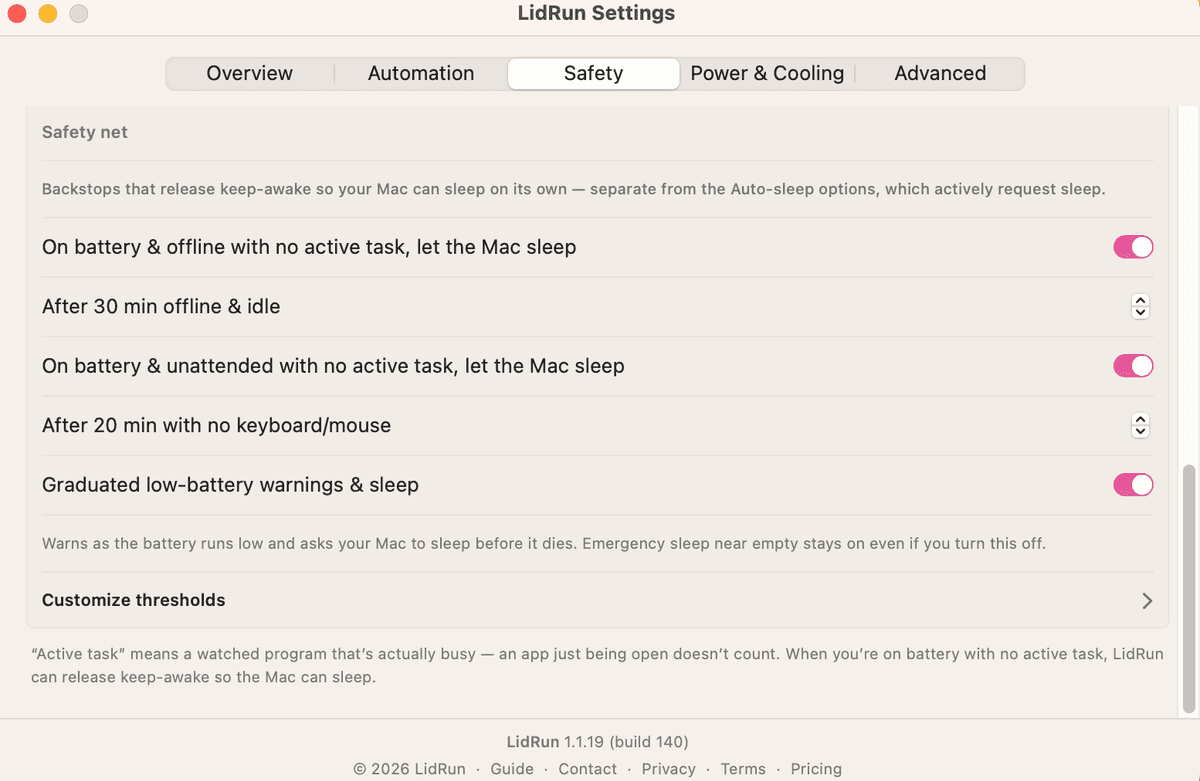
That safety net only works if you've actually left it configured - check it before a long overnight run, not after. And it only steps in when the Mac is genuinely idle or unsafe: a Mac that's actively in use is never forced to sleep.
Crashes are the other edge case worth knowing about. If LidRun quits or is force-quit while Closed-Lid mode is on, the disablesleep setting stays flipped on - the Mac won't fall back to sleeping on its own. LidRun checks for that leftover state the next time it launches and resets it automatically, but that recovery only fires on the next launch, not while the Mac is sitting there mid-session, and without the Helper enabled it asks for your admin password again, the same as turning the mode on does.
Be honest about what this is: LidRun helps reduce risk, it isn't a guarantee that nothing goes wrong. The same promise - agent running, stay awake; agent done or unsafe, release and sleep - applies with the lid closed as with it open. Placement and airflow are still your responsibility.
Need a license for another Mac? See pricing →
Frequently asked
Keep Awake blocks idle sleep by holding a power assertion, but an assertion can't override the separate clamshell sleep macOS triggers when you close the lid. For that you need Closed-Lid mode specifically - turn it on before closing the lid, not Keep Awake alone.
'Sleep when done', marked Recommended, watches for tracked AI/dev work and lets the Mac sleep automatically once none has been active for a set idle window (10 minutes by default), so there's no need to remember to turn it off. 'Stay awake until I turn it off' keeps it running indefinitely until you end the session yourself - useful if you're not sure how long the job will take.
It can be, with the right setup: a hard ventilated surface, a low-battery floor you've actually set, and ideally the Helper enabled for automatic recovery. LidRun helps reduce risk by watching battery and thermal state, but it doesn't eliminate the physical reality of a closed, heat-trapping enclosure - never run it inside a bag.
No, but without it macOS asks for your administrator password every time Closed-Lid mode turns on - and if LidRun quits or crashes mid-session, the automatic recovery on the next launch has to ask for that same password again before it can reset things. See Enable the LidRun Helper for the one-time setup.
The system-wide sleep setting it flipped (disablesleep) stays on until something resets it, so the Mac won't sleep on its own in the meantime. LidRun checks for that leftover state the next time it launches and resets it automatically - with the Helper enabled that happens silently, without it you'll see one more admin-password prompt.
Not always. If the Mac is on AC power with an external display and a keyboard or mouse connected, macOS already keeps it awake with the lid closed on its own - that's a native macOS feature, not something LidRun adds. Closed-Lid mode is for what that doesn't cover: running on battery, or with no external display attached.