Ứng dụng giữ Mac không ngủ tốt nhất cho AI developer — hướng dẫn 2026
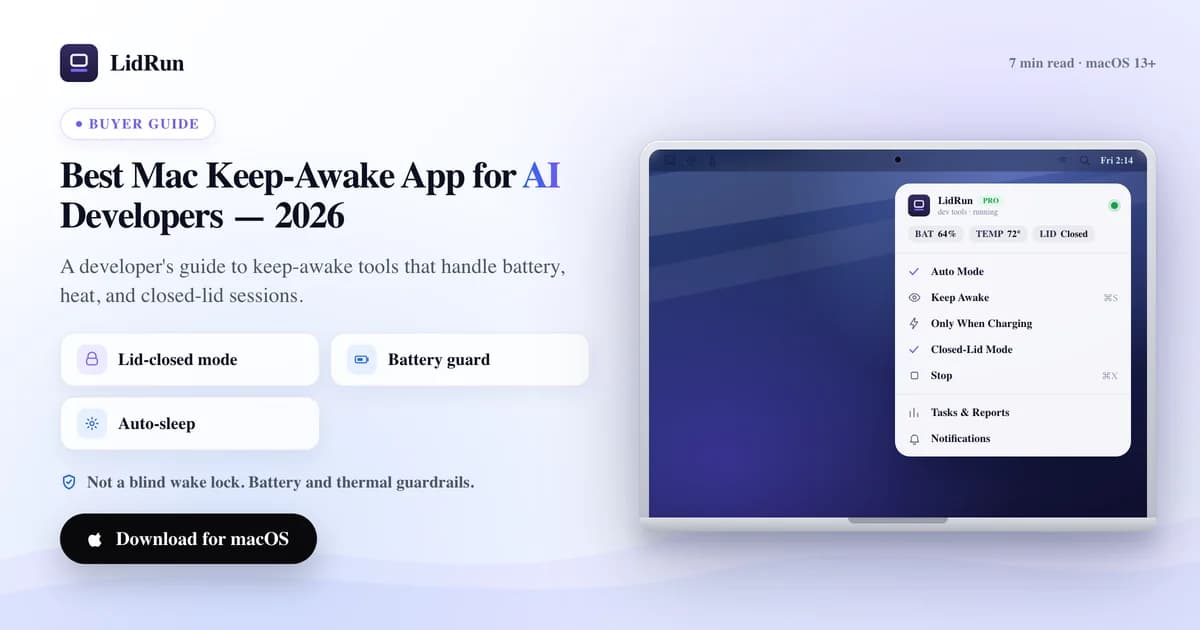
Không có một ứng dụng "giữ Mac không ngủ" nào là tốt nhất tuyệt đối — lựa chọn đúng phụ thuộc vào việc bạn chỉ cần bật/tắt thủ công trong năm giây, hay cần thứ gì đó theo dõi pin, nhiệt độ, và workload thực tế trong lúc một AI agent chạy không người giám sát qua đêm. Bài này so sánh các tùy chọn miễn phí có sẵn trong macOS (caffeinate, pmset disablesleep) với các ứng dụng bên thứ ba phổ biến (Amphetamine, KeepingYouAwake, Lungo, Caffeine) và LidRun, dùng cùng một bộ tiêu chí cho tất cả, để thấy rõ mỗi ứng dụng thực sự trụ được đến đâu khi Claude Code, Cursor, Codex, hay Ollama chạy lâu hơn cả sự kiên nhẫn của bạn.
Tiêu chí thực sự phân biệt các ứng dụng này
Giữ màn hình hay hệ thống không ngủ là yêu cầu tối thiểu — caffeinate làm được điều đó chỉ với một dòng lệnh, và mọi ứng dụng trong bài này đều vượt qua mức đó. Đây không phải là chỗ để developer chọn ra người thắng cuộc.

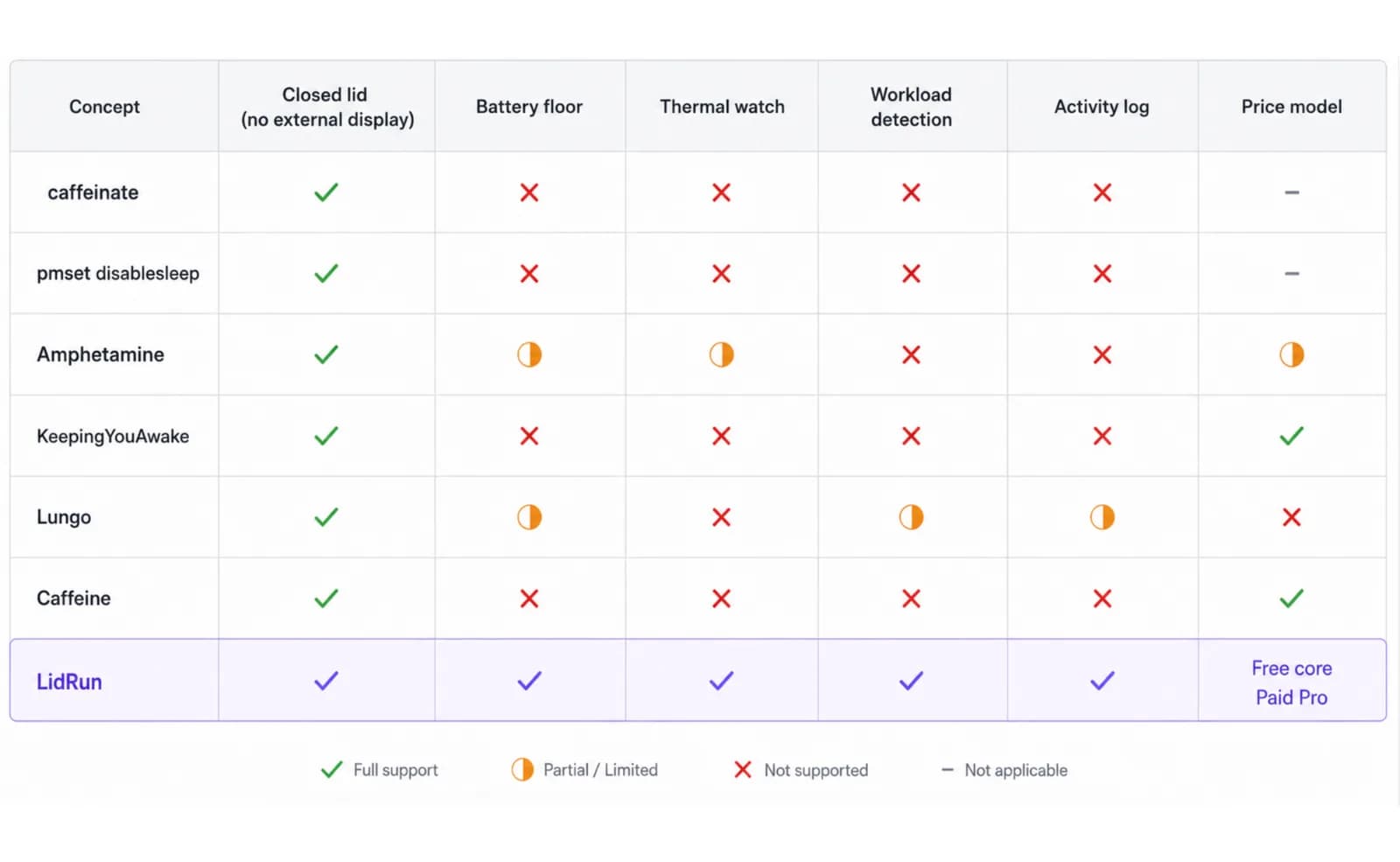
Với một lần chạy AI agent có thể bắt đầu lúc 11 giờ đêm và kết thúc bất cứ lúc nào, có năm yếu tố quyết định một ứng dụng có thực sự an toàn để cứ thế để chạy hay không: nó có hoạt động khi đóng nắp mà không cần màn hình ngoài không, nó có dừng lại trước khi pin cạn kiệt không, nó có theo dõi trạng thái nhiệt của chip và tự lùi lại khi cần không, nó có tự kích hoạt khi công cụ dev hay AI của bạn đang thực sự chạy thay vì phải bật tay không, và nó có bắt bạn trả phí subscription cho một việc nhỏ như vậy không.
Bên dưới, từng lựa chọn sẽ được đo theo năm tiêu chí đó — kể cả hai lựa chọn mà developer nào cũng đã có sẵn miễn phí.
Lựa chọn miễn phí đã có sẵn trên Mac của bạn: caffeinate và pmset
caffeinate đi kèm sẵn trong macOS và thực sự hữu ích. caffeinate -i chặn idle sleep, -d chặn display sleep, -s chặn system sleep, và -w <pid> gắn assertion vào một process cụ thể để nó tự giải phóng ngay khi process đó thoát — caffeinate -i -w $(pgrep -f claude) sẽ giữ Mac không ngủ đúng bằng khoảng thời gian một process Claude Code còn sống. Một điểm cần lưu ý thật sự: theo chính man page của nó, -s "chỉ có hiệu lực khi hệ thống đang chạy bằng nguồn AC" — dùng pin thì nó không có tác dụng gì.
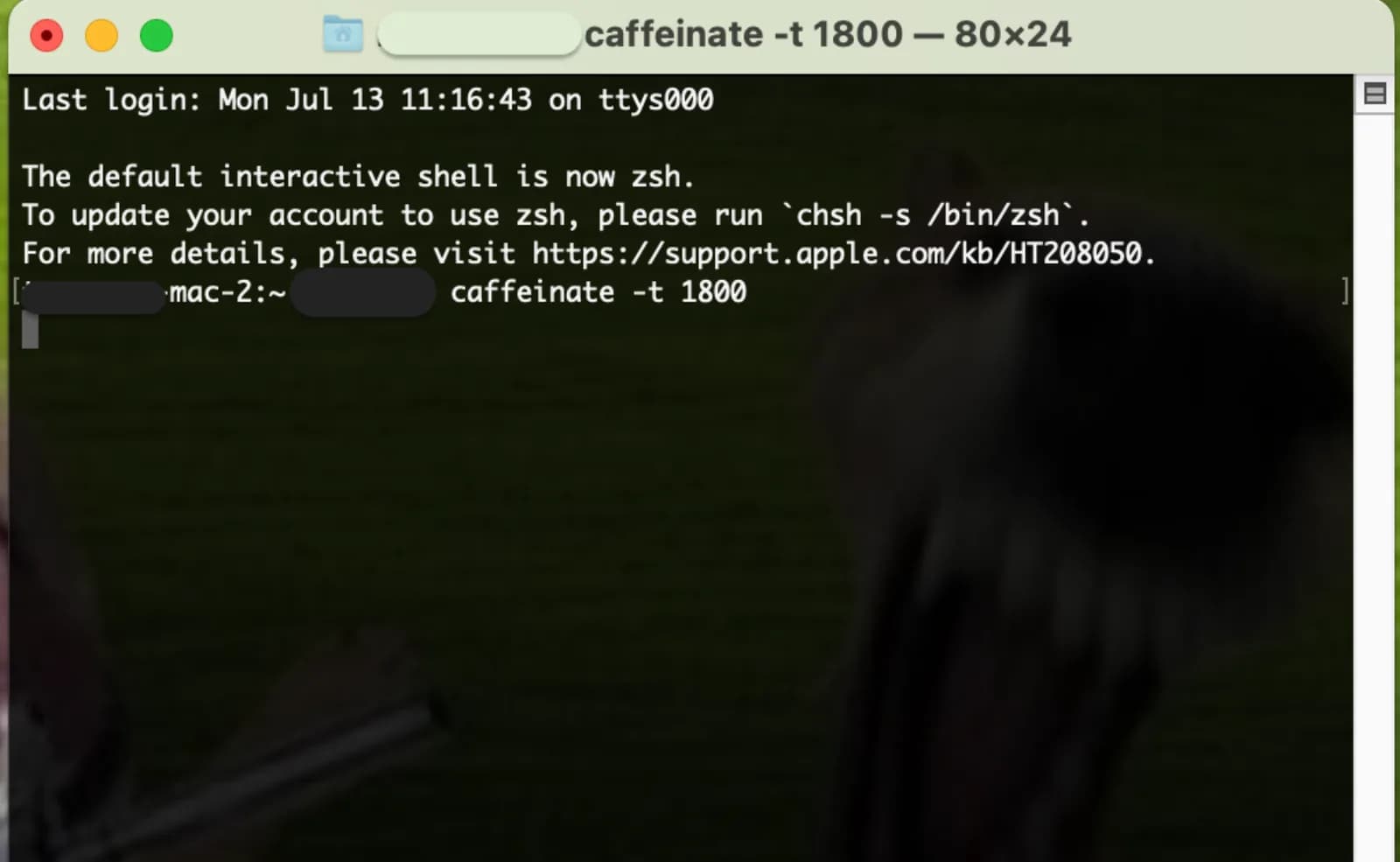
caffeinate không tự đụng đến việc đóng nắp; đóng nắp máy vẫn khiến Mac ngủ dù đang giữ assertion nào đi nữa. Những developer cần đóng nắp mà không dùng màn hình ngoài thường dùng đến sudo pmset disablesleep 1, lệnh này bảo macOS không tự ngủ nữa, dù nắp đóng hay mở. sudo pmset disablesleep 0 sẽ trả lại như cũ.
Cả hai đều miễn phí, đều có thể viết script, và cả hai gần như là những gì một số ứng dụng trả phí bên dưới đang bọc lại trong một giao diện menu-bar.
Hướng dẫn liên quanQuy trình làm việc đóng nắp MacBook cho developerGiới hạn của caffeinate và pmset
Cả hai đều không có khái niệm "an toàn". caffeinate -i sẽ giữ một MacBook không ngủ ngay cả khi pin còn 2%, cho tới khi máy tắt cứng thay vì ngủ êm ái — không có ngưỡng nào để chặn lại. pmset disablesleep 1 rủi ro hơn ở một điểm cụ thể: đây là cài đặt hệ thống toàn cục, không gắn với process nào, nên rất dễ vô tình để quên bật. Đóng nắp trong lúc disablesleep đang bật cũng có nghĩa Mac tiếp tục chạy nóng bên trong túi hay trên đế tản nhiệt bị bít khe thoát khí, mà không có gì theo dõi trạng thái nhiệt để tự lùi lại.
Cả hai cũng không ghi log gì cả. Sáng hôm sau quay lại thấy pin cạn hoặc Mac đang ngủ, chẳng có bản ghi nào cho biết job đã chạy xong, pin hết, hay quạt không tản kịp nhiệt — chỉ còn cách lục pmset -g log rồi đoán.
Không ngưỡng pin, không nhận biết nhiệt, không có lưới an toàn khi đóng nắp, không bản ghi lại chuyện gì đã xảy ra — chính tổ hợp thiếu sót đó là khoảng trống mà mọi ứng dụng bên dưới đang cố lấp, kể cả LidRun.
Amphetamine, KeepingYouAwake, Lungo, và Caffeine — mỗi ứng dụng trụ được đến đâu
Amphetamine (miễn phí, Mac App Store) có hệ thống trigger phong phú nhất trong nhóm này — có thể kích hoạt theo lúc mở ứng dụng, mạng Wi-Fi, mức pin, hay lịch trình, và vẫn đang được cập nhật đều đặn. Nó không có gì dành riêng cho AI/dev (không có trigger "Claude Code đang chạy" dựng sẵn, trừ khi bạn tự cấu hình rule theo app-launch), và vì bị sandbox theo chuẩn App Store nên nó không thể đụng vào pmset disablesleep — muốn đóng nắp vẫn cần màn hình ngoài, y hệt macOS gốc.
KeepingYouAwake (miễn phí, mã nguồn mở) là ứng dụng đáng giới thiệu không chút do dự nếu bạn thực sự chỉ cần một nút bật/tắt trên menu-bar kèm hẹn giờ — đơn giản, giấy phép MIT, làm đúng những gì tên nó nói. Không ngưỡng pin, không giám sát nhiệt, không nhận diện workload, không đóng nắp mà thiếu màn hình ngoài.
Lungo (miễn phí/trả phí, Mac App Store) còn tối giản hơn cả KeepingYouAwake — một nút bật/tắt và một bộ chọn thời lượng, không gì khác. Hợp cho kiểu "giữ máy không ngủ trong một giờ tới", không được thiết kế cho một lần chạy qua đêm không người giám sát.
Caffeine, biểu tượng ly cà phê trên menu-bar nguyên bản từ Lighthead Software, chính là ứng dụng đặt tên cho cả thể loại này. Đây là ứng dụng đơn giản nhất trong bốn cái, vẫn hoạt động tốt, và không có bất kỳ tính năng an toàn hay nhận diện nào trong bài này.
Không cái nào trong bốn ứng dụng này tệ cả — chúng thành thật rằng mình chỉ là nút bật/tắt đơn giản, và nếu một developer thực sự chỉ cần bật/tắt thủ công, bất kỳ cái nào trong số đó cũng là lựa chọn miễn phí ổn, hơn là trả tiền cho thứ có nhiều cơ chế phức tạp hơn.
LidRun so sánh ra sao trên cùng năm tiêu chí
Đóng nắp không cần màn hình ngoài: Closed-Lid Mode của LidRun dùng đúng cơ chế pmset disablesleep như thủ thuật thủ công ở trên, nhưng luôn ghép cặp 1 với một 0 tương ứng — dừng phiên, thoát ứng dụng, hay khởi động lại sau một lần crash, nó đều tự động đưa cài đặt về trạng thái tắt. Cùng một cơ chế, chỉ là bớt đi rủi ro "lỡ quên tắt lại".
Ngưỡng pin: bản miễn phí có sẵn Low Battery Auto-Stop với các mốc cảnh báo tăng dần — cảnh báo sớm ở 15%, cảnh báo mạnh hơn ở 5%, và một ngưỡng buộc ngủ mặc định ở 4% (có thể chỉnh 4–8%) sẽ giải phóng mọi hold giữ máy không ngủ, để Mac tự ngủ theo cách của nó thay vì chạy đến khi tắt cứng.
Giám sát nhiệt: Safety Governor đọc tín hiệu nhiệt bốn mức của Apple (Normal, Fair, Hot, Very Hot) và giải phóng hold giữ máy không ngủ khi chạm mức Very Hot; một tùy chọn thêm sẽ đẩy Mac vào ngủ thật nếu vẫn ở mức đó — trường hợp quan trọng khi một Mac đóng nắp lỡ nằm ở nơi khe thoát khí bị bít.
Nhận diện workload: Auto Mode theo dõi một danh sách mặc định gồm claude, codex, cursor, ollama, docker, node, và python, kể cả các process script như một file train.py đang chạy dưới python3, rồi tự kích hoạt hoặc tắt tương ứng, với một ngưỡng CPU và thời gian giữ (holdoff) 60 giây để không bật tắt loạn xạ khi một process chỉ đang chờ I/O giữa các token.
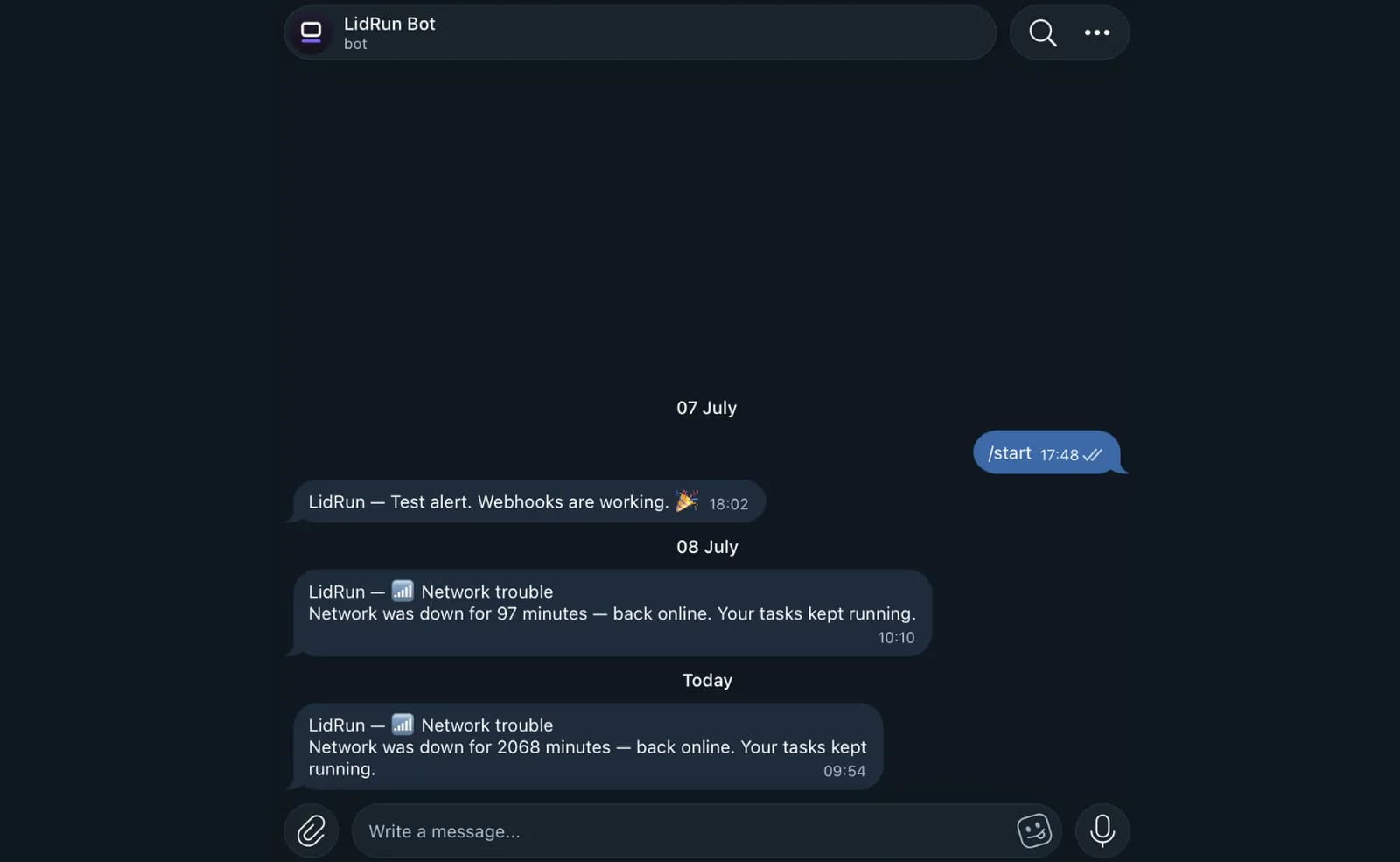
Activity Log và giá: mọi lần dừng, timeout, hay chạm ngưỡng đều được ghi vào Activity Log, để một lần chạy qua đêm không kết thúc bằng việc đoán mò. Low Battery Auto-Stop, Safety Governor, và Activity Log đều nằm trong bản miễn phí; Auto Mode, Closed-Lid Mode, và các tính năng Pro còn lại là mua một lần, không subscription, có 14 ngày để hoàn tiền.
Vậy bạn nên chọn cái nào
Nếu bật/tắt thủ công là đủ — một buổi chia sẻ màn hình, xem phim, hay một lần build nhanh — KeepingYouAwake, Lungo, hoặc Caffeine đều miễn phí và làm tốt đúng việc đó; không có lý do gì phải trả tiền cho nhiều hơn.
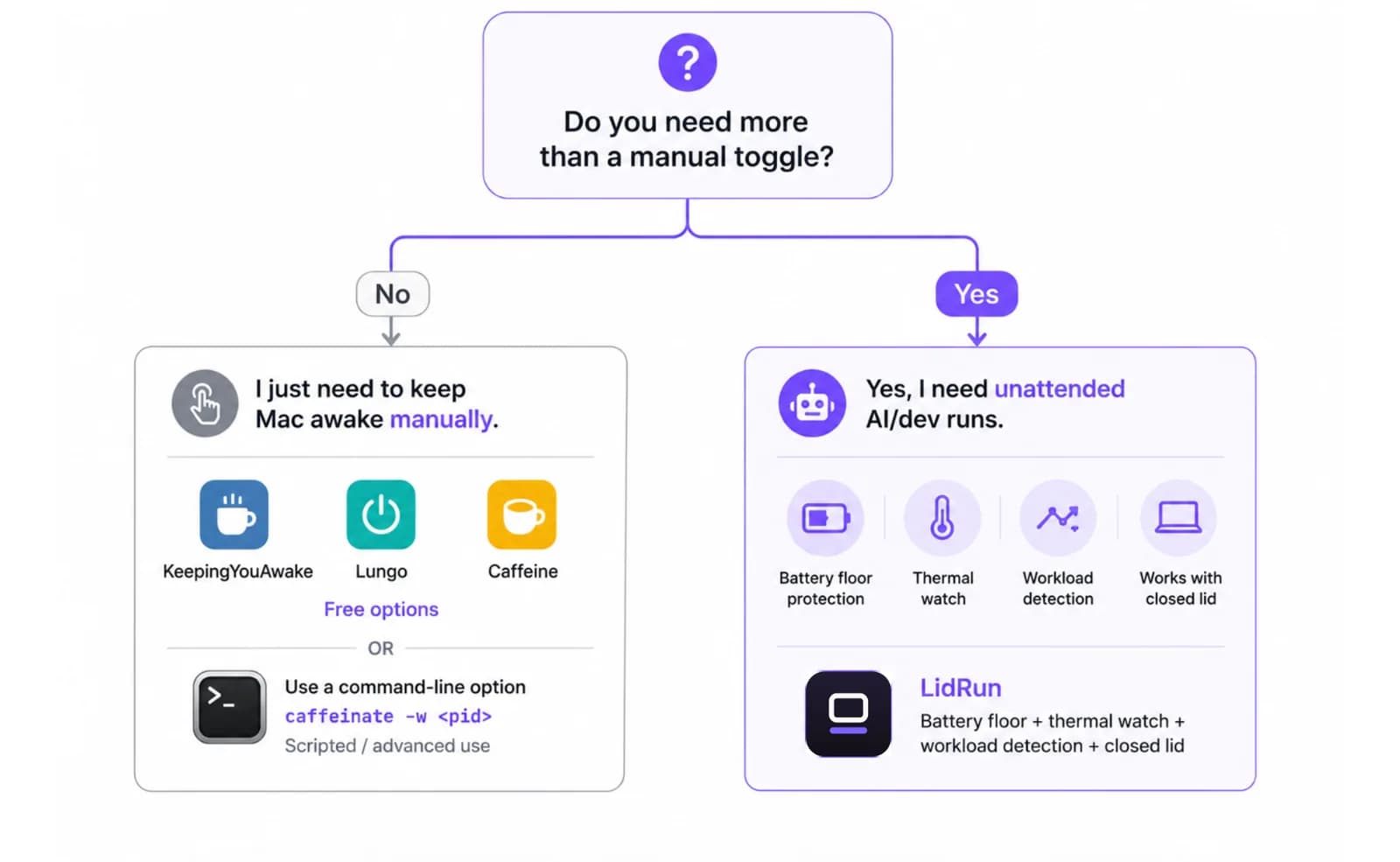
Nếu job được script hóa và gắn với một process cụ thể, caffeinate -w <pid> vẫn là công cụ đúng, và nó đã có sẵn trên Mac.
Nếu công việc là Claude Code, Cursor, Codex, hay Ollama chạy không người giám sát qua đêm, đóng nắp máy, hay một Mac nằm trong túi giữa các lần chạy, thì các lựa chọn miễn phí và có sẵn trong hệ thống không theo dõi pin hay nhiệt, còn Amphetamine, KeepingYouAwake, và Lungo thì không biết một coding agent là gì. Đó chính là khoảng trống mà LidRun được xây để lấp — đáng để thử với một lần chạy thật xem nó có trụ được không.
LidRun giữ công việc của bạn chạy tiếp khi đóng nắp, với cơ chế bảo vệ pin và nhiệt tích hợp sẵn.
Đã có LidRun? Đọc hướng dẫn thiết lập →
Mới biết đến LidRun? Xem bảng giá →
Câu hỏi thường gặp
Hỗ trợ đóng nắp mà không cần màn hình ngoài, một ngưỡng pin dừng lại trước khi cạn kiệt, giám sát nhiệt biết lùi lại khi Mac chạy nóng, và tự động kích hoạt cho các công cụ như Claude Code, Cursor, Codex, và Ollama thay vì phải bật tay.
Chúng sẽ giữ Mac không ngủ, nhưng cả hai đều không theo dõi pin hay nhiệt, và pmset disablesleep là một cài đặt toàn cục rất dễ vô tình để quên bật. Chúng ổn cho một tác vụ ngắn, có người theo dõi; còn với một lần chạy qua đêm không người giám sát thì chúng thiếu lưới an toàn.
Nếu không có ngưỡng chặn, có — một wake lock trần hay pmset disablesleep 1 sẽ giữ Mac không ngủ thẳng đến khi tắt cứng, thay vì ngủ êm ái. Bản miễn phí của LidRun có Low Battery Auto-Stop với ngưỡng buộc ngủ mặc định ở 4% (có thể chỉnh 4–8%), để những lần chạy không cắm sạc tự dừng lại trước khi chuyện đó xảy ra.
Nếu chỉ cần bật/tắt thủ công thì không — caffeinate, KeepingYouAwake, Lungo, và Caffeine đều miễn phí và làm tốt đúng việc đó. Trả tiền là hợp lý khi nhận diện workload, hỗ trợ đóng nắp, và các ngưỡng an toàn thực sự quan trọng cho những lần chạy AI hay dev dài, không người giám sát; bản miễn phí của LidRun đã có sẵn Low Battery Auto-Stop và an toàn nhiệt, còn bản trả phí (mua một lần, không subscription) thêm Auto Mode và Closed-Lid Mode.
Danh sách mặc định của Auto Mode gồm claude, codex, và cursor trong nhóm AI CLI, các runtime chạy model cục bộ như ollama, và các công cụ build hay container gồm docker, node, python, và cargo — cộng thêm bất kỳ thứ gì bạn tự thêm vào.
Có thể dùng như vậy, với những developer đã vượt qua nhu cầu bật/tắt thủ công. KeepingYouAwake và Amphetamine đều làm tốt việc của mình — lần lượt là các phiên đơn giản và hệ thống trigger phong phú. Trọng tâm của LidRun là nhận diện workload AI và dev, các lần chạy đóng nắp, cùng các ngưỡng an toàn pin và nhiệt mà cả hai ứng dụng đó đều không có.